Ericsson | Antenna Line Congurator
29
8�6�2 Update the ALC Firmware
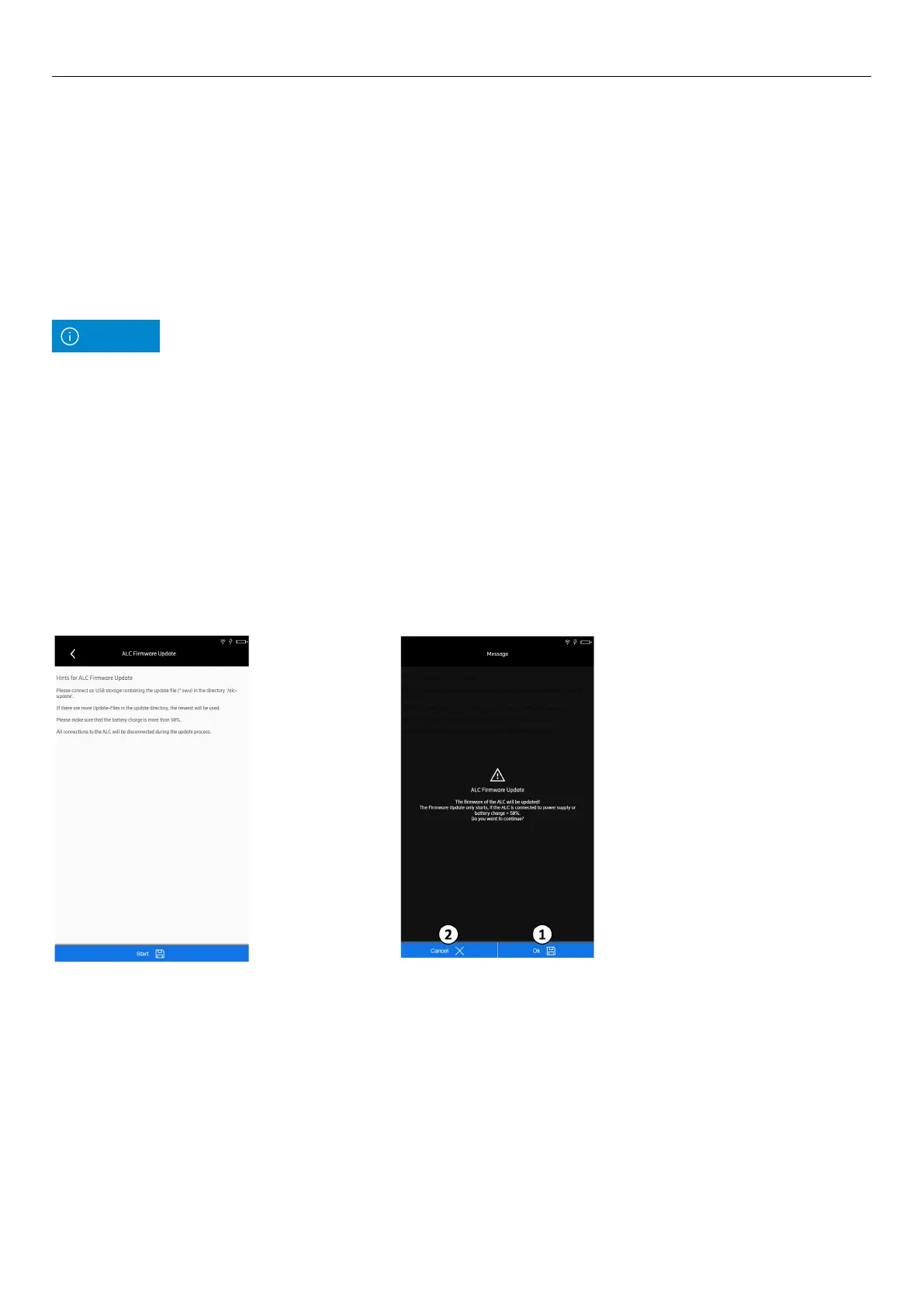
1� Tap the Software update submenu (② in Fig� 25)�
The following message is shown:
2� Tap Save to continue with the firmware update� The
following message is shown:
3� Tap OK (
① in Fig� 30) to continue with the firmware
update�
4� Tap Cancel (
② in Fig� 30) to cancel the update�
5� If you have tapped OK, the ALC it automatically
searches the USB and selects the firmware update file�
6� During the update, the ALC turns off�
7� If more than one update file exists in the update
directory, the ALC will use the latest one�
8� All connections to the ALC are lost during the update
process�
9� After the update process, the ALC turns on automatically�
Fig� 29: System configuration: Software update
Fig� 30: Firmware update: warning message
Prerequisites:
• A USB stick is plugged into the USB port on the ALC�
• An update file in the *�swu format is loaded in the /alc-update directory�
• The charger cable is connected to the ALC during the full update process�
Before you update the ALC firmware, make sure to load the firmware update onto the USB stick�
It is recommended that the firmware file is stored in the /alc-update directory of the USB stick for
easier handling�
Note


 To Next Page