DTP CrossPoint 84 Series Matrix Switchers • Matrix Software 102
4. In the Available Group Members field, click the desired check boxes to select or
deselect those blocks as members of the group.
Block trees with multiple potential group members automatically expand.
Potential group members that are already assigned to a different group are displayed in
blue text.
5. Click the Apply button to create or configure the group.
6. If desired, repeat steps 2 through 5 to create or configure other groups.
7. Click the Close button to exit the Configure Groups dialog box.
Deleting a group master
Delete a group as follows:
1. Click Tools > Configure Groups to open the Configure Groups dialog box.
NOTE: Optionally, click View > Group Controls and then click Add a Group.
2.
In the
Select Group drop-down box, click a numbered group (such as Group #3) to
select it (see figure53 on page101).
3.
Click
Delete Current Group.
4.
Click
Yes in the
Confirm Deletion dialog box.
Setting soft limits
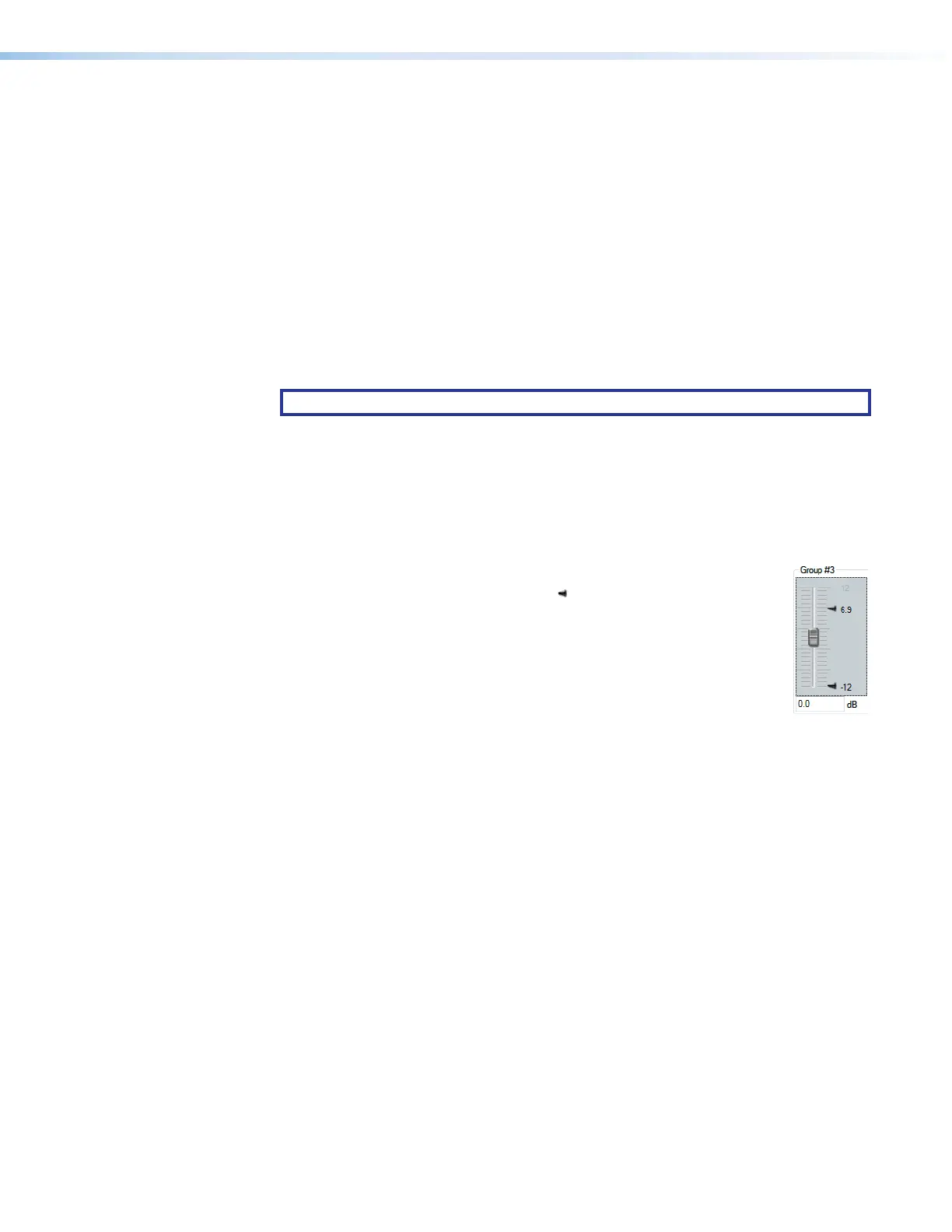
Each gain type control provides upper and lower soft limits used to limit the
range of the group master control. Soft limits ( ) prevent group controls from
exceeding an upper limit or going below a lower limit. They are easily adjustable
and provide the ability to set a ceiling and floor for the group. When a group
master is created, the soft limits default to the hard limits (maximum and
minimum) of that group of controls.
Soft limits can be defined using the mouse by clicking and dragging the
Soft Limit icon. The resolution is 0.1dB. For more precise setting, using the
keyboard (see Setting group master soft limits on page117).



 To Next Page