DTP CrossPoint 84 Series Matrix Switchers • Matrix Software 103
Viewing and using a group master
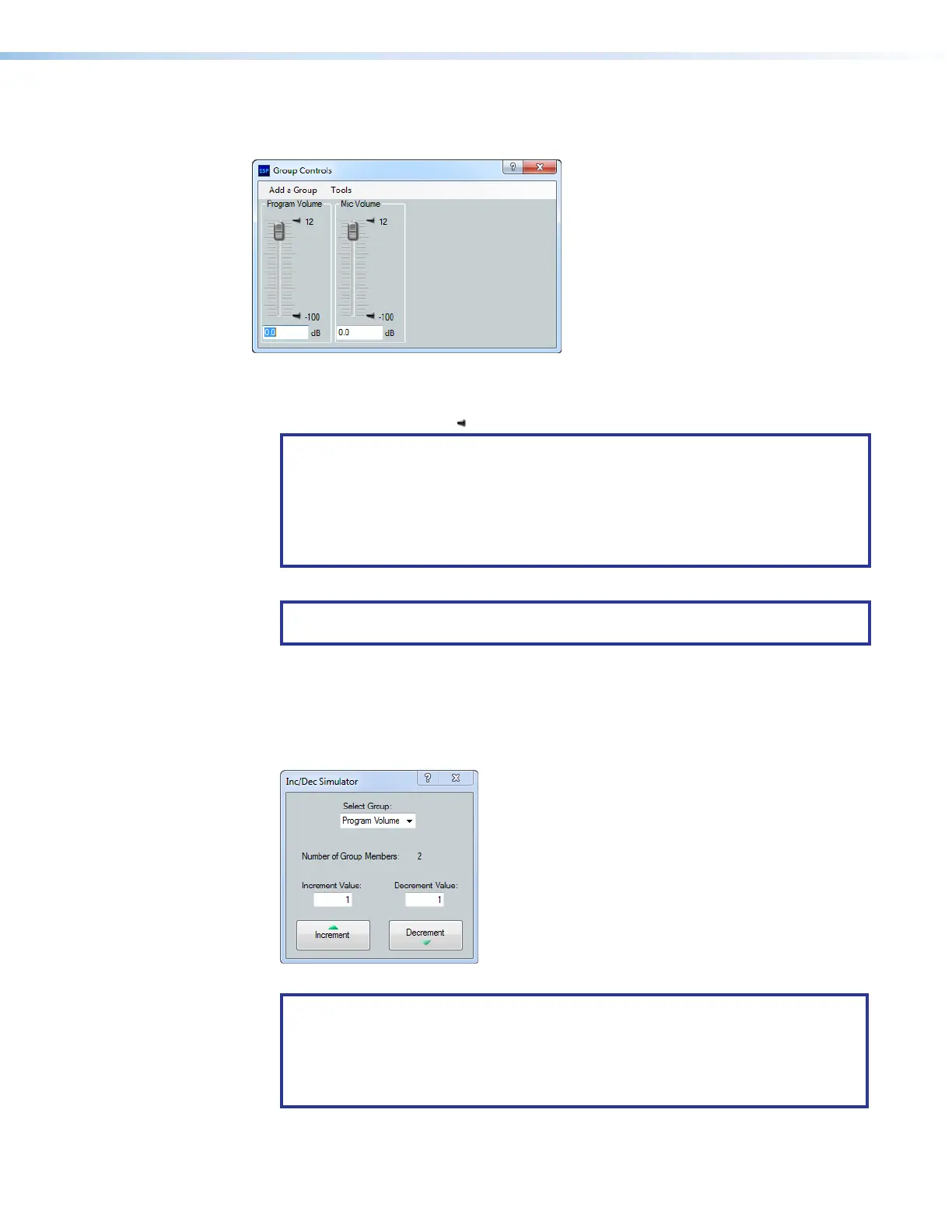
Click View > Group Controls to open the Group Controls dialog box (see figure54).
Figure 54. Group Controls Dialog Box
•
Slide a gr
oup fader up and down to adjust all gain controls in the group.
•
Click and drag a soft limit ( ) to set the ceiling or floor for the group.
NOTES:
• The soft limits cannot be dragged beyond the current setting of the group fader;
the ceiling cannot be set below the fader and the floor cannot be set above the
fader.
• None of the individual gain faders can be dragged below the floor or above the
ceiling of the soft limits of the group.
• Click the Mute button in a mute group to mute or unmute all blocks in the group.
NOTE: If a block is muted, that block remains muted when the group mute is
released.
• Click Add a Group to open the Configure Groups dialog box (see Configuring a group
master and figure53 on page101).
• Click Tools > Clear All Groups in the Group Controls dialog box to delete all groups.
• Click Tools > Increment/Decrement Simulator in the Group Controls dialog box to
open a dialog box (see figure55) that lets you easily experiment with fine adjustments.
Figure 55. Increment/Decrement Simulator Dialog Box
NOTES:
• You must select a group before the other controls in the dialog box are active.
• The size of the increment can be changed from its default value of 1 dB by typing
a value in the Increment Value or Decrement Value field, to as fine as
0.1 dB.
50
51



 To Next Page