DTP CrossPoint 84 Series Matrix Switchers • Matrix Software 121
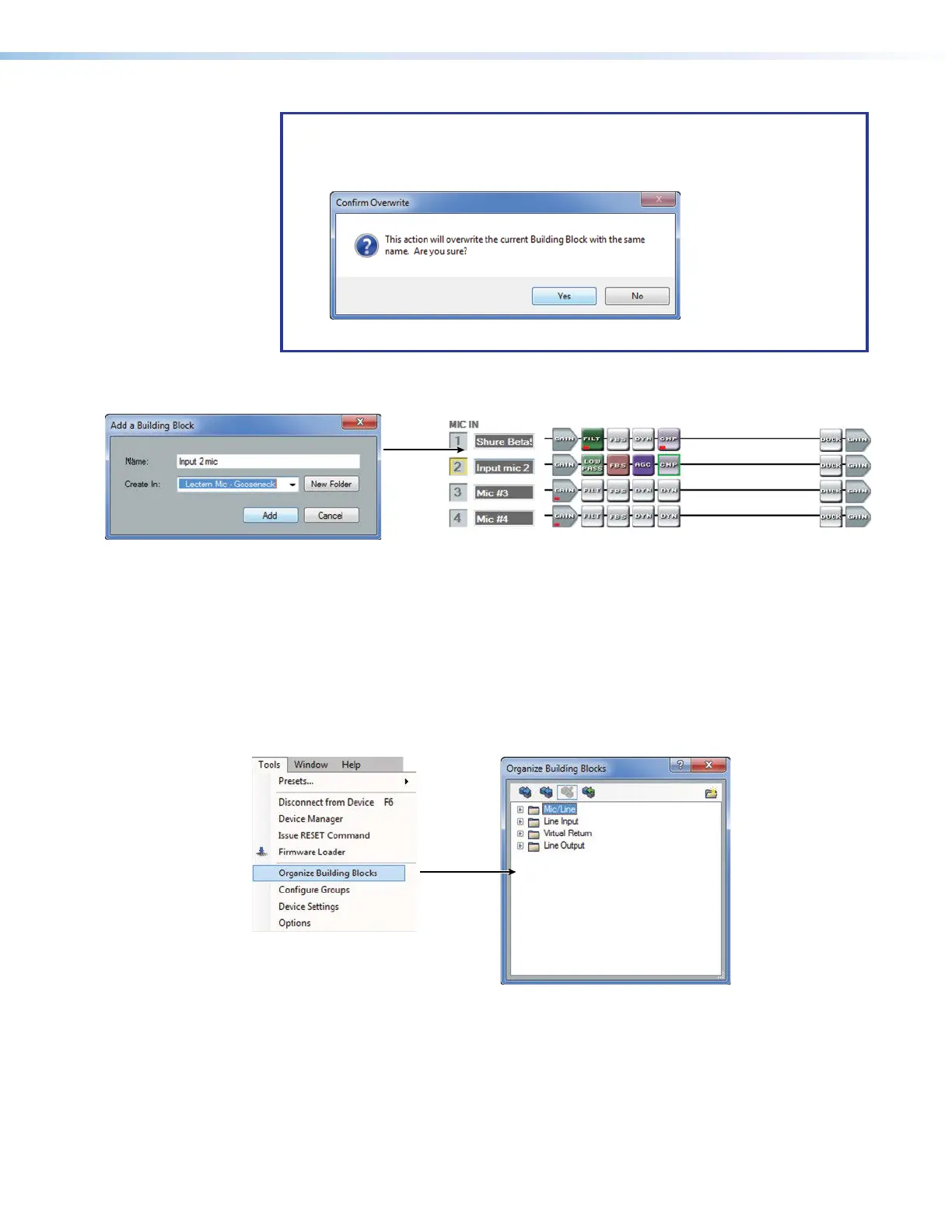
NOTE: You can choose to overwrite an existing building block:
1. Type an existing name for the new configuration.
The program prompts to warn that an existing configuration will be overwritten.
2. Click Yes.
5. Click Add (see figure70,
1
).
Click the
button.
The Name field changes to that of the new building block.
11
1111
1111
Figure 70.
Adding a Building Block, Continued
The new mic configuration is now a building block that can be used to quickly configur
e
new devices.
Organizing building blocks
The Tools menu contains a utility that allows the building blocks to be organized or
rearranged to suit an application. Individual blocks and folders can be moved or deleted
and new folders can be created. Click Tools > Organize Building Blocks. The Organize
Building Blocks dialog box opens (see figure71).
Figure 71. Starting the Organize Building Blocks Utility
The general categories of folders include the main inputs; mic/line, line, and virtual return;
and line outputs.
This utility lets you organize listed building blocks. You can also import and export the
building blocks file so that you can use your set of building blocks on other computers.
66
67



 To Next Page