DTP CrossPoint 84 Series Matrix Switchers • Matrix Software 120
Adding a building block
Custom building blocks can be created if necessary, such as when a new mic is connected
to an input. The signal path can be configured for that specific mic and then saved as a new
building block as follows:
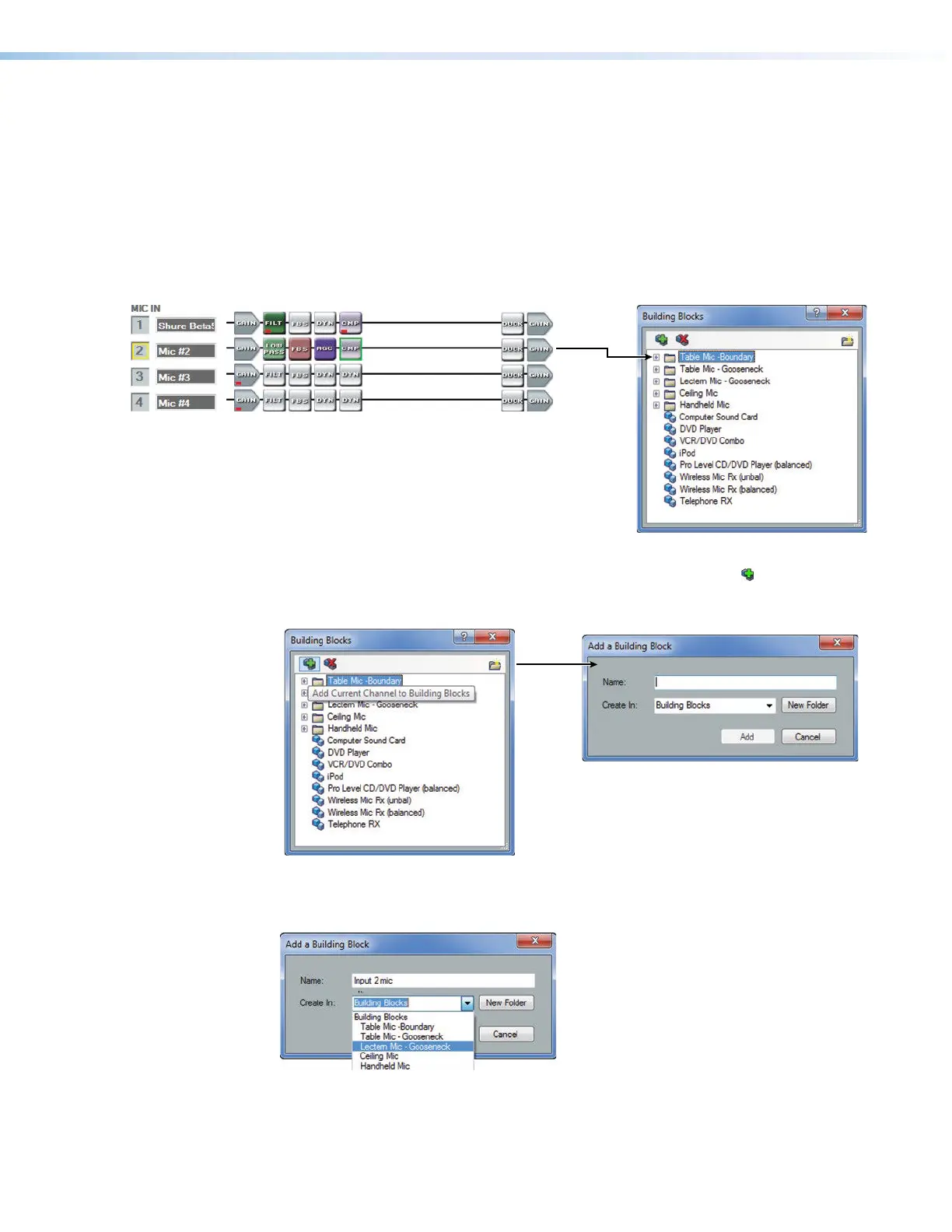
1. Modify the processing chain for an input or output. In this example, a custom mic
configuration has been created for mic 2.
2. Open the Building Blocks dialog box: Click the Mic Input2 number box (see
figure67,
1
). The Building Blocks dialog box opens.
Click the number. A Building Block dialog box opens.
111111111111111111
Figure 67. Building Block Dialog Box
3. Add a building block: In the dialog box, select the Add Block icon ( , see figure68,
1
).
Click the
icon.
The Add a Building Block dialog box opens.
Figure 68. Adding a Build Block
4. Name the block: In the Name field, type a name for the new building block (see
figure69,
1
). If desired, select a folder for the block in the Create In: drop-down box.
11
1111
1111
Figure 69. Add a Build Block Dialog Box
63
64
65



 To Next Page