Page 45 of 97 PN: 106417-05
8.6 Take Diagnostic Capture with FieldServer Utilities
When there is a problem on-site that cannot easily be resolved, perform a Diagnostic Capture before
contacting support. Once the Diagnostic Capture is complete, email it to technical support.
The Diagnostic Capture will accelerate diagnosis of the problem.
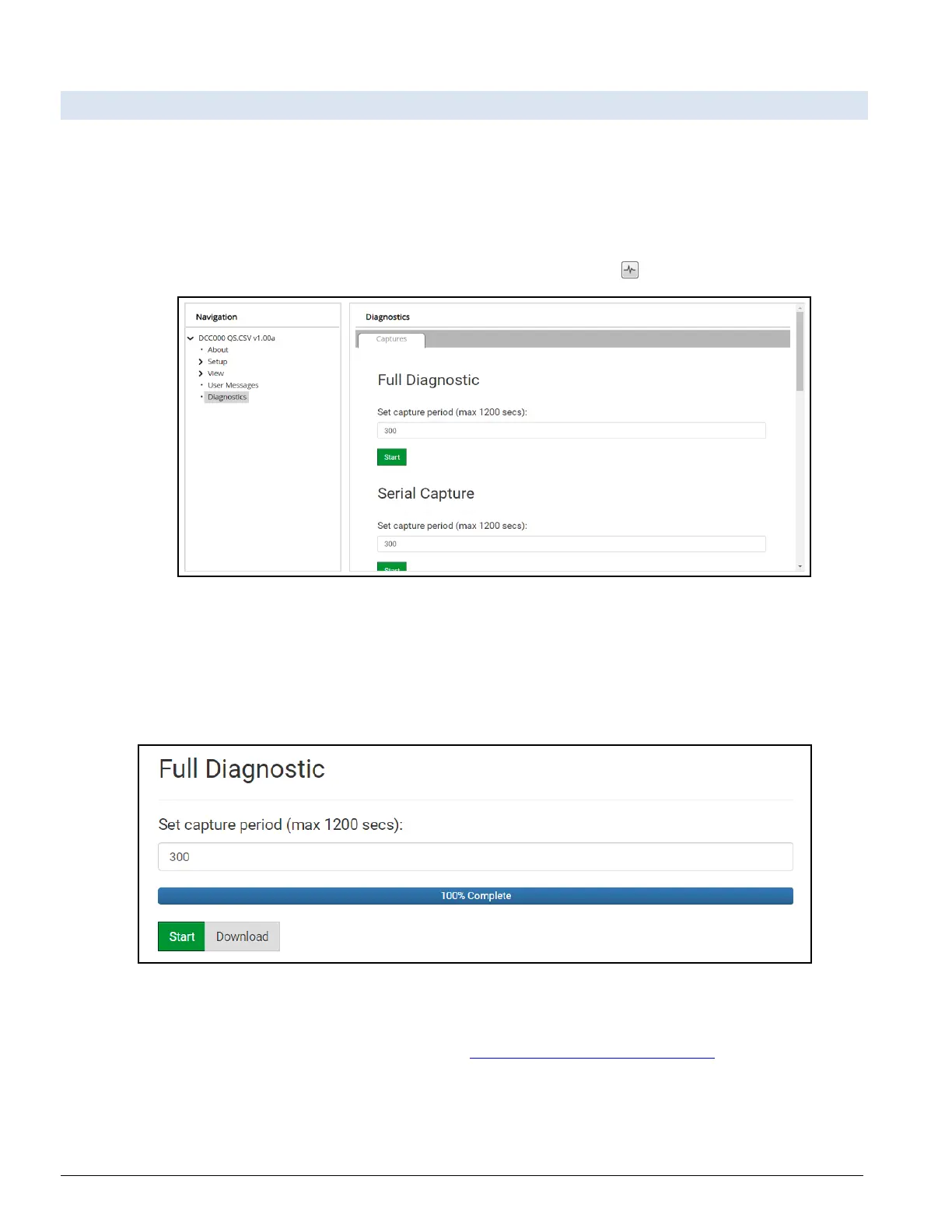
• Access the FieldServer Diagnostics page via one of the following methods:
◦ Open the FieldServer FS-GUI page and click on Diagnostics in the Navigation panel
◦ Open the FieldServer Toolbox software and click the diagnose icon of the desired device
Figure 8-5: Diagnostic Capture Page
• Go to Full Diagnostic and select the capture period.
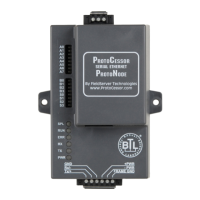
• Click the Start button under the Full Diagnostic heading to start the capture.
◦ When the capture period is finished, a Download button will appear next to the Start button
Figure 8-6: Diagnostic Complete
• Click Download for the capture to be downloaded to the local PC.
• Email the diagnostic zip file to technical support (smc-support.emea@msasafety.com).


 To Next Page