Page 48 of 97 PN: 106417-05
9.4 Change FieldServer Password
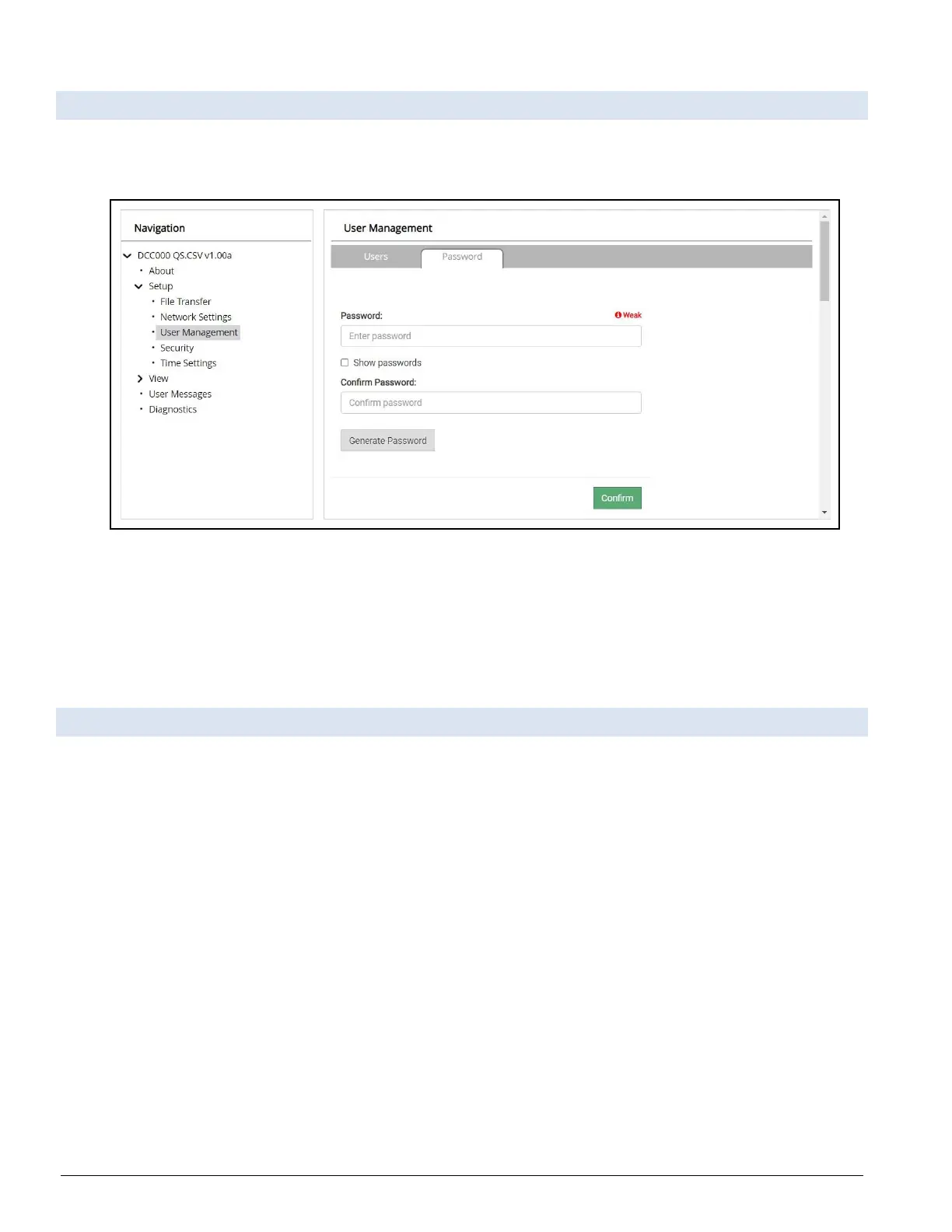
• Click User Management under Setup in the Navigation panel.
• Click the Password tab.
Figure 9-3: Password Page
• Change the general login password for the FieldServer as needed.
NOTICE: The password must meet the minimum complexity requirements. An algorithm
automatically checks the password entered and notes the level of strength on the top right of the
Password text field.
9.5 FieldServer Manager Connection Warning Message
• If a warning message appears instead of the page as shown below, follow the suggestion that appears on
screen.
◦ If the FieldServer cannot reach the server, the message in Figure 9-4 will appear
• Follow the directions presented in the warning message.
◦ Go to the network settings by clicking the Settings tab and then click the Network tab
◦ Ensure that the routing rules are set up correctly
◦ Check with the site’s IT support that the DNS settings are setup correctly
◦ Ensure that the FieldServer is properly connected to the Internet
NOTICE: If changes to the network settings are made, remember to click the Save button. Then
power cycle the FieldServer by clicking on the Confirm button in the window and click on the
bolded “Restart” text in the yellow pop-up box that appears in the upper right corner of the
screen.



 To Next Page