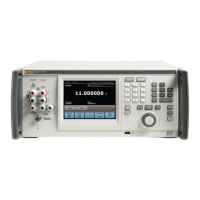
5322A
Operators Manual
28
Set the Beeper Volume
To set the beeper volume:
1. After you enter the setup menu, push or or turn the rotary knob to
highlight Beeper Volume in the list of setup selections.
2. Push the Select softkey or push in the rotary knob.
3. Set the beeper volume between 0 and 15 with the rotary knob, the cursor
keys, or enter the value directly with the keypad.
Note
For safety warnings and messages, the beeper will still sound even
when the beeper volume is set to zero.
4. Push the WRITE softkey to set the beeper volume and return to the setup
menu.
Set the Display Brightness
To set the brightness of the display:
1. After entering the setup menu, push or or turn the rotary knob to
highlight Display Brightness in the list of setup selections.
2. Push the Select softkey or push in the rotary knob.
3. Set the display brightness between 0 and 7 with the rotary knob, the cursor
keys, or enter the value directly with the keypad.
4. Push the Write softkey to set the display brightness and return to the setup
menu.
Enable/Disable the Beeper
To enable or disable the Product beeper:
1. After you enter the setup menu, push or or turn the rotary knob to
highlight Beeper in the list of setup selections.
2. Push the Select softkey or push in the rotary knob.
3. Move the cursor with the rotary knob or cursor keys to highlight either Beeper
On or Beeper Off.
4. Push the Select softkey or push in the rotary knob.
Set Screen Saver
To select a time for the screen to turn off after the last user keyboard input:
1. After you enter the setup menu, push P or Q or turn the rotary knob to
highlight SCREEN SAVER in the list of setup selections.
2. Push the Select softkey or push in the rotary knob.
3. Select a desired time to turn the screen off after the last user front-panel input
or remote inactivity. Values range from 5 minutes to 60 minutes as well as an
OFF (screen always on) setting.
4. Push the Select softkey or push in the rotary knob.
5. Push the EXIT softkey


 To Next Page