OmniSTAR 8200HP User Manual
Issue 1.07, 10/2008
72
Appendix D
Updating the 8200HP firmware
In order to update the 8200HP firmware, an MS-Windows compatible
computer (either desktop or laptop) and the flashloader 200 program are
required. The 8200HP has to be connected to a communication port of the
computer and has to be switched on. The update process does not require
reception of either GPS or OmniSTAR satellite signals. During the update
process, do not switch off either the computer or the 8200HP receiver and do
not disconnect the 8200HP from the computer.
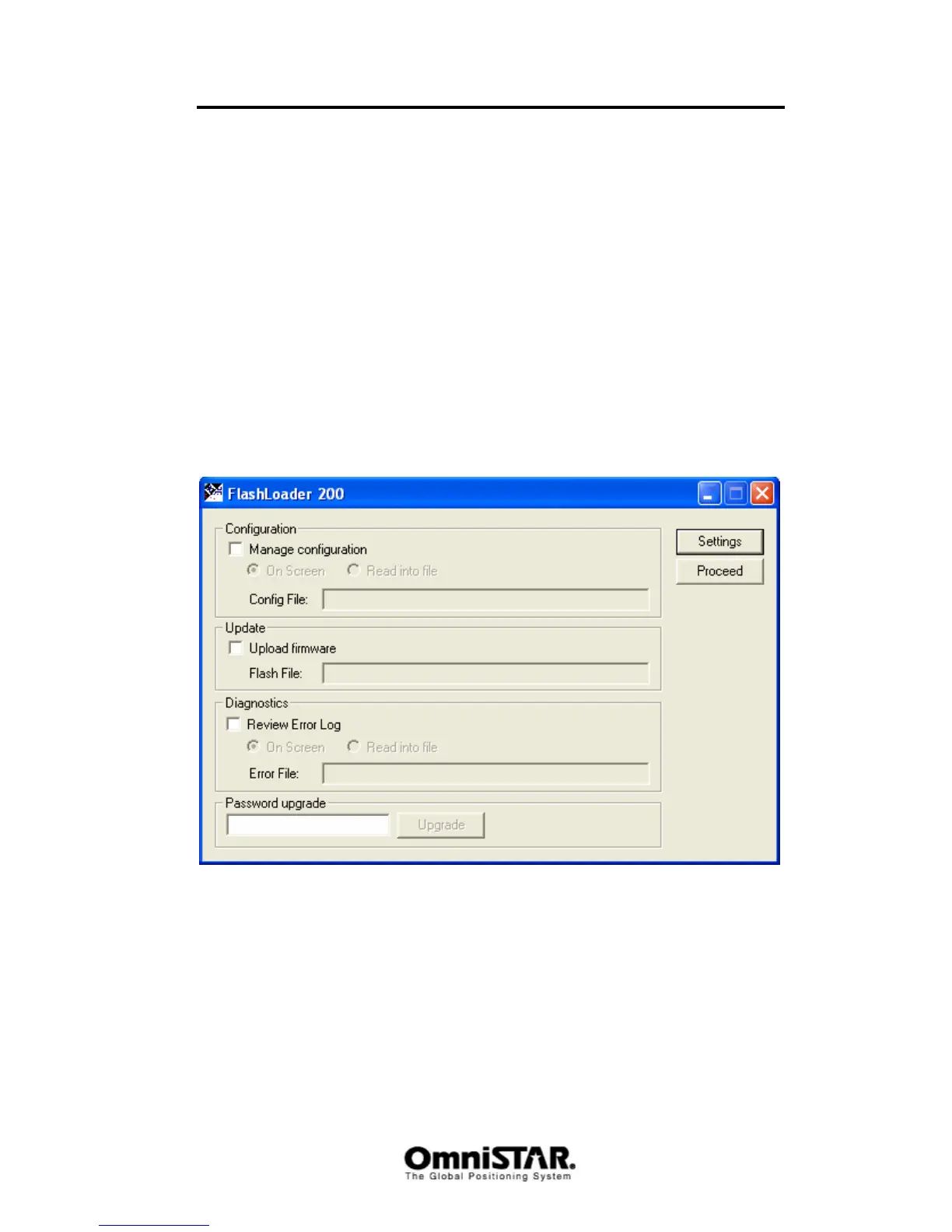
After installing and starting the flashloader 200 program, the following screen
will show.
Figure 107: Flashloader main screen
In the ‘Update’ field, check the ‘Upload firmware’ box. An explorer screen will
open in which the desired image file can be selected. (see Figure 108). Select
the appropriate image file and click the ‘Open’ button once. The name of the
selected image file, including its complete location on your computer, will now
be displayed in the grey textbox after ‘Flash File:’. Click the ‘Proceed’ button
once to proceed with the update process.


 To Next Page