SpectroEye™32
2
• Clock adjustment
The clock built into the SpectroEye may be running either
slightly fast or slightly slow. If the time on print-outs
is wrong, the clock can either be reset as described
previously, or its long term speed can be adjusted.
Proceed as described in the following example:
If after four weeks, you find that the SpectroEye clock
is four minutes slow.
1. Calculate the correction factor:
in 28 days, the clock lost 240 seconds, equal to
8.6 seconds per day.
2. Select Clock adjustment from the menu.
3. Select Sec/day and enter the correction factor +8.6.
4. Save the correction with Accept data.
2.3.2 User defined settings
From the main menu, select:
Settings > User defined
Make the following settings:
• Turn display
• Printer
• Measurement set-up
The settings relating to:
• Function access
• Language
will be addressed later in this manual.
2.3.2.1 Turn display
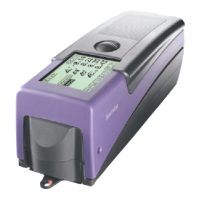
The SpectroEye is designed to be used with one hand.
On delivery from the factory, it is set for use with the right hand.
So that left-handed people may also use the SpectroEye with
ease, the displayed data can be rotated.
From the main menu, select
Settings > User defined > Turn display
The display on the LCD is immediately rotated.
2 • Use
If the clock runs slow, a positive
value must be entered (to speed it
up), whereas if it runs fast, this
value must be negative (to slow it
down).
○○○○○○○○○○○○○○○○○○○○○○○○○
○○○○○○○○○○○○○○○○○○○
○○○○○○○○○○○○○○○○○○○○○○○○


 To Next Page