SpectroEye™ 43
2
2 • Use
2.4.1.6 Switching between measurement functions
The SpectroEye allows the originals to be quickly and simply
analized within the measurement modes, once they have been
measured.
The SpectroEye comes with the Density and CIELAB
measurement functions. The following section gives a detailed
explanation on how to switch from CIELAB to Density functions.
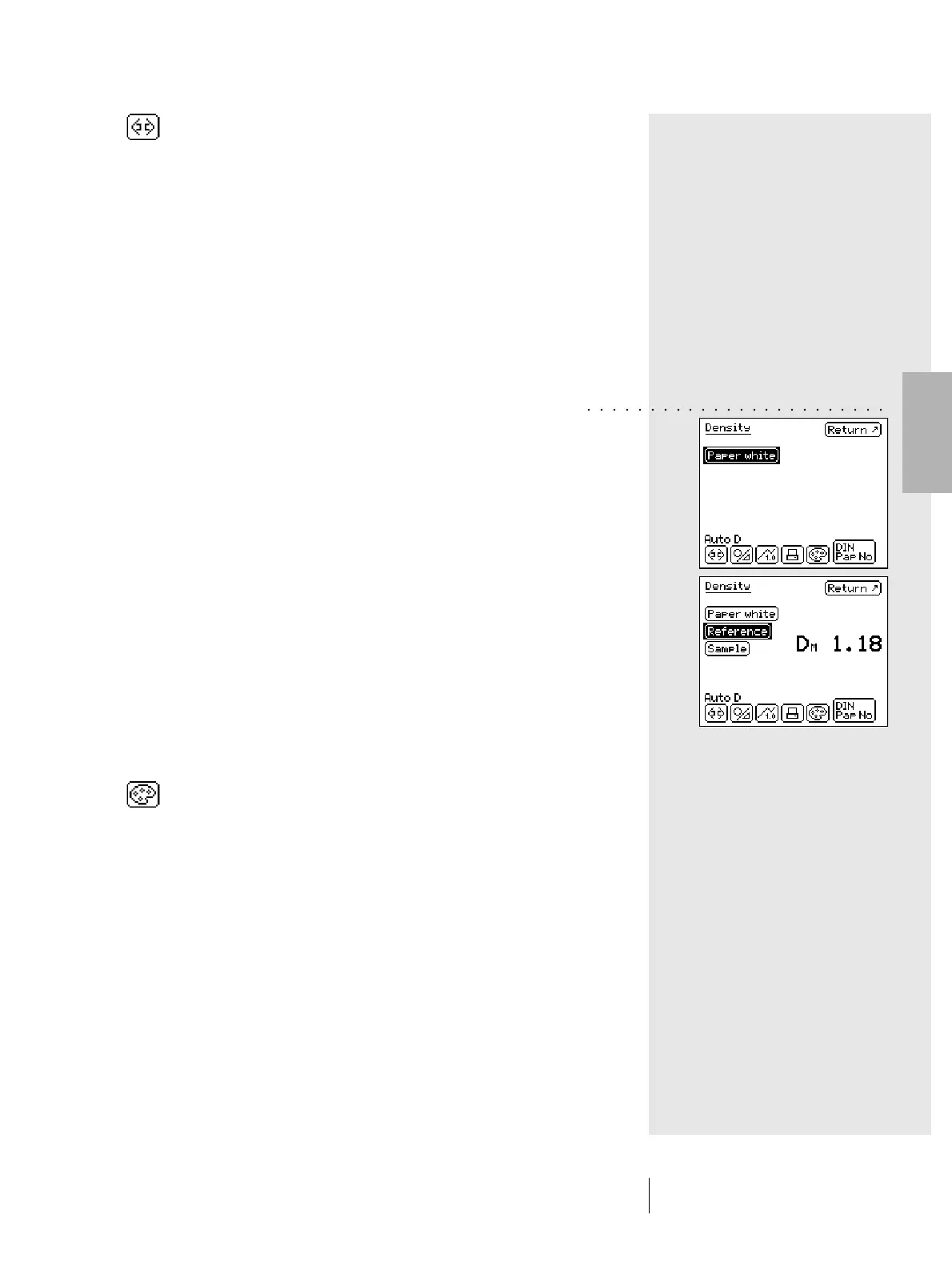
Select the Measurement function icon from the symbol bar.
The displayed menu lists all the available measurement
functions. Select the Density function to reproduce the following
example.
As the densitometric measurement is normally referenced to the
white paper, when a density function is called for the first time,
the operator is requested to measure the White paper, before
the measured results are shown on display. It is not necessary,
however, to remeasure the reference or sample.
Switching to different measurement functions is related to the
modification of displays within the measurement windows.
In this example, the display of the following elements, change:
- Measurement functions
- Measurement values
- Measurement conditions
- Display for density filter selection
It may also happen that within a different measurement function,
some icons as well measurement buttons are available, which
are still unknown.
In our example this occurs for the icon:
- Density filter
Settings such as Graphical/Numerical, Absolute/Difference
etc. are used without variations.
○○○ ○○○○○○○○○○○○○○○○○○○○○


 To Next Page