SpectroEye™ 69
2
2 • Use
○○○○○○○○○○○○○○○○○○○○○○○○○○○○○○○○○○○○○○○○○○○○○○○○
○○○○○○○○○○○○○○○○○○○○○○○○○○○○○○○○○○○○○○○○○○○○○
Read the suggestions in the manual
of your printer as well as the
suggestions for connecting a printer
to SpectroEye from chapter 1.2.3.5
to chapter 1.2.3.6.
○○○○○○○○○○○○○○○○○○○○○○○○○○○○○○○○○○○○○○○○○○
• Color guides
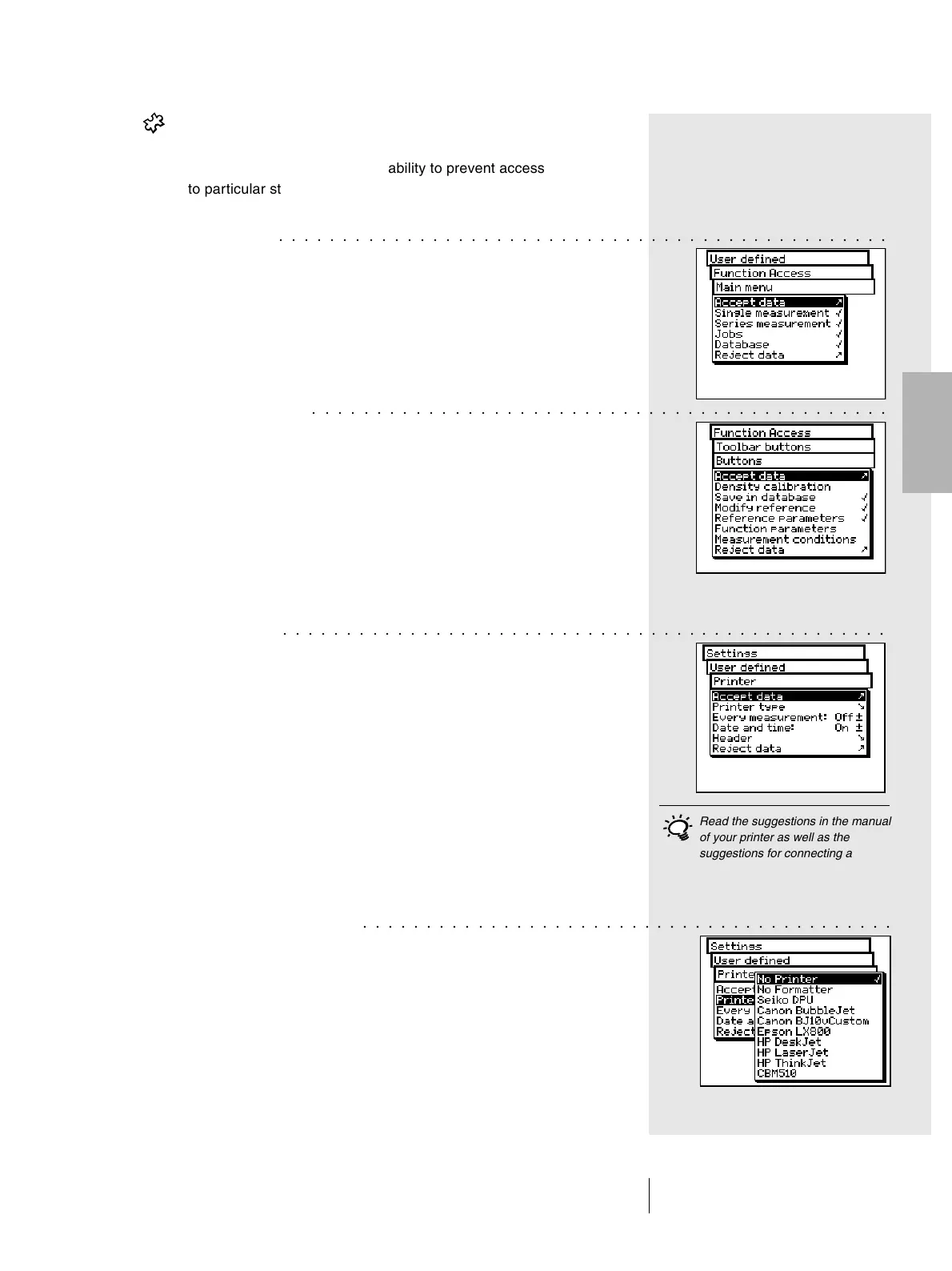
In the Function Access menu, select the Color guides
item menu. Here you have the ability to prevent access
to particular standard color guides. The selected settings
becomes active using Accept data.
• Main menu
In the Function Access menu, select the Main Menu item.
Here you have the ability to prevent access to particular
areas of the main menu. The selected settings becomes
active using Accept data.
• Toolbar buttons
In the Function Access menu, select the Toolbar buttons
> Buttons item.
Here you can decide which icons will be available in the
toolbar of the measurement window. The selected icons
will become active using Accept data.
Selecting the Balloon help menu item in the Toolbar buttons
menu, you can decide if the measurement window icons will
have to be explained by means of an on-line help.
2.6.2.3 Printer
Measurement results can be sent directly to a printer, without
the need of a computer. In such cases the printer is connected
directly to the SpectroEye through the serial interface port.
To obtain a correct print-out, it is necessary to give the
SpectroEye specifics about the printer to be used.
From the main menu, select
Settings > User defined > Printer
and proceed as follows
1. First, select the Printer type option and then the model
of printer to use.
Available printers:
• No printer
• No formatter
• Seiko DPU
• Canon BubbleJet
○○○○○○○○○○○○○○○○○○○○○○○○○○○○○○○○○○○○○○○○○○○○○○○○


 To Next Page