SpectroEye™ 47
2
2 • Use
○○○○○○○○○○○○○○○○○○○○○○○○○○○○○○○○○○○○○○○○○○○○○○○○○○○○
○○○○○○○○○○○○○○○○○○○○○○○○○○○○○○○○○○○○○○○○○○○○○
○○○○○○○○○○○○○○○○○○○○○○○○○○○○○○○○○
2.4.3 Jobs
Working with Jobs you may create complete jobs with all the
related information. Besides the job names, the measurement
conditions etc, all the references and all the samples measured
for this purpose are stored inside the equipment. The assignment
of measured samples to the corresponding reference may occur
either automatically or manually. All data are kept in memory until
they are expressly deleted.
The operations available with the Jobs function are described
here according to the color measurement of the CIELAB system.
To understand this procedure the Single measurement and
Series measurement sections should have already been read.
2.4.3.1 Creating a job
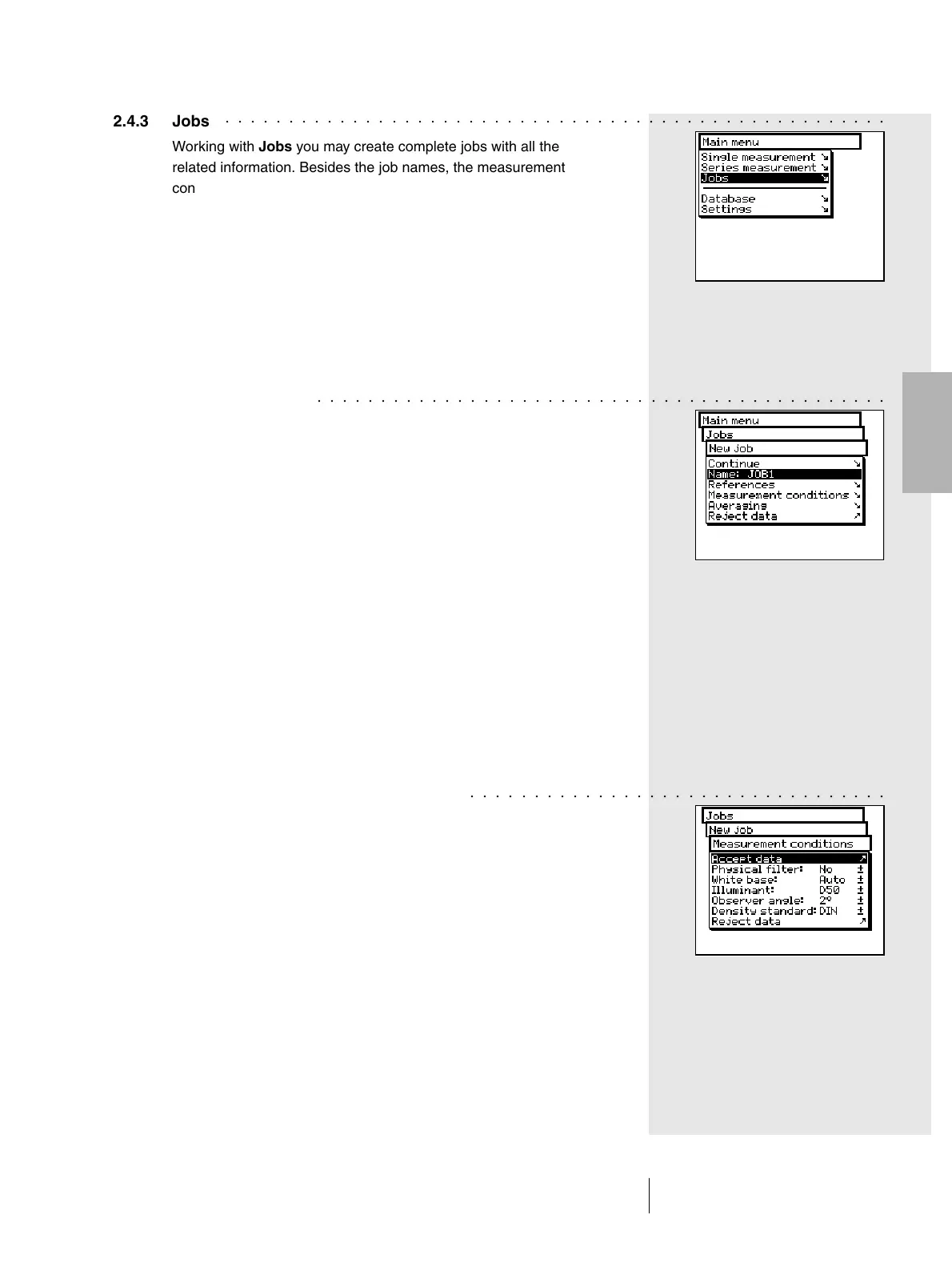
From main menu select
Jobs > New job
and enter the job’s specific data.
The job specific data include:
- Job Name
- Job References
- Measurement conditions
- Averaging settings
These data and settings are defined separately for each job and
stored into the SpectroEye.
To enter them, proceed as follows:
• Enter the job name
The SpectroEye automatically assigns a name to the new job
which can be modified using the Name: menu option.
• Checking the measurement conditions
Select the Measurement conditions menu item and set-up
the desired parameter for:
- Physical filter
- White base
- Illuminant
- Observer angle
- Density standard


 To Next Page