SpectroEye™ 33
2
2.3.2.2 Printer
Measurement results can be sent directly to a printer,
without the need of a computer. In such cases the printer
is connected directly to the SpectroEye through the serial
interface port. To obtain a correct print-out, it is necessary
to give the SpectroEye specifics about the printer to be used.
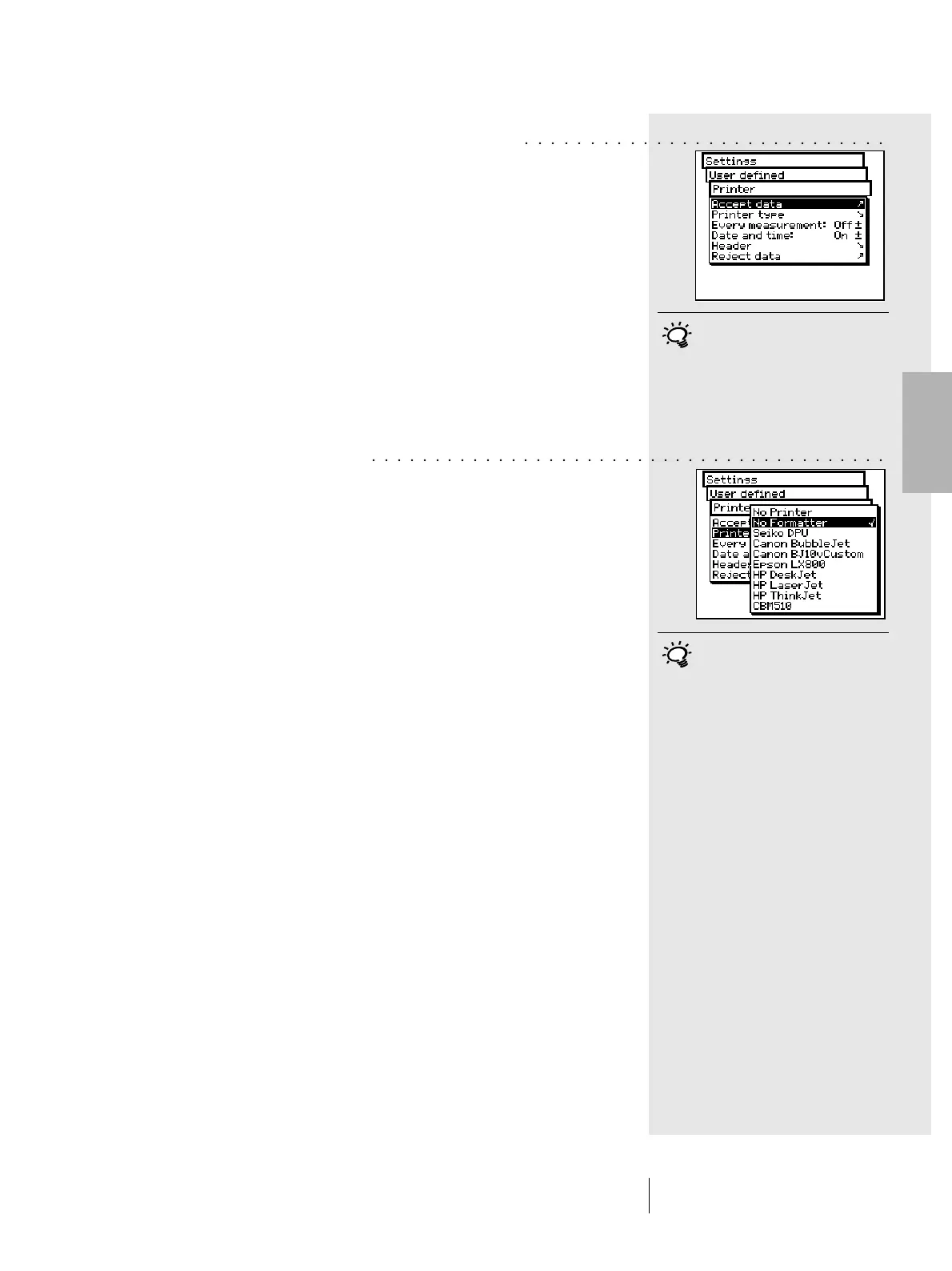
From the main menu, select
Settings > User defined > Printer
and proceed as follows
1. First, select the Printer type option and then the model
of printer to use.
Available printers:
• No printer
• No formatter
• Seiko DPU
• Canon BubbleJet
• Canon BJ10vCustom
• EPSON LX800
• HP DeskJet
• HP LaserJet
• HP ThinkJet
• CBM510
2. If you require the date and time to be entered automatically
with the print-outs, select Date and time menu option
and set the displayed value to On.
3. The printer protocol heading can be defined by selecting
the Header menu item. Enter the text which is to appear
in the printer protocol; 5 lines are available.
4. Save settings using Accept data.
2 • Use
Always follow the indications given
in the printer manual and read the
instructions for connecting the
SpectroEye to a printer in chapter
1.2.3.5 to 1.2.3.6.
If your printer does not appear on
the list, consult its manual to see
whether it is compatible with one
of the printers listed. Otherwise,
select the No formatter setting.
○○○○○○○○○○○○○○○○○○○○○○○○○○○○
○○○○○○○○○○○○○○○○○○○○○○○○○○○○○○○○○○○○○○○○○


 To Next Page