14 Remote Software
14.1 Remote Connection
Connection from remote device and AXOS
8
via RJ45 input at the rear view. Please download the
free software “VNC Viewer” from the following link: http://www.realvnc.com/download/viewer/.
The AXOS
8
uses the port 5900 for remote communication. In some cases VPN (virtual private
network) is required, depending on network.
Significant: Use crossover cable.
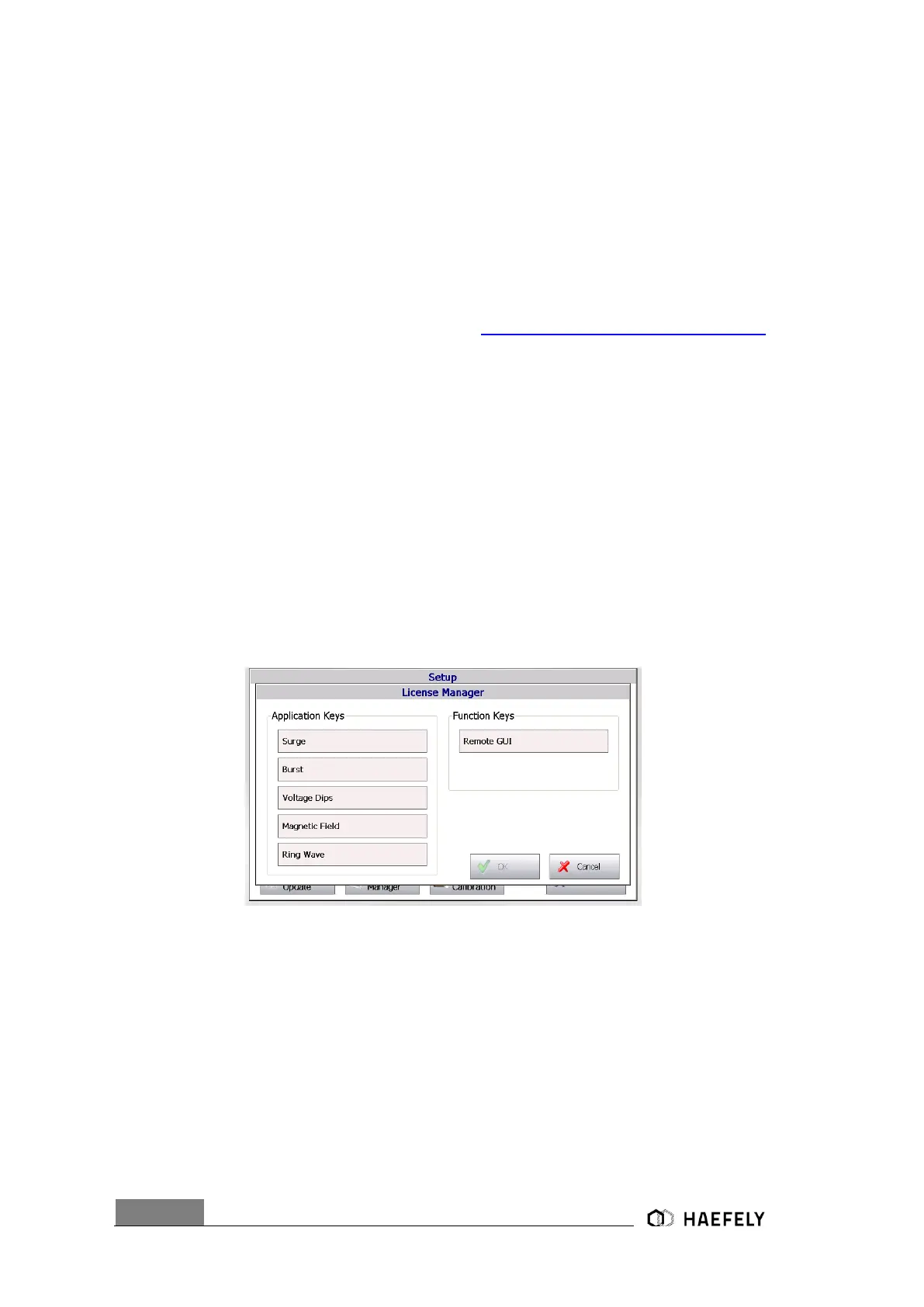
The license code for the “remote GUI” will be accessed via “setup” menu as seen in Figure 5-3.
Select “license manager”. After entering the license code for “remote GUI” (Figure 14-1), the
“remote GUI” section becomes enabled in Figure 5-3.
When operating via WLAN only one remote device can control the AXOS
8
, because of safety
measures. However, it can be controlled parallel via remote device and touch screen of AXOS
8
.
14.1.1 “Point to point” remote control
Connect Ethernet cable to RJ45 input at the rear view and to remote device, e.g. laptop.
Figure 14-1: License manager
When key code for “Remote GUI” entered, it must be confirmed with “OK”.
Select in the set up window (Figure 6-3 Setup Menu) “remote GUI on”. In Figure 14-2: Ethernet
communication, do not tick
“Enable DHCP” (Dynamic Host Configuration Protocol) as seen below. Use the displayed IP
address and subnet mask for the following steps.


 To Next Page