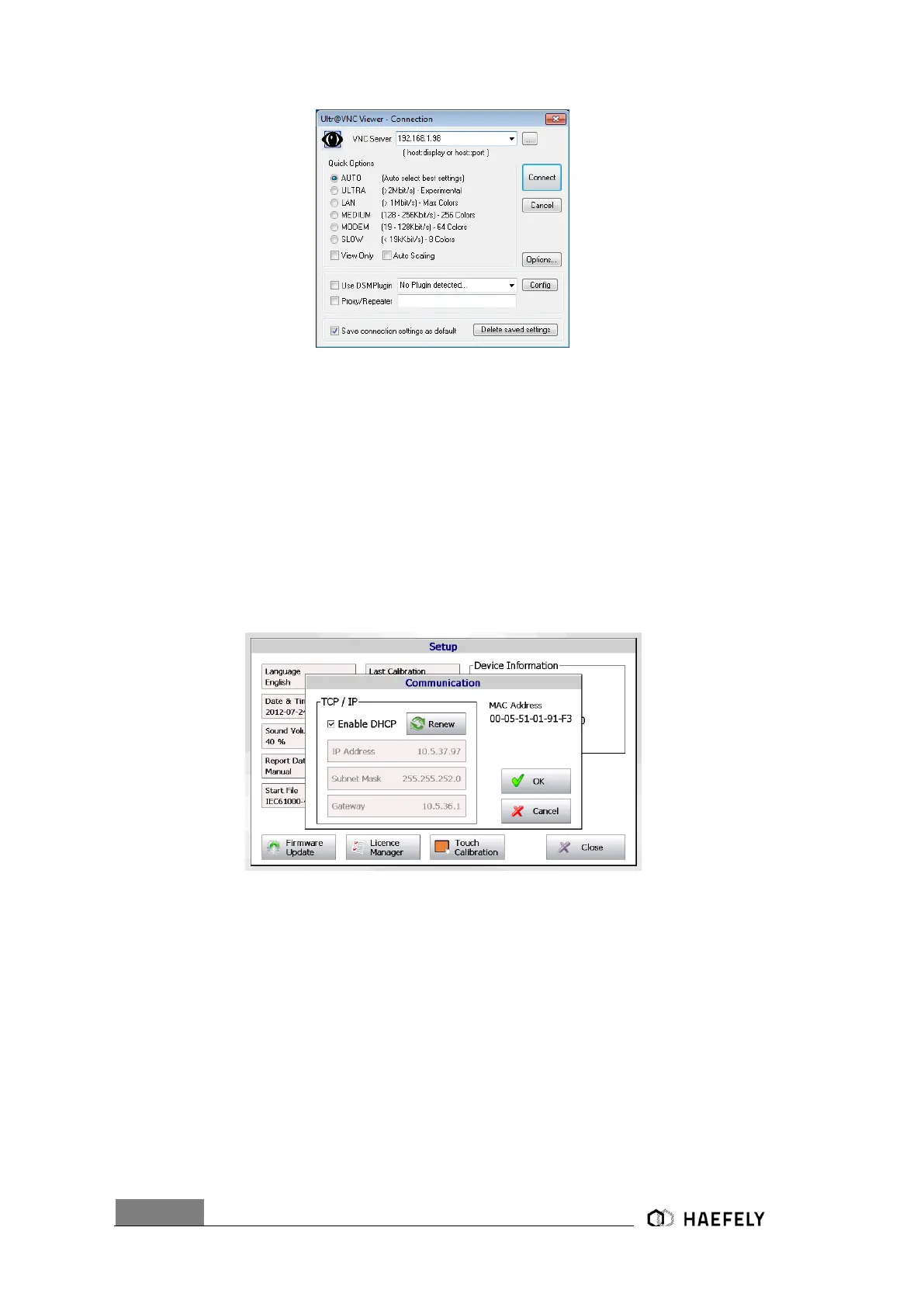
Figure 14-4: VNC Viewer – Connection
Finally, selecting “Connect” button and AXOS
8
gets controlled via remote device.
14.1.2 “WLAN” remote control
Connect either AXOS
8
to given network or to an access point. It depends, if the IP address gets
automatically or manually selected through the network. Connection via access point would be
usually manually and the process from “point to point” connection must be followed. However,
when the network selection happens automatically, the DHCP must be ticked as below. Press
“renew” and the IP Address will be given automatically to the AXOS
8
.
Figure 14-5: Communication, MAC Address
In the next step the automatic given IP address can be written in the VNC Viewer. Selecting of
connect button and AXOS
8
can be operated via remote device.
Significant: AXOS
8
uses the port 5900 and it must be given free in the particular WLAN, to ensure
impeccable communication of equipment. Additionally, if access to WLAN network secured, it is
necessary to make use of the VPN. It is a general requirement to access a network with external
remote device and not just particularly for the AXOS
8
.


 To Next Page