6-3
Chapter 6: Thermal Transfer Printers
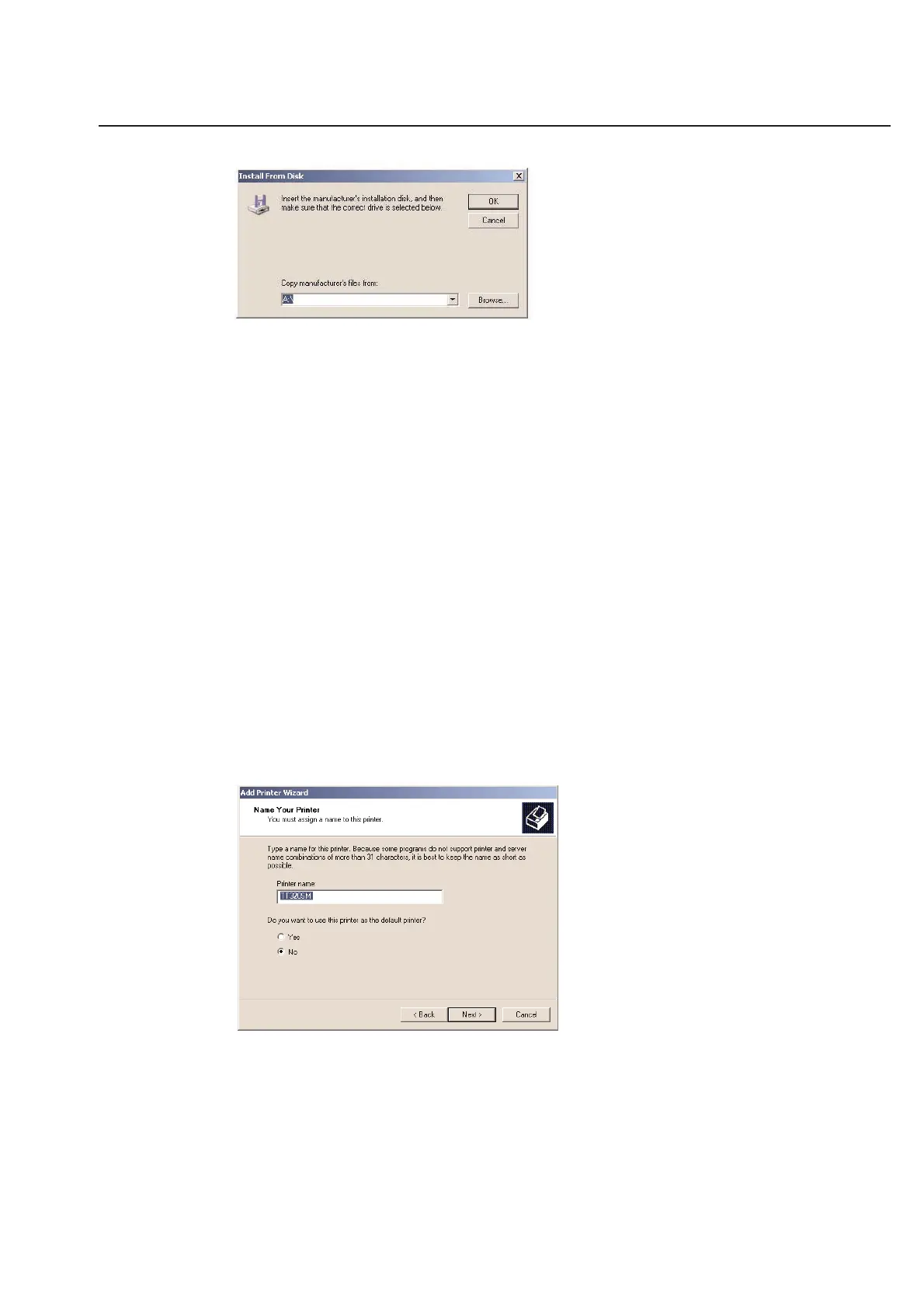
Make sure A:\ is entered in the box labeled Copy manufacturer’s files from:. Click Browse....
The Open dialog box will appear. Depending on the type of operating system you have, double-click on one of the
folders listed under a:\.
If you have: Windows 98SE choose WIN98
If you have: Windows NT 4.0, Windows NT 5.0 or Windows 2000 choose NTXP
When you have opened a folder, a file named OEMSETUP.INF will be displayed in the File name: entry box. Click OK
when everything is correct.
Check that the folder name is correct in the Copy manufacturer’s files from: entry box and click OK to move to the
printer selection screen.
You should see all the HellermannTyton printers listed in this dialog box. Choose the printer that you have and click
Next.
Choose the correct available port for your computer. For most computers, you should choose LPT1. Only choose a
different port if you know your computer has been configured for a different port.*
* If LPT1 does not show up in this menu, make sure no other devices are connected to your printer (LPT1) port, restart
your computer, and run the “Add printer” wizard again. Some Windows 98 users may need to have some other print-
er already configured for the printer port (LPT1) for the port to show up in this window. In that case, follow these
instructions again after you have configured a standard driver for LPT1.
After you have chosen the correct port for your computer, click Next.
Check to make sure that the printer name corresponds with the type of printer you wish to install. We recommend
that you leave the driver with its default name, but you may re-name it at this point if you will remember it later.
At this screen you must also choose if you want to make your thermal transfer printer your default printer. As a
general rule, make your default printer the one that you will print with the most often.
When everything is correct on this screen, click Next.



 To Next Page