3-10
Chapter 3: Table
Image Column
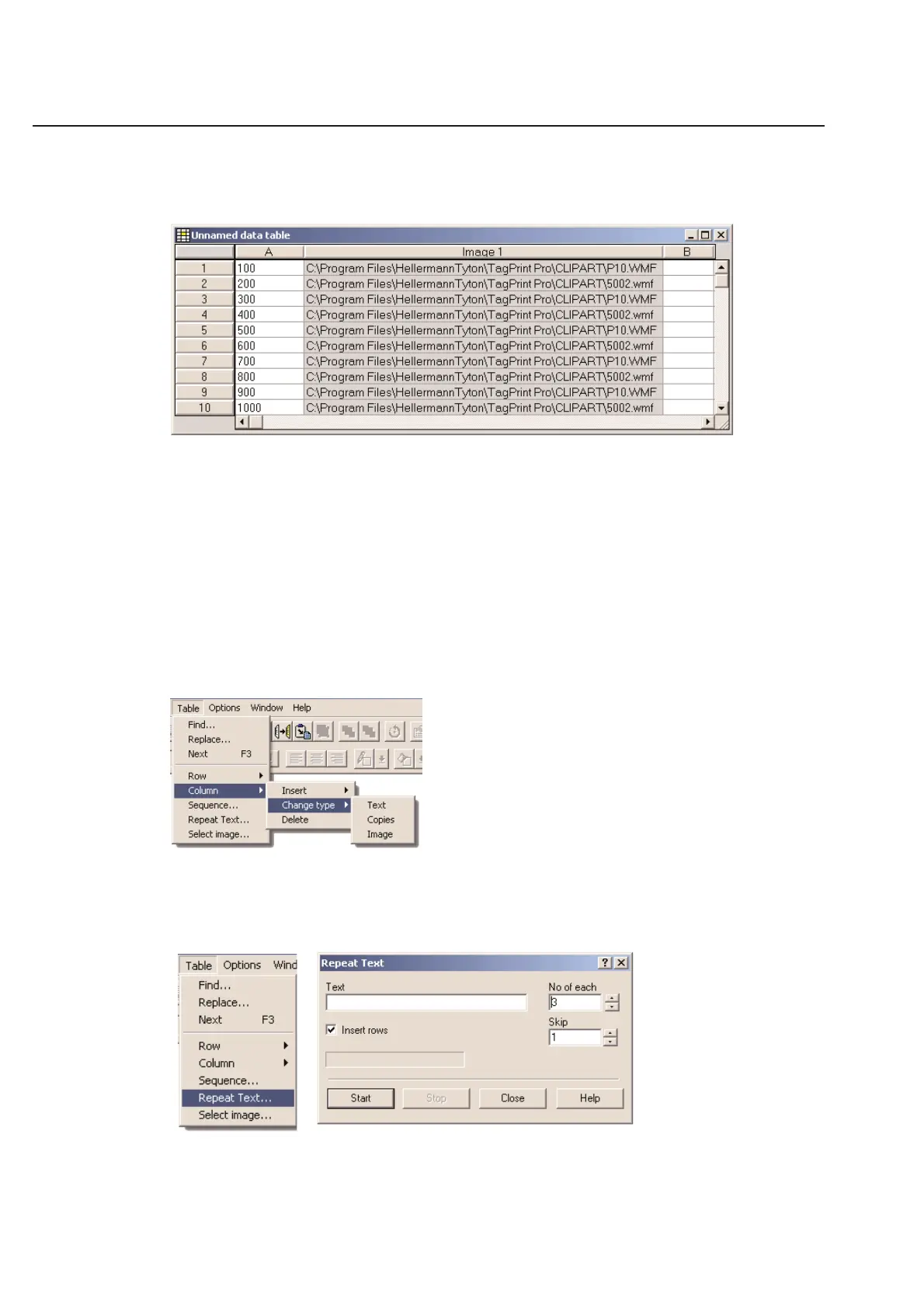
The image column is used to define variable images for your label design. TagPrint Pro designates the Image column
by highlighting the entire column grey and by naming the column header “Image1”.
You may define as many variable image columns as you like. They will be numbered “Image2”, “Image3” and so on.
Selecting an Image for the Table
To enter the image location in a cell of the Image column, you must go to the Table menu and choose Select
image.... The TagPrint Pro image browse dialog box will then appear allowing you to choose the image off your hard
drive.
Changing the Column Type
You may change the column type through the Table menu in TagPrint Pro. First, select the column you wish to
change. Second, go to the Table menu and choose Column/Change Type. You will have the option to change the
column to Text, Copies, or Image. If you already have a copies column, that option will not be available.
Repeat Text
To repeat text within each cell on the table. Select the Table menu and Repeat Text.



 To Next Page