MX8000 Installation and Operation Guide
4–18
4.6.10.6 LC (Line Card) Statistics
LC (Line) statistics allows you to view the
call statistics of a specific Line in
comparison to the total number of calls
received.
To view a line cards call statistics, follow
these steps:
1. From the installer menu (See Section
4.4) press
8
for Diagnostic menu.
2. Select
6
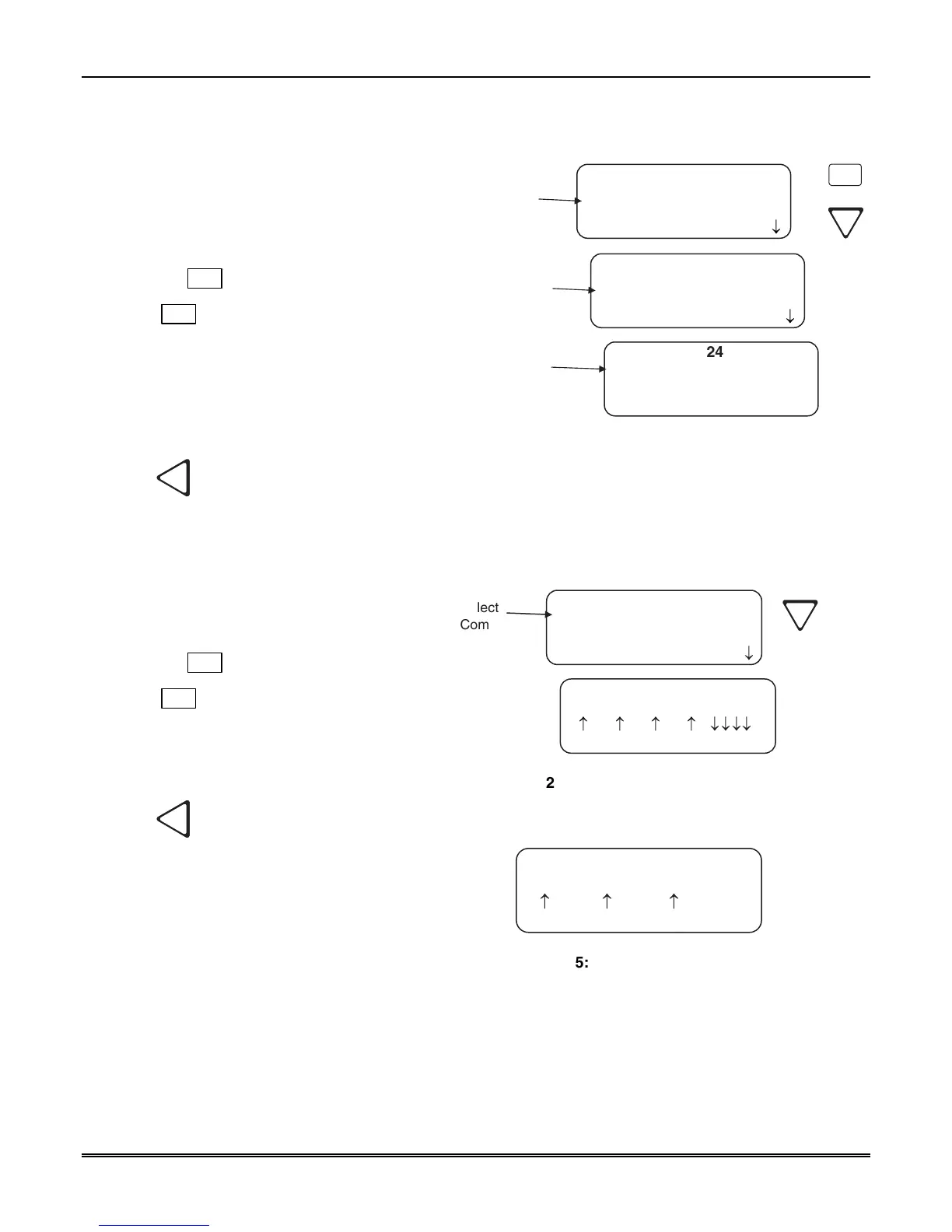
for LC Statistics. See Figure
4–23.
3. Select the number corresponding to the
Device type you want to view. See Figure
4–23.
4. Select the number of the line you wish to
view. See Figure 4–23.
5. Press
left arrow to exit.
<LC Statistics>
L01=MX8000-LC3
L02 MX8000-LC3
L03 MX8000-LC3
Total Calls:
Select the Line
Selected Line
Statistics
6
<Select Device Type>
1=MX8000-LC3
2 MX8000-LRR
3 MX8000-LC1
Select the Device
Type
¯
¯
2497
LC#01 Total: 345
Today:
Bad : 0
35
Figure 4–23: Line Statistics Display
4.6.10.7 Port Status
Port status allows you to view the current
status of any of the communication ports.
To view the status of one of the
communication ports, follow these steps:
1. From the installer menu (See Section
4.4) press
8
for Diagnostic menu.
2. Select
7
for Port Status.
3. Select the communication port you wish
to view. See Figure 4–24 and Figure 4–
25. Table 4–9 provides the meaning of
the arrows shown on the display.
4. Press
left arrow to exit.
Port Status
1=Com Port1
2 Com Port2
3 Para Port
<Com Port1>
DSR DTR CTS RTS BFPO
<=Exit
¯¯¯¯
Select
Com Port
¯
Figure 4–24: Port Status View of Serial Port
<Para Port>
LINE READY PAPER
<=Exit
Figure 4–25: Parallel Port Status View



 To Next Page