120 Camera and Multimedia
To rotate and save the rotated state
1. View the picture you want to rotate in full screen
2. Press MENU, then tap Rotate, and then select either Rotate left or Rotate right.
Note The Picture rotates 90 degrees counter-clockwise (Rotate left) or 90 degrees clockwise
(Rotate right) each time you tap one of the Rotate options.
To crop a picture
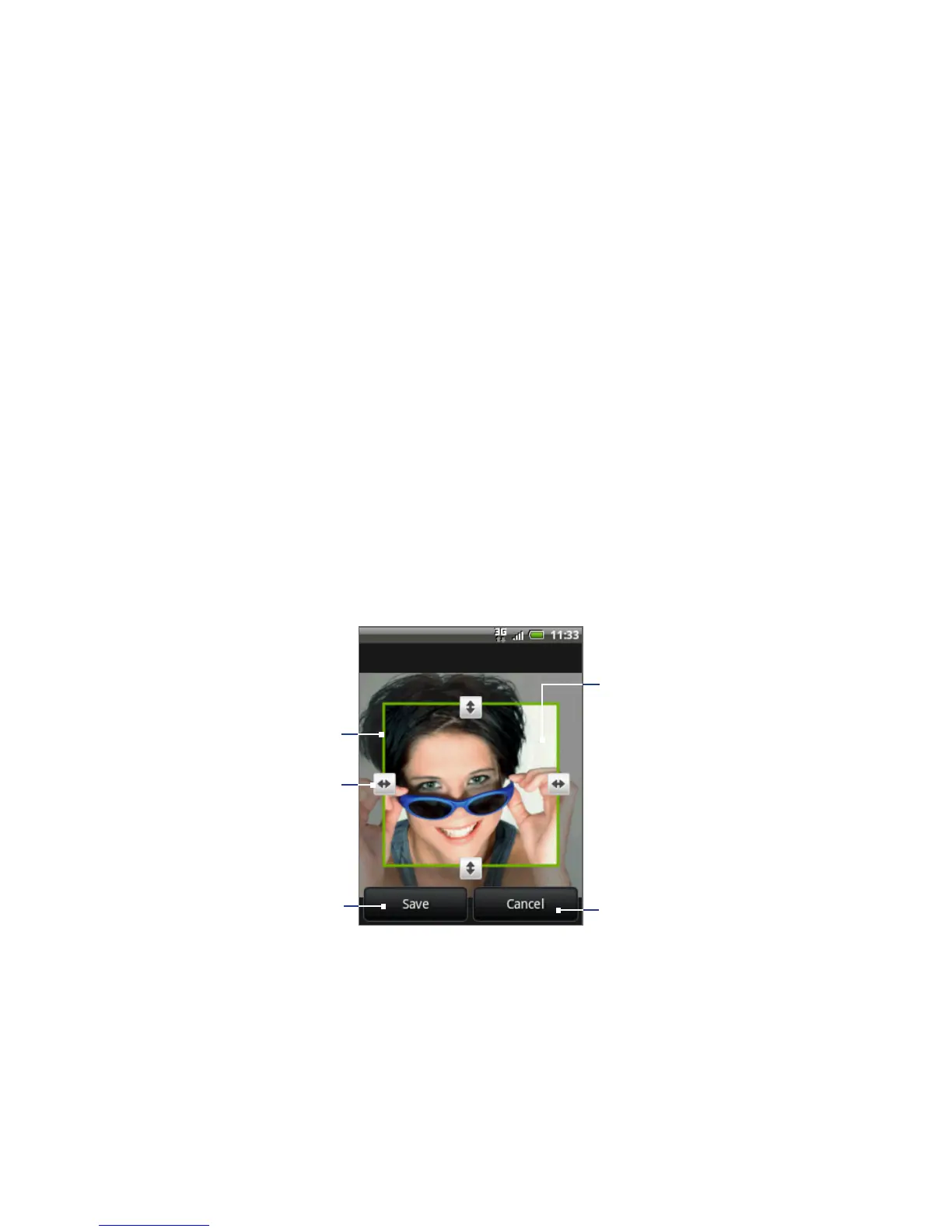
1. While viewing a picture in full screen, press MENU and then tap More > Crop.
The cropper tool appears.
2. Do one of the following:
To adjust the cropper size, press and hold the edge of the cropper tool.
When the cropper arrows appear, drag your finger inward to or outward
from the centre of the cropper to resize it.
To move the cropper to another area on the picture, press and hold inside
the cropper, then drag it with your finger to the desired position.
Cropper tool
Tap to save
the photo.
Cropper arrow
Tap to discard your
changes.
Press and hold inside
the cropper, then
drag it to any area of
the photo.
3. Tap Save to apply the changes to the picture.
Note The cropped picture is saved in the storage card as a copy. The original picture
remains unedited.
•
•



 To Next Page