Google Apps 135
Creating and sending emails
To create and send an email
In the Inbox, press MENU and then tap Compose.
Enter the message recipient’s email address in the To field. If you are sending
the email to several recipients, separate the email addresses with a comma.
You can add as many message recipients as you want.
Note If you want to send a carbon copy (Cc) or a blind carbon copy (Bcc) of the email
to other recipients, press MENU and then tap Add Cc/Bcc.
3. Enter the email subject, and then compose your email.
Tip If you want to add a picture attachment, press MENU and then tap Attach. Select
the picture you want to attach, and then tap OK.
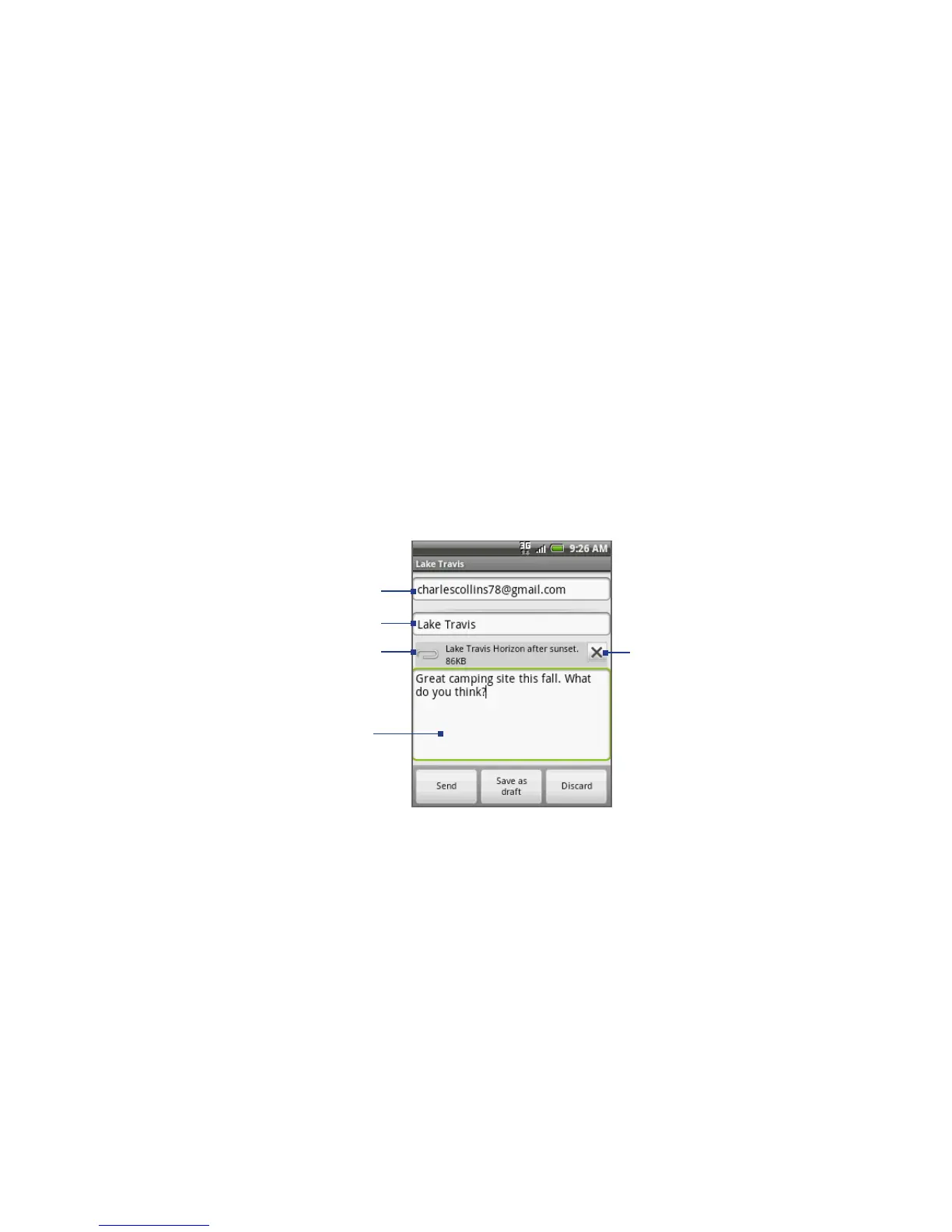
Enter your
message here.
Tap to remove
the attachment.
Recipient
Subject
Attachment
4. After composing your email, tap Send.
Note While composing the message, tap Save as draft or press the BACK button to
save it as a draft. To view your draft email messages, in the Inbox, press MENU
and then tap View labels > Drafts.
1.
2.



 To Next Page