People 73
3.6 Using the Contact Details Screen
When you tap a contact on the People screen, the Contact Details screen opens,
showing you the information stored for that contact, exchanged messages and
phone calls with that contact, Facebook notifications, and more.
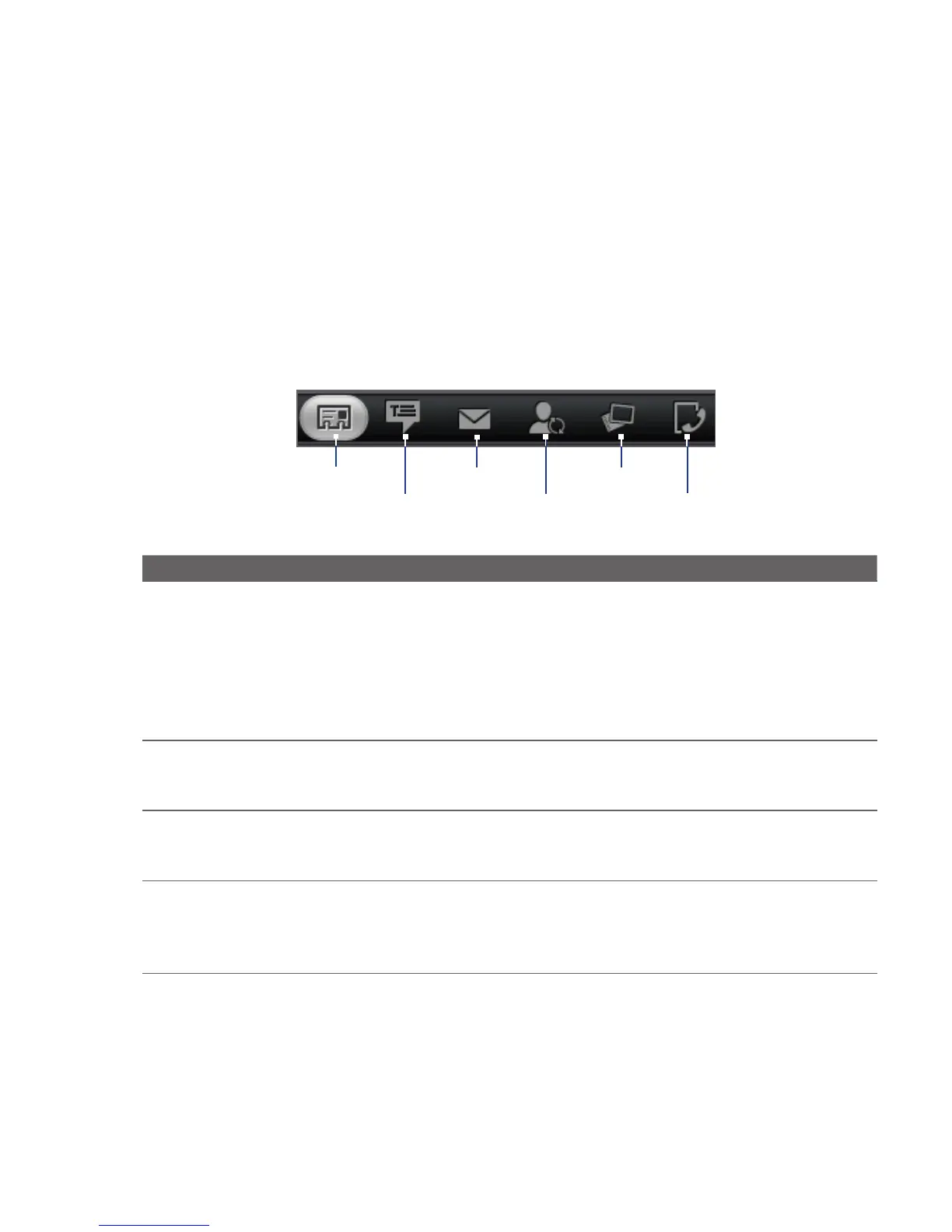
The Contact Details screen has the following tabs:
Information
Messages
Mail
Updates and
events
Albums
Call history
Tab Functions
Information Shows the information you have stored for the contact, and allows you
to get in touch with the contact directly by tapping any of the displayed
methods. For example, if the contact has a stored work phone number,
tap Call Work to call that number.
You can also add one of the contact’s phone numbers as a speed dial
number. For information, see “To add a contact to speed dial” in this
chapter.
Messages Shows your exchanged SMS and MMS messages with the contact. Tap a
message to view it. To send a new message, press MENU and tap Send
message. For more information about messages, see. Chapter 5.
Mail Shows email messages you have received from the contact. Tap an
email message to view it. To send a new email message, press MENU
and tap New mail. For more information about email, see Chapter 5.
Updates and
events
Shows the contact’s Facebook status, updates, and events, and shows
when he or she uploads new photos to Flickr.
When there is a notification of the contact’s birthday, you can tap the
notification to call the contact directly or send a message greeting.



 To Next Page