138 Google Apps
Replying to or forwarding emails
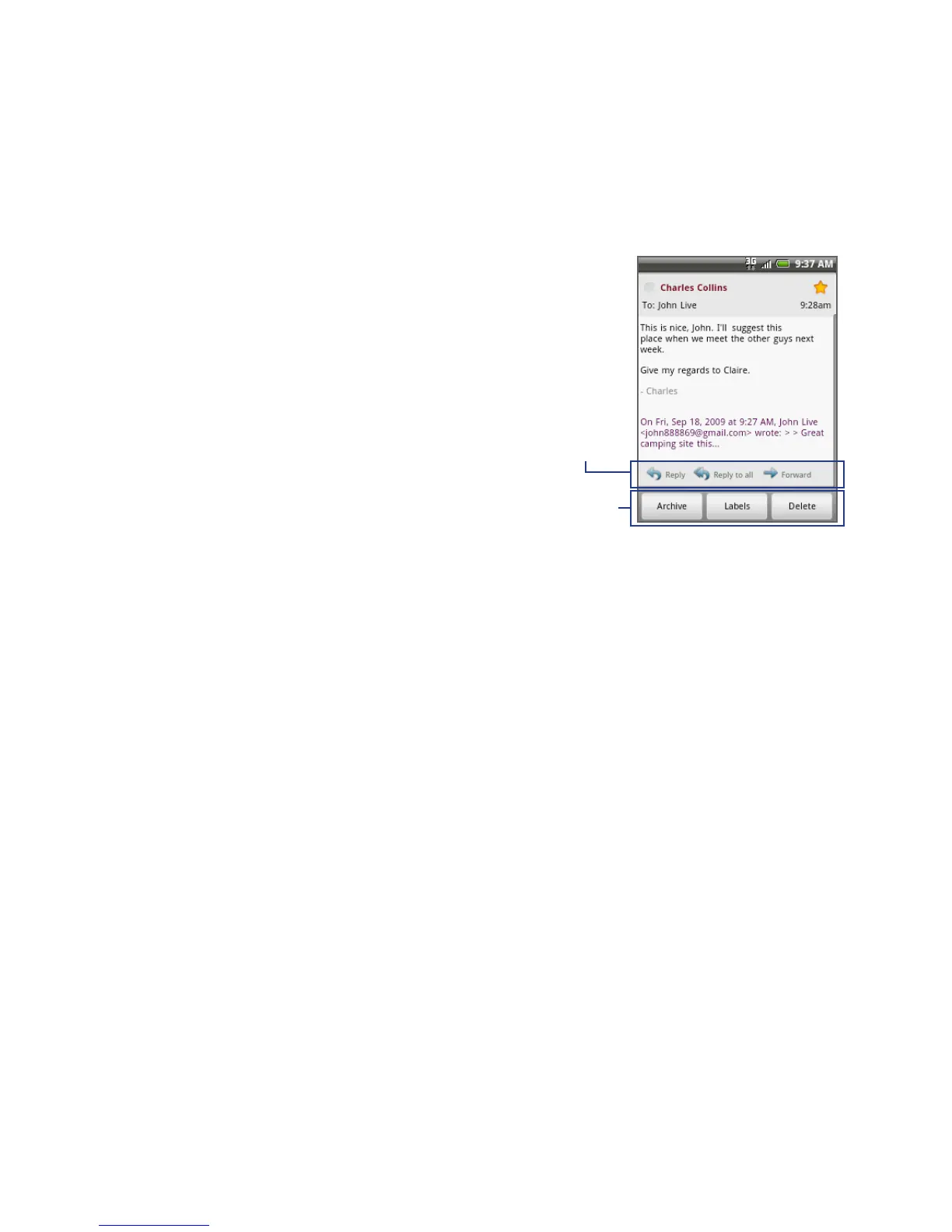
In the message thread, scroll down to
the end of the conversation.
2. Tap Reply, Reply to all, or Forward.
3. Do one of the following:
If you selected Reply or Reply all,
enter your reply message.
If you selected Forward, specify
the message recipients.
4. Scroll down to the end of the
message, and then tap Send.
1.
•
•
Message
options
Thread
options
Managing conversations and emails
Conversations
In the Inbox, press and hold the conversation, and then tap:
Read to open the email.
Archive to archive the conversation.
Tip To display your archived messages, in the Inbox, press MENU and then tap View
labels > All Mail.
Mute to mute the entire conversation.
Tip If you’re part of a long message conversation that isn’t relevant, you can ‘mute’
the conversation to keep all future additions out of your Inbox.
Mark read or Mark unread as desired. Unread messages are displayed in
bold in the Inbox.
Delete to delete the conversation.
•
•
•
•
•



 To Next Page