86 Exchanging Messages
Tips • When editing multiple slides, tap to edit the next slide or tap to return to
the previous slide.
• While editing the slideshow, press MENU to let you preview the slideshow, add
music or video to a slide, remove a slide, and more.
6. When you are finished composing the multimedia message, tap Send.
Note To receive delivery reports and know when a picture message is received, in the All
messages screen, press MENU, and then tap Settings. Select the Delivery reports
check box below the MMS settings section.
To save a message as a draft
While composing a text or multimedia message, press BACK to automatically save
your message as a draft. To resume composing the message, tap the message in the
All messages screen. Continue editing the message, and then tap Send to send it.
Receiving text and multimedia messages
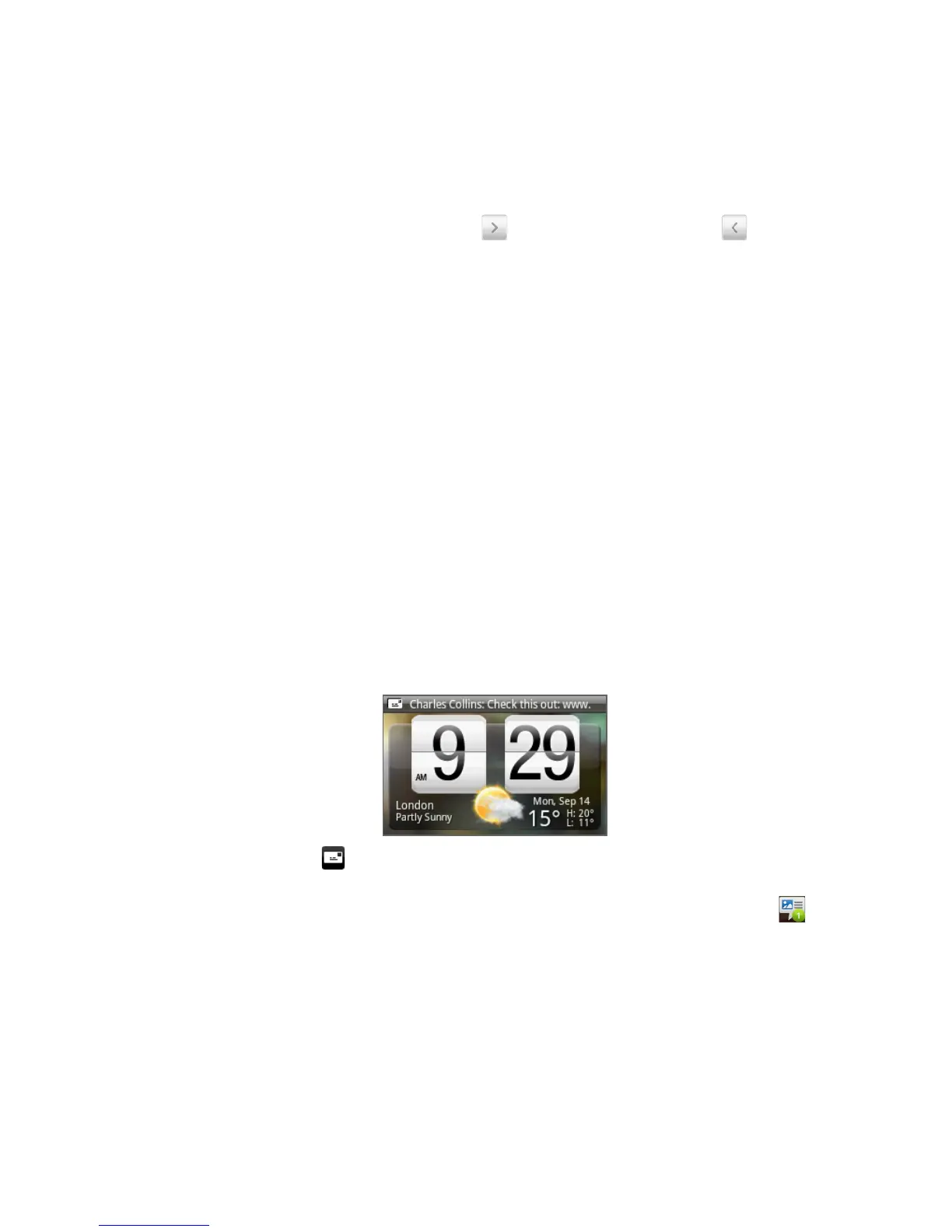
Depending on your notification settings, the phone will play a ring tone, vibrate,
or display the message briefly in the status bar when you receive a new text or
multimedia message. To change the notification for new text and multimedia
messages, see “Setting text and multimedia message options” later in this chapter.
A new message icon ( ) also appears in the notifications area of the status bar to
notify you of a new text or multimedia message. The Messages application icon
(if shown on the Home screen) also displays the number of new messages .
To open the message, refer to the next section.



 To Next Page