Phone Basics 41
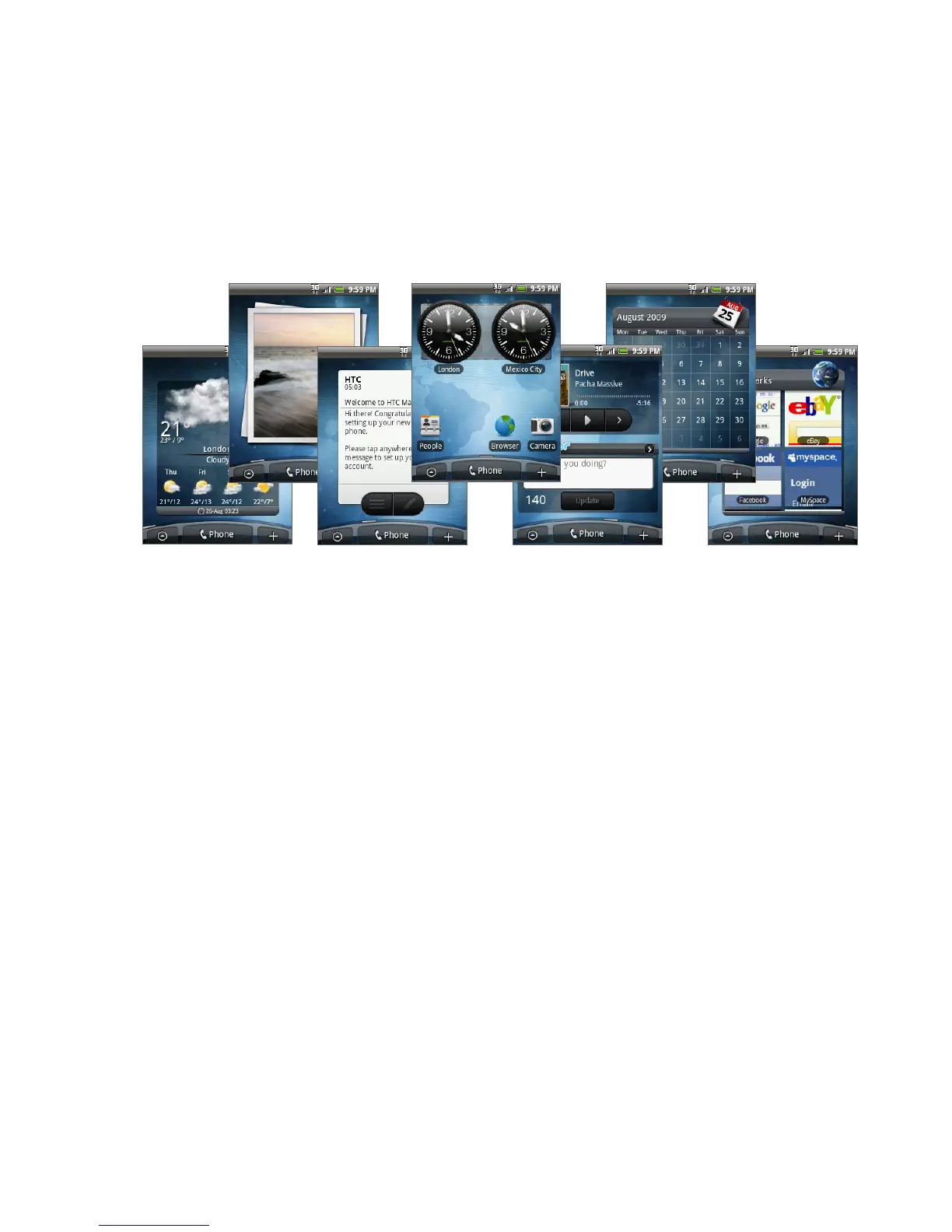
Your Home screen can look something like this after you take advantage of the
available widgets or use Scenes.
Adding Home screen items
Add Home screen items like application icons, shortcuts, folders, and HTC or
Android widgets to give you instant access to information and applications.
• Shortcut. Add shortcuts such as applications, a bookmarked web page,
a favorite contact, a Gmail™/Google Mail™ label, a Mail inbox, a music
playlist, and more.
• HTC widget. Add HTC widgets to the Home screen such as a Clock,
Calendar, Mail, People, Footprints, and more.
• Android™ widget. Add Android widgets to the Home screen such as
Analog clock, Music, Picture frame, Power control or the Google™ search bar.
• Folder. Add a folder where you can organize Home screen items. Add a
shortcut to all your contacts, contacts with phone numbers, or starred
contacts. Contact details are automatically updated when there are
changes in the source.
Tip For more information on how to create folders, see “To create a folder and add
items to it” in this chapter.



 To Next Page