Managing Your Phone 191
To lock the screen
Press the END CALL/POWER button. Locking the screen prevents accidental screen
touches when the phone is in your bag, purse, or pocket.
To unlock the screen, see “To unlock the screen” in Chapter 1.
To create and enable the screen unlock pattern
You can increase the security of your phone by creating a screen unlock pattern.
When enabled, you have to draw the correct unlock pattern on the screen to unlock
the phone’s control buttons and touch screen.
1. Press HOME > MENU, and then tap Settings.
2. Tap Security > Set unlock pattern.
3. Read the information on the screen, and then tap Next.
4. Study the example pattern on the screen, and then tap Next.
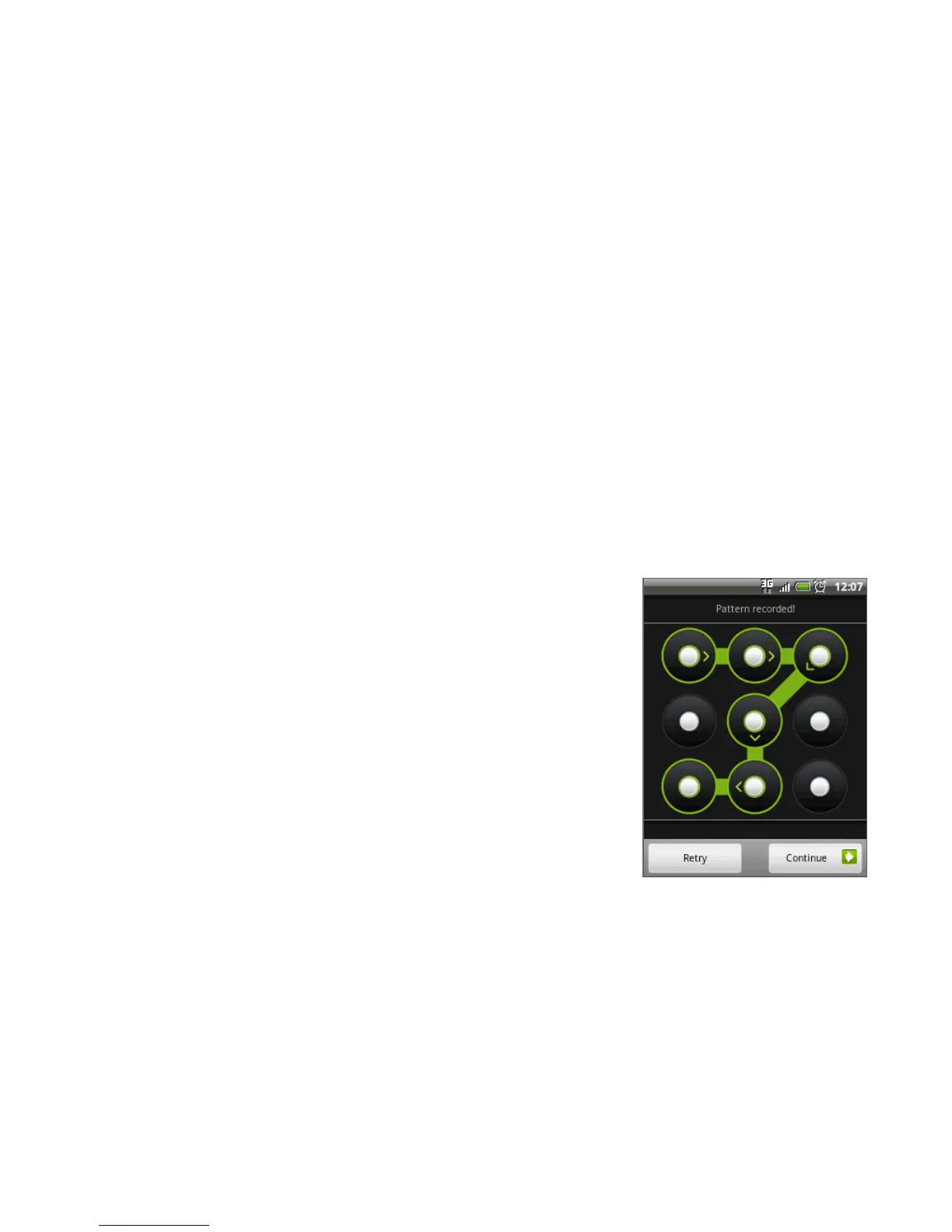
5. Draw the screen unlock pattern by connecting
at least four dots in a vertical, horizontal and/or
diagonal direction. Lift your finger from the
screen when finished.
Note You must slide your finger on the screen to
create the pattern and not tap individual dots.
6. The phone records the pattern. Tap Continue.
7. When prompted, draw the screen unlock pattern
again, and then tap Confirm.
Note To change your unlock screen pattern, press
HOME > MENU, and then tap Settings >
Security > Change unlock pattern.
Tip Select the Use visible pattern check box, if you want the unlock pattern to display on
the screen when you draw it.



 To Next Page