Page 28 Manual
B Touchscreen Operation
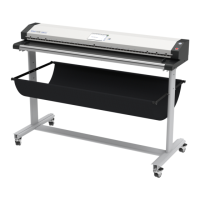
The WideTEK 25-600 scanner can be controlled in two ways.
• Via the integrated touchscreen. The functions of the touchscreen are described
starting with chapter B.2.
• Via a standard browser and the Scan2Net user interface. The functions of the
integrated Scan2Net (S2N) user interface are described starting with chapter C.1.
Please note: All screenshots are taken from a fully equipped device with all options
and functions activated. Depending on the selected mode, the menus
displayed on the screen can vary.
GENERAL NOTICE
This manual describes the functions of a complete equipped WideTEK 25-600 scanner. If
your device is not equipped with all features, deviations are possible.
B.1 Select Application Screen
When the WideTEK 25-600 scanner starts from standby mode and finishes the startup
procedure, the touchscreen displays for approximately ten seconds the screen
Select Application
Picture 8: Start screen after start-up
Touching this button will switch to a user programmable application.
This enables the user to operate the scanner with
application.
As factory default the EasyScan application is integrated.
To leave the application, the scanner must be restarted.
Touching this button switches to the start screen of the integrated
kiosk application.
Chapter B.2 to chapter B.6
and the corresponding subchapters
describe the available functions.






 To Next Page
