Page 78 Manual
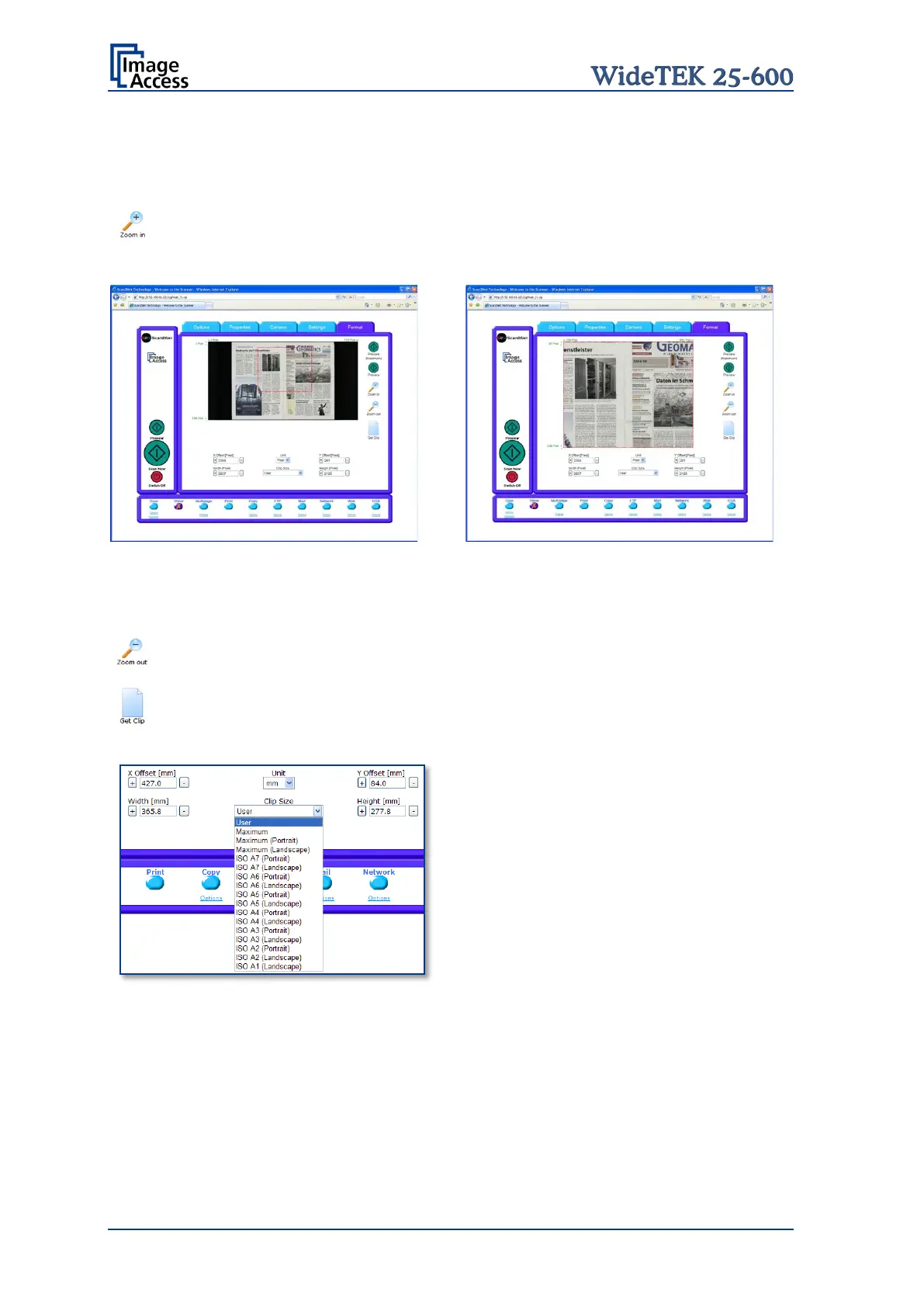
To select a specific area of the image, click with the mouse in the preview area and drag a
rectangle. Dragging the rectangle with the mouse starts in the upper left corner and ends
in the lower right corner.
Click the Zoom in button to display the selected area of the image in detail.
Picture 76: Rectangle dragged with mouse
Picture 77: Zoom in result
Click the Zoom out button to return to the previous dimension of the image.
Click the Get Clip button to get the selected area of the image in full resolution
in a separate window.
X Offset / Y Offset
Defines the position of the selection rectangle
in X- and Y-direction.
Width / Height
Defines the dimension of the selection
rectangle.
Unit
Allows selecting from a list the unit of measurement for the specification of the rectangle.
Clip Size
Offers a list of formats for the specific area. The content of the list depends on the size of
the preview scan area. That means the smaller the preview scan area, the shorter the list
of available formats.






 To Next Page