Page 64 Manual
2: The control buttons in the lower part of the screen control the output modes.
When selecting Save the scanned image will not be displayed. Instead of the second
window a box opens where the desired directory can be set.
As default the output mode Show is selected. After clicking onto the button Preview or
onto the button Scan Now a window opens and shows the image.
Selecting Multipage allows creating a multipage image. The scan result will not be
displayed. Clicking on Finalize opens an additional window and shows the images.
Selecting Print will display the scanned image in a second window and direct the
scanned image to locally available printers.
Selecting Copy prints directly to a previously installed network printer.
Selecting FTP scans directly to a FTP server.
Selecting Mail sends the scanned image directly to a previously defined e-mail
address.
Selecting Network uploads the scanned image directly to a previously defined
workstation in the network.
Selecting Web transfers the scanned image directly to a previously defined web
service. The available services can be selected from a list.
Selecting USB the scanned image is stored on an USB stick. USB memory devices
can be connected to the scanner at the connectors at the front side.
3: The frame on the left side shows the buttons for preview scan (Preview) and main
scan (Scan Now).
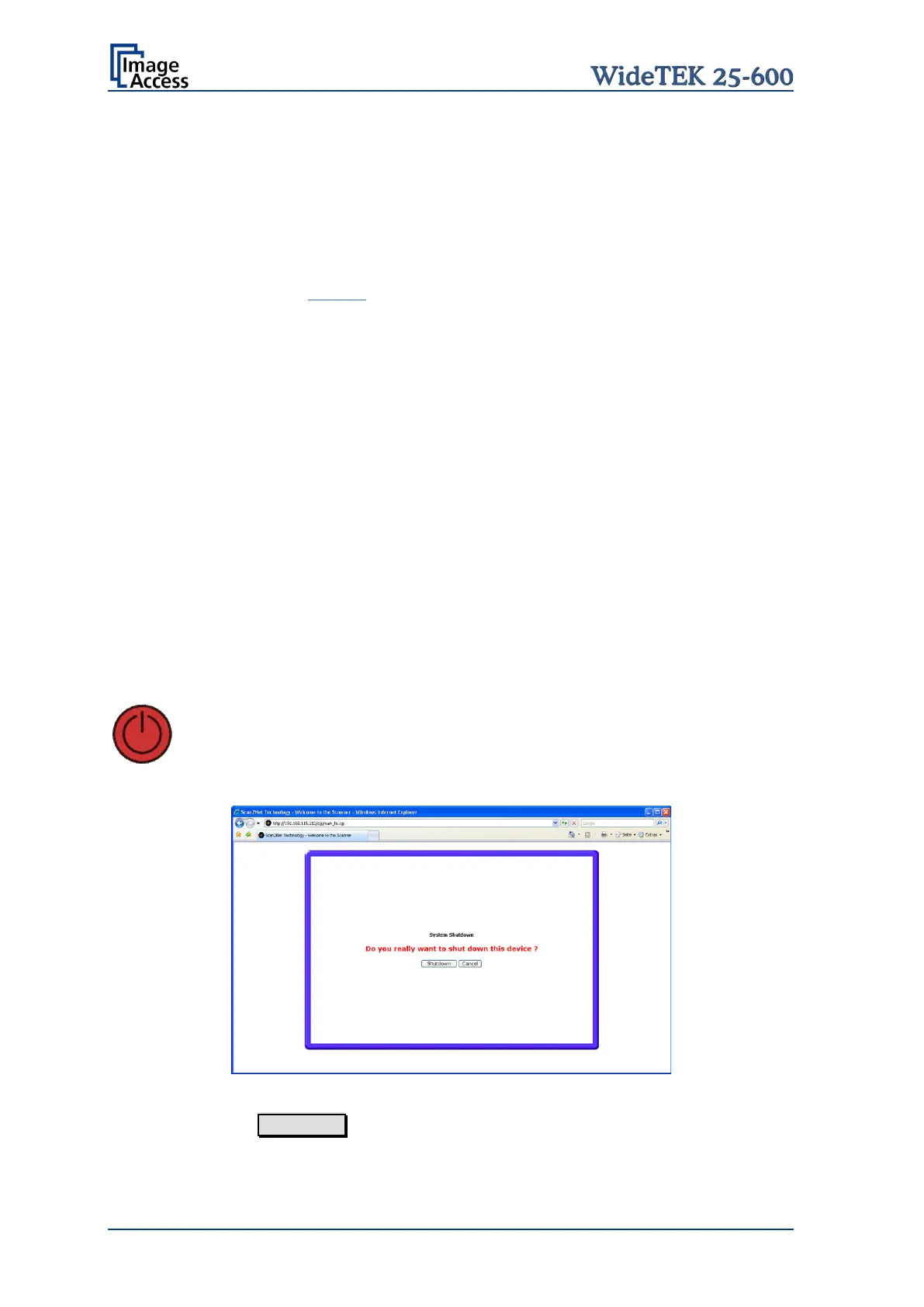
Press this button to switch the scanner off.
When the red button is pressed, the following screen will appear.
Picture 63: Shutdown confirmation
Click on the button Shutdown and the scanner switches off.






 To Next Page