Manual Page 35
B.3.2 Splitting Image
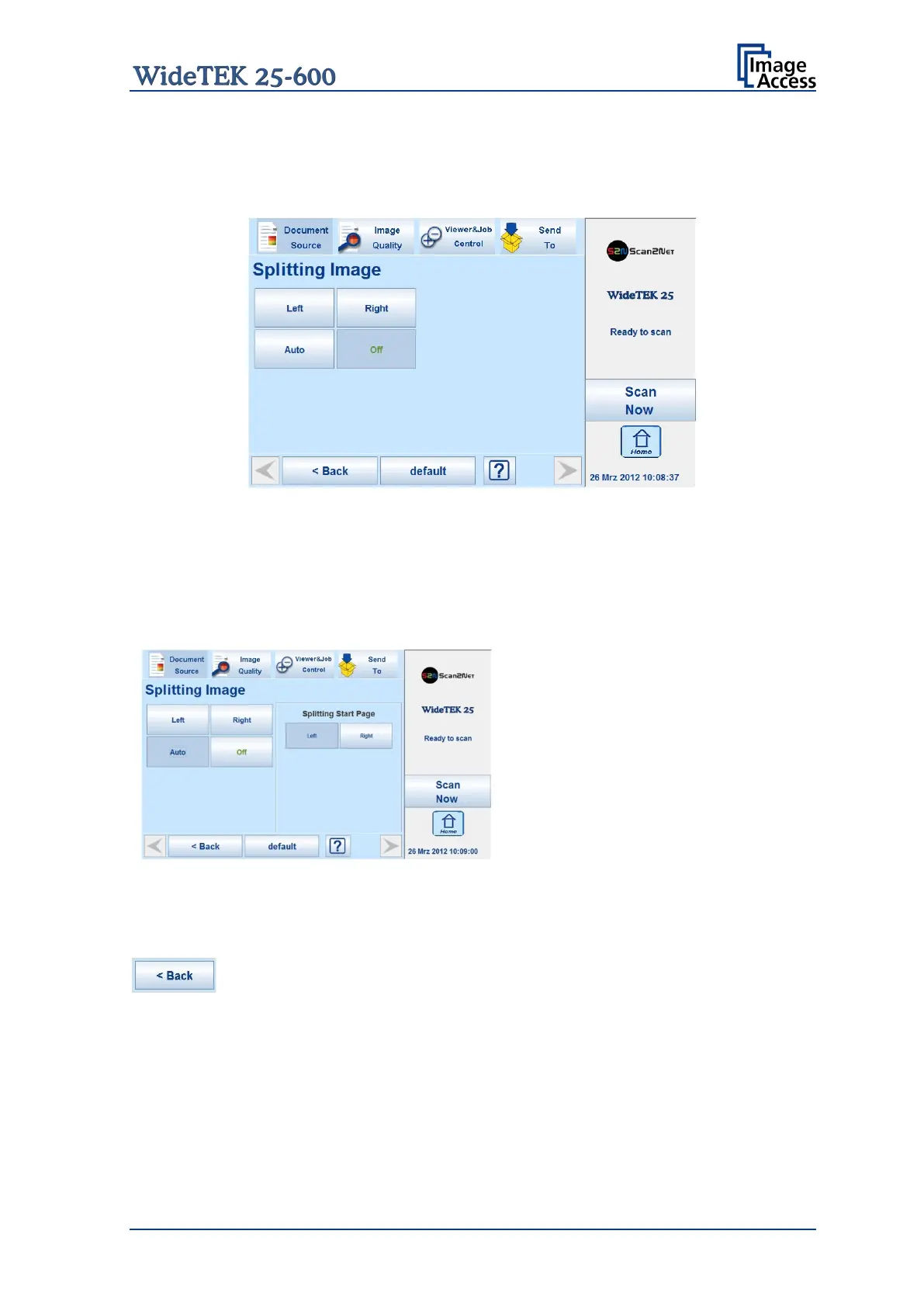
The button Splitting Image is used to select splitting the document scanned for the output
images.
Picture 18: Splitting Image
Left The selected format will be scanned completely. Only the left half of the selected
format will be displayed.
Right The selected format will be scanned completely. Only the right half of the
selected format will be displayed.
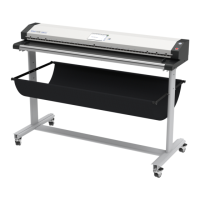
Picture 19: Selecting the „Splitting Start Page“
Auto
The complete scan area will be
scanned. The resulting image size will
be detected and it will be divided into
two symmetrical parts. Both parts will
be displayed successively as separate
images.
Press Scan now
second part of the document.
If selecting Auto,
opens. Here the page that will be
displayed first can be selected
start page.
Press this button to return from a submenu to the main menu.






 To Next Page