85
Define
Database image
§
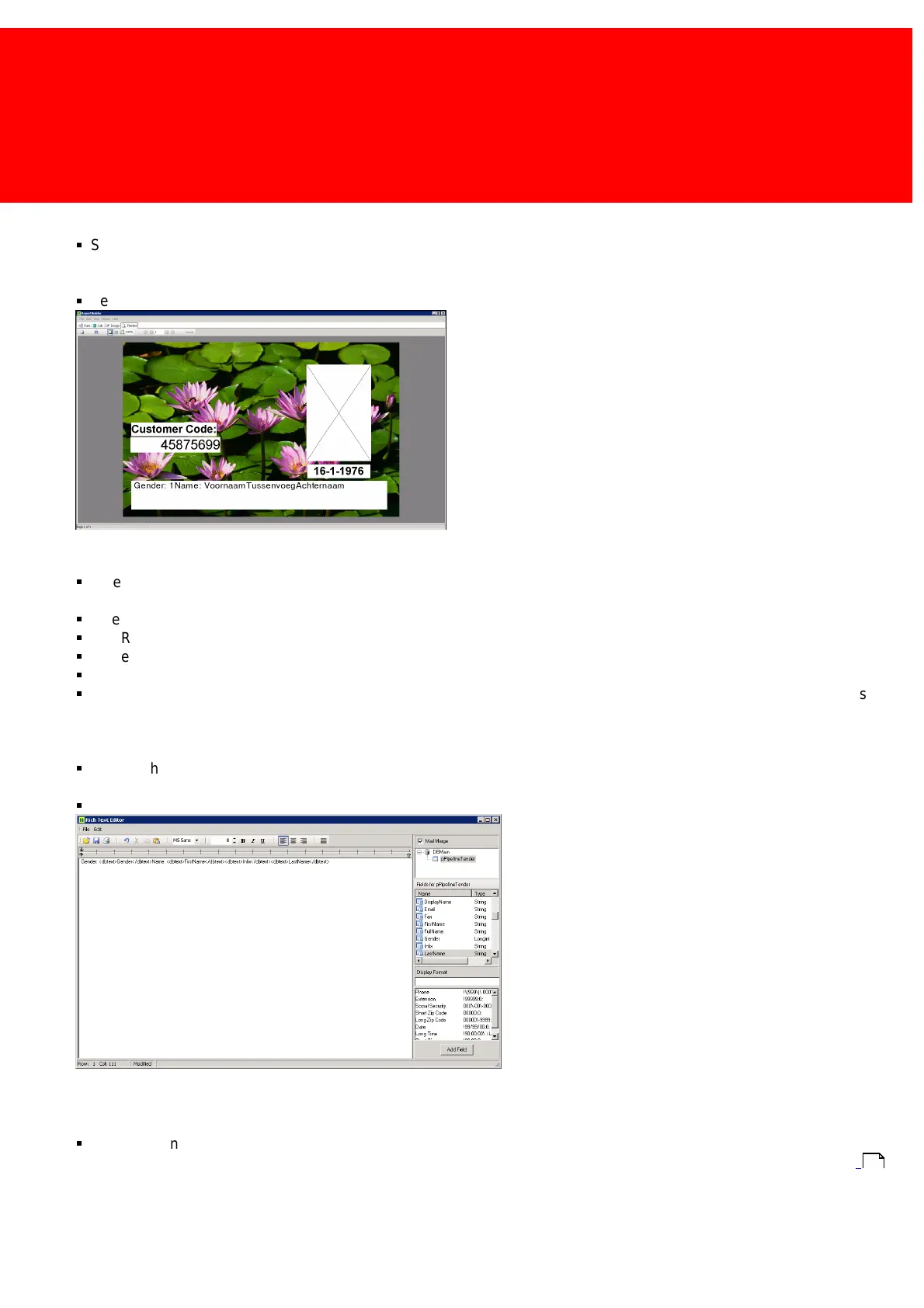
Select a DBImage. Set the width to '20000' and the hight to '30000' (Right-click => 'position'), as this will give the 2x3
ratio for pictures. Make sure to check Stretch to ensure the picture won't fill more then the area assigned to it, and check
'MaintainAspectRatio' to ensure it get stretched out of proportions.
§
Set the 'Datafield' to 'Photo'.
Multiple database texts inline
§
When displaying more then one dynamic DB object neatly next to each other on the same height there will be a problem,
it is unknown what the width of each object will be and if they will overlap. For this issue there is a trick.
§
Select a RichText object (so, not a DBRichText object), right-click it and click 'Edit'.
§
The Rich Text Editor Window will open.
§
In the top left, the Mail Merge checkbox can be found, check it and select the pPipeLineTender data source.
§
Select the fields 'Gender', FirstName', Infix', LastName'.
§
In the screen
'<dbtext>Gender</dbtext><dbtext>FirstName</dbtext><dbtext>Infix</dbtext><dbtext>LastName</dbtext>' appears,
click on the workspace and place spaces between the XML tags and add labels, like this: "Gender:
<dbtext>Gender</dbtext> Name: <dbtext>FirstName</dbtext>.
§
So now these fields will stay apart, but will also form one uniform line of text without having more space between the text
on one card and less one another.
§
Close the window and answer 'Yes' when asked to save the changes.
Gender
§
Now the Gender field in the database is a number, '0' for unknown, '1' for male and '2' for female. To create a more
elegant presentation just look at "Import the correct information with either CSV or Active Directory", see page: to
import a written gender code to an unused column in the user table.
152


 To Next Page