EasyManua.ls Logo

Intermec EasyCoder PD41 - User Manual

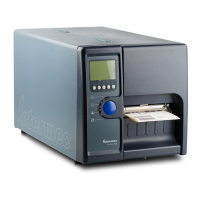
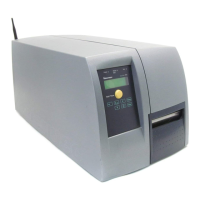
Intermec EasyCoder PD41
108 pages
Print Icon
To Next Page IconTo Next Page
Loading...
EasyCoder® PD41
Printer
Users Guide

Table of Contents

Other manuals for Intermec EasyCoder PD41

Questions and Answers

  • M
    Matthew SotoSep 4, 2025
    Why is printout not in desired position on Intermec EasyCoder PD41 Printer?
    • A
      Ashley LambertSep 4, 2025
      If the printout from your Intermec Printer is not in the desired position, check the following: * Application settings. * The label gap sensor for disturbances. * The lateral position of the label gap sensor. * Calibrate the label gap sensor in Autoadjust Mode. * Check the label gap sensor for faults or bad connection. * The edge guide and media guides. * The media. * If the platen roller needs cleaning or replacing.
  • J
    Justin StoneSep 3, 2025
    Why part of the print image was not printed along the feed direction on Intermec EasyCoder PD41 Printer?
    • L
      Lori BarajasSep 3, 2025
      If the print image is partially missing along the feed direction on your Intermec Printer, check for: * Ribbon wrinkles and creases. * A thermal printhead that needs cleaning. * A damaged printhead. * Printhead balance issues. * Errors in the application program. * Power supply functionality.
  • T
    Terri LongSep 2, 2025
    Why is printing missing along the feed direction on Intermec Printer?
    • J
      Julie GreenSep 2, 2025
      If the print image is missing along the feed direction on your Intermec Printer, try the following: * Check the transfer ribbon for wrinkles and creases, and reload if necessary. * Clean the printhead of any dirt, adhesive residue, or contamination. * Consider replacing the printhead if one or more heat-sensitive resistors are damaged. * Readjust the printhead balance, especially when switching between media of different widths.
  • Z
    zmeyersSep 1, 2025
    What to do if Intermec EasyCoder PD41 jams or tangles labels when printing?
    • G
      Gerald KingSep 1, 2025
      If your Intermec Printer is jamming or tangling labels during printing, clear the media jam. If a label is stuck on the thermal printhead, remove it with a soft cloth soaked in isopropyl alcohol or use a cleaning card.
  • C
    Christopher WilliamsonAug 31, 2025
    What to do if the Error LED is off, but Ready-to-Work LED is flashing on Intermec EasyCoder PD41?
    • A
      Anita MillerSep 1, 2025
      If the Intermec Printer's Ready-to-Work LED is flashing, ensure that the printhead is closed and locked.
  • L
    logandylanAug 31, 2025
    What to do if the Error LED is turned on (flashing light) on Intermec EasyCoder PD41 Printer?
    • Z
      zconnerAug 31, 2025
      If the Intermec Printer's Error LED is flashing, it indicates a bad software setting. Check for bad software setting.
  • J
    Jason PetersAug 28, 2025
    What to do when Intermec EasyCoder PD41 shows error during printing?
    • D
      dixonmaryAug 29, 2025
      If your Intermec printer experiences an error during printing, consider the following: * Check if the printer is out of media or transfer ribbon. * Ensure the printhead lever is closed and locked. * If the printhead is closed and locked, but the problem persists, check connection to P34 on the main board. Check headlift microswitch. * Inspect for jammed or tangled media and clear any obstructions. * Examine the label gap sensor for obstructions and clean if necessary. * Recalibrate the sensors by running a testfeed.
  • D
    Desiree CarterAug 28, 2025
    What to do if the Error LED is turned on (solid light) on Intermec Printer?
    • J
      Justin KirkAug 28, 2025
      If the Intermec Printer's Error LED is on with a solid light, it indicates a problem. Check the following: * Ensure the printer has media or ribbon. * Verify the printhead is closed and locked. * Check for jammed or tangled media. * Make sure the label gap sensor isn't blocked. * Inspect the cutter, if there is one.
  • J
    Jessica EdwardsAug 27, 2025
    What to do if Intermec EasyCoder PD41 is out of media?
    • J
      Joy WernerAug 27, 2025
      To address an 'Out of media' error on your Intermec printer, load media into the printer. See the EasyCoder PD42 User’s Guide (P/N 934-009-xxx) for detailed instructions.
  • L
    Logan RichardsAug 26, 2025
    Why Intermec Printer has no printing due to software error?
    • R
      Roger JohnsonAug 27, 2025
      If the Intermec Printer is experiencing no printing due to a software error, check if a bad command was sent to the printer via Fingerprint or direct protocol. Also, check the Fingerprint application or the last issued instruction in Direct Protocol.

Summary

Getting Started

Description of EasyCoder PD41

Provides a detailed overview of the EasyCoder PD41 printer's features and capabilities.

Unpacking the Printer

Instructions for safely unpacking the printer and its included accessories.

Product Identification

Details on locating and understanding the machine and serial number labels on the printer.

Front View

Illustrates and labels the front panel components of the EasyCoder PD41 printer.

Controls and Indicators

Explains the function of the front panel LEDs and the Print button.

Rear View

Diagram showing the rear panel of the printer and its various ports and connectors.

Connectors

Details the available connection sockets on the rear of the printer.

Media Compartment

Illustrates the internal media compartment of the printer.

Print Mechanism

Diagram showing the internal print mechanism of the printer.

Installing the Printer

Step-by-step guide for setting up and connecting the printer.

Connecting the Printer to your System

Guidance on connecting the printer via USB, Serial, Network, or Parallel interfaces.

Printing a Test Label

Procedure to print a test label for verifying printer functionality and configuration.

Operating the Printer

Loading Media

Instructions for loading various types of media into the printer.

Tear-Off (straight-through) Operation

Describes how to use the printer for manual tear-off of printed labels.

Peel-Off (Self-Strip) Operation

Explains the procedure for self-adhesive labels where the liner is separated.

Loading Thermal Transfer Ribbon

Step-by-step guide for loading thermal transfer ribbon into the printer.

LED indicators and the Print Button

Details the printer states indicated by LEDs and the functions of the Print button.

Maintaining the Printer

General Maintenance Advice

Provides recommendations for regular inspection and care of the printer.

Printhead Cleaning

Instructions on how to clean the printer's printhead to maintain print quality.

Internal Cleaning

Guidance on cleaning the printer's media compartment to prevent jams.

External Cleaning

Instructions for cleaning the exterior of the printer to prevent dust ingress.

Troubleshooting

Printer Operation Problems

Lists common printer operation issues and their potential solutions.

Print Quality Problems

Details issues affecting print quality and how to resolve them.

Ready-to-Work Indicator

Explains the meaning of the Ready-to-Work LED status and troubleshooting tips.

Troubleshooting Adjustments

Provides detailed solutions for common printer adjustments and issues.

Ribbon Wrinkling Adjustments

Guides on how to adjust ribbon tension and shield to prevent wrinkling.

Clearing Media Jams

Step-by-step instructions for clearing media jams from the print mechanism.

Printhead Adjustments

Covers adjustments for printhead balance, pressure, and dot line alignment.

Label Gap Sensor Adjustments

Instructions for adjusting the label gap sensor position for accurate media detection.

Setting up the Printer

The Printer Startup Sequence

Describes the printer's startup process and how firmware affects it.

Changing Configuration Settings

Methods for modifying printer configuration via PrintSet, Home Page, or Command Line.

Running Testmode

Explains how to use Testmode and Extended Testmode for diagnostics and setup.

Upgrading Firmware

Procedure for downloading and installing the latest printer firmware updates.

Technical Data

Printer Specifications

Lists detailed technical specifications, including physical dimensions and power.

Printer Specifications Table

A comprehensive table detailing the printer's physical, power, printing, and firmware specs.

Media Specifications

Media Roll Sizes

Specifies the required dimensions for media rolls, including core and roll diameter.

Ribbon Size

Details the required dimensions for thermal transfer ribbon rolls.

Paper Types and Sizes

Describes various paper types and their specific width and length requirements.

Non-Adhesive Strip

Specifies media width and paper type setup for non-adhesive strips.

Self-Adhesive Strip

Details media width, liner requirements, and setup for self-adhesive strips.

Self-Adhesive Labels

Covers media width, liner, label width, length, and gap specifications for labels.

Tickets with Gaps

Specifies dimensions and detection requirements for tickets with gaps.

Tickets with Black Mark

Details specifications for tickets and marks used for detection.

Setup Parameters (Fingerprint)

Setup Description

Overview of setup parameters and how they affect printer behavior.

Serial Communication Setup

Configuration options for serial communication parameters like Baud Rate and Parity.

Feed Adjust Setup

Parameters controlling media feed before and after printing, including Start and Stop Adjust.

Media Setup

Parameters for configuring media size, type, and print window settings.

Print Definitions Setup

Settings related to print speed, contrast, and testfeed modes.

Setup Parameters (IPL)

Setup Description

Overview of setup parameters for IPL firmware and their functions.

About Test labels

Information on printing test labels for software, hardware, and network settings.

Serial Communication Setup

Configuration of serial communication parameters for IPL firmware.

Media Setup

Parameters for media characteristics like type and sensitivity number.

Configuration Setup

Settings for emulation, print speed, cutter, and label taken sensor.

Returning to Factory Default Setup

Procedure to restore printer settings to factory defaults.

Interfaces

RS-232 Serial Interface

Details the RS-232 serial interface, protocol, and pinout.

USB Interface

Information on using the USB interface, including driver requirements.

EasyLAN Ethernet Interface

Describes the EasyLAN Ethernet interface, its speed, and status LEDs.

Parallel IEEE 1284 Interface

Details the Parallel IEEE 1284 interface and its pinout.

Options

EasyLAN Ethernet

Adds network capability to the printer.

Parallel IEEE 1284 Interface

Adds a parallel port to the printer.

Cutter Kit

Enables cutting of continuous paper stock or liner between labels.

Internal Rewinder and Batch Takeup

Device for peel-off operation and rolling up label batches.

Printhead Kit (203 or 300 dpi)

Replacement or complete kit for 203dpi or 300dpi printheads.

Intermec EasyCoder PD41 Specifications

General IconGeneral
Print technologyDirect thermal
Maximum resolution203 x 203 DPI
Standard interfacesRS-232, USB 2.0
Internal memory16 MB
Power requirements100-240 VAC ±10%, 45-65 Hz
Media thickness2.3 - 9.8 mm
Maximum label width104 mm
Maximum label length0.15 m
Maximum roll diameter213 mm
Maximum internal memory1 GB
Supported network protocolsTCP/IP, LPR/LPD, FTP, BOOTP, DHCP, HTTP, SNMPv3, SMTP, SNMP-MIB II
Operating temperature (T-T)40 - 104 °F
Operating relative humidity (H-H)20 - 85 %
Weight and Dimensions IconWeight and Dimensions
Depth453 mm
Width273 mm
Height270 mm
Weight13000 g

Related product manuals