3
B Sentech Ethernet Camera Firmware Update
Upon receiving the Sentech Ethernet camera, users should update the firmware. The following
procedure outlines how to update the firmware.
1. Connect the camera to a computer using an Ethernet cable.
a. The camera should be directly connected to the computer. While it is ok to use a USB to
Ethernet adapter for this connection, the camera should not be put on a network. High
network traffic can interrupt the connection with the camera.
2. Power the camera on using the supplied power supply.
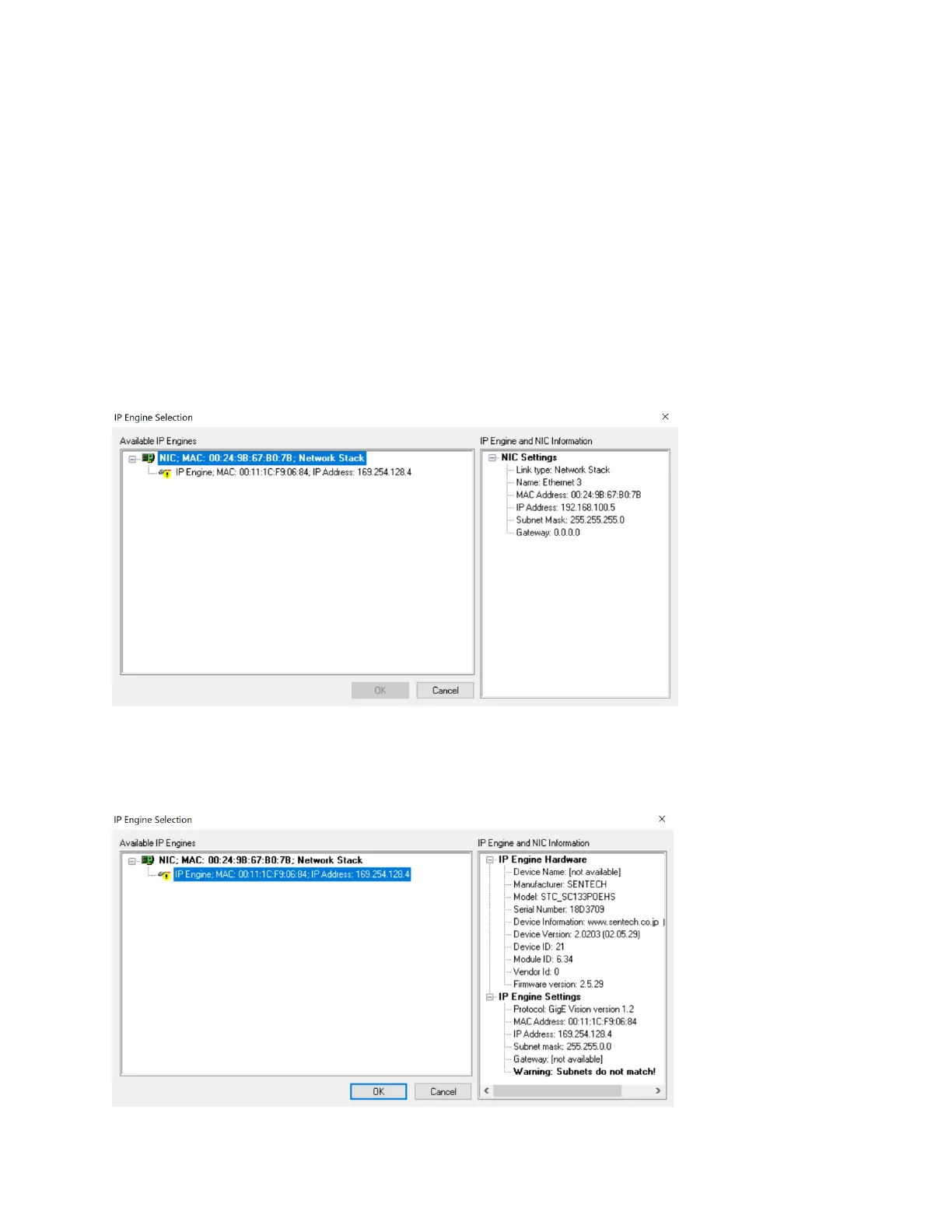
3. Launch the application “STC-SC133POEHS-DeviceVersion2.0201-HardwareVersion4.” The
window pictured in Figure B-1 should appear.
Figure B-1 Sentech Firmware Launch Window
4. Select the listed camera. Under “IP Engine and NIC Information,” the camera’s information will
be listed. See Figure B-2.
Figure B-2 Selecting the Camera for Update


 To Next Page