EasyManua.ls Logo

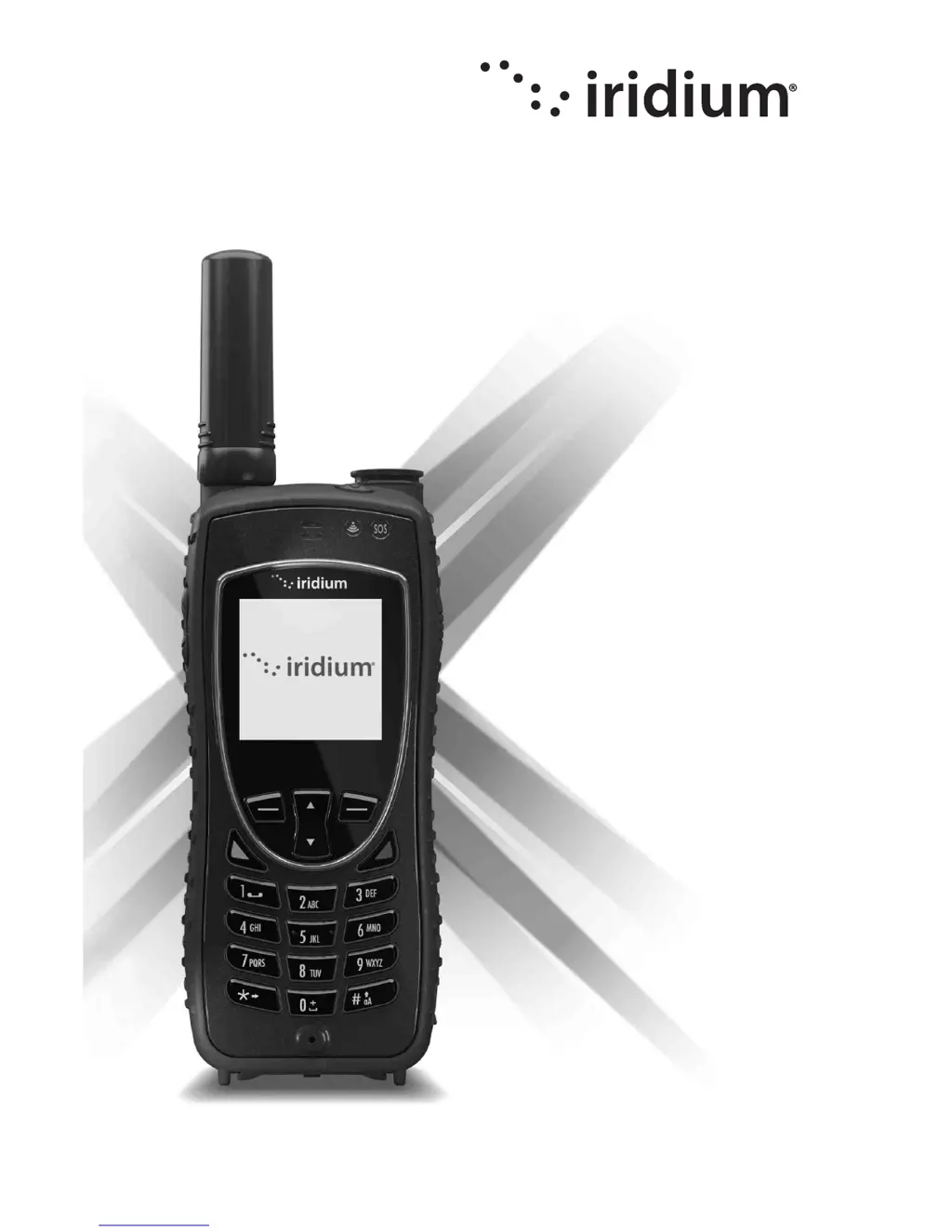
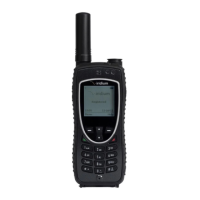
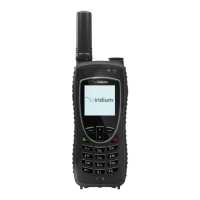
Iridium Extreme - User Manual

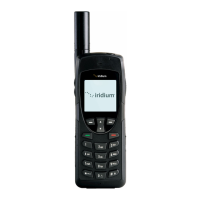
Iridium Extreme
230 pages
Print Icon
To Next Page IconTo Next Page
Loading...
Iridium
Extreme
User Manual
© Copyright 2011 Iridium Communications, Inc. All rights reserved. (version H3UG1101)
web: www.iridium.com
email: info@iridium.com
toll free: +1.866.947.4348
phone: +1.480.752.5155

Table of Contents

Other manuals for Iridium Extreme

Questions and Answers

  • D
    Daniel MurphySep 23, 2025
    What to do if I can't make international calls on my Iridium Extreme Marine GPS System?
    • J
      James PerkinsSep 23, 2025
      To make international calls on your Iridium Marine GPS System, include the relevant codes. Enter 00 or + followed by the appropriate country code and the phone number.
  • K
    Karen PaulSep 23, 2025
    What does it mean if the message indicator is flashing on my Iridium Extreme Marine GPS System?
    • J
      Jessica CrawfordSep 23, 2025
      If the message indicator is flashing on your Iridium Marine GPS System, it means there is not enough memory available to store another message. Delete one or more messages using the messages menu.
  • L
    Lee Livingston MDSep 23, 2025
    What to do if my Iridium Marine GPS System phone will not unlock?
    • Q
      qdavisSep 23, 2025
      If your Iridium Marine GPS System phone will not unlock: * If you've inserted a new SIM card, enter the new PIN code (the default PIN is 1111). * Enter the default phone unlock code: 1234. * If you have forgotten the unlock code, no answer.
  • A
    Aaron SullivanAug 31, 2025
    What to do if my Iridium Telephone battery won’t charge?
    • E
      Eric PhillipsAug 31, 2025
      If your battery won't charge, first check the charger to ensure it's properly connected and the contacts are clean and dry. Then, check the battery contacts themselves. If the battery is warm, let it cool before attempting to charge it. If it's an old battery, its performance may have declined, and it may need replacing. Finally, ensure you are using an Iridium-approved battery.
  • J
    John GilbertAug 25, 2025
    Why can't I receive calls on my Iridium Telephone?
    • C
      Cassie ThomasAug 25, 2025
      There are several reasons why you might not be receiving calls. Ensure your phone is powered on. Check that the antenna is fully extended and correctly angled, and that you have a clear view of the sky. Verify the signal strength and ensure no obstructions are present. Also, check your Call Forwarding and Call Barring settings, as well as the Ringer setting to make sure it's not off. Finally, check if your fixed dialing list is enabled.
  • C
    Connie FisherAug 25, 2025
    Why my Iridium Telephone battery won’t charge?
    • R
      Roy YoungAug 26, 2025
      If your Iridium Telephone battery isn't charging, make sure the contacts are clean and dry. If the battery is hot, allow it to cool down before attempting to charge it. Also, verify that the installed battery is the correct one. If the problem persists, consider replacing the battery.
  • H
    Hannah Miller DVMAug 26, 2025
    How to make international calls on Iridium Telephone?
    • P
      pamelahansonAug 26, 2025
      If you can't make international calls with your Iridium Telephone, dial 00 or + followed by the appropriate country code and the phone number.
  • M
    Mark HarrisAug 27, 2025
    What to do if Iridium Telephone will not receive calls?
    • M
      Mr. Nicholas BennettAug 27, 2025
      If your Iridium Telephone will not receive calls, make sure that the SIM card is properly inserted.
  • G
    gutierrezwilliamAug 27, 2025
    What to do if my Iridium Telephone battery drains faster than normal?
    • J
      Jimmy OsborneAug 27, 2025
      Several factors can cause your battery to drain quickly. If you're in an area with variable coverage, your phone uses extra power. Ensure your antenna is fully extended and correctly angled with a clear view of the sky. If it's a new battery, it may need two to three charge/discharge cycles to reach normal performance. An old battery's performance declines over time, so consider replacing it. If the battery hasn't been completely discharged, allow it to fully discharge before charging overnight. Extreme temperatures can also reduce battery performance.
  • A
    Anna LopezAug 27, 2025
    What to do if my Iridium Telephone won't power on?
    • M
      morganheatherAug 28, 2025
      First, make sure you press and hold the power button for at least three seconds. Then, check the battery to ensure it is charged, properly fitted, and that the contacts are clean and dry.

Summary

Important Safety Information

Safety and Warning Icons

Explains the conventions and icons used throughout the user manual for safety.

Exposure to Radio Frequency Signals

Discusses compliance with RF exposure regulations and international standards.

Batteries Safety Guidelines

Provides crucial safety instructions for handling and using batteries.

Emergency Calling Procedures

Explains how to make emergency calls in different regions.

Potential Explosive Atmospheres

Safety precautions for using the phone in potentially explosive environments.

Implantable Medical Devices and Hearing Aids

Safety considerations for users with medical implants or hearing aids.

Iridium Extreme Overview

Status Indicator LED and SOS Indicator LED

Explains the meaning of different LED indicators on the phone.

Getting Started with Iridium Extreme

Using the SIM Card

Instructions on receiving, caring for, and using the SIM card.

Inserting and Removing the SIM Card

Step-by-step guide for inserting and removing the SIM card.

Battery Pack Information and Safety

Details battery safety precautions and warnings.

Battery Charging and Disposal Guidelines

Provides instructions for charging and disposing of the battery.

Removing and Installing the Battery Pack

Guides on how to remove and install the battery pack.

Charging the Battery

Instructions on how to charge the battery and important charging notes.

Checking Battery Charge Level and Warnings

Explains how to check battery level and understand low battery warnings.

Phone Operation and Efficient Use

Guidance on normal phone operation and tips for efficient use.

Placing a Call

Step-by-step instructions for dialing numbers and placing calls.

Receiving a Call

Procedures for receiving calls with the antenna extended or stowed.

Locking and Unlocking the Keypad

Steps to lock and unlock the phone's keypad to prevent accidental use.

Using Menus and Keys

Entering Characters via Keypad

Explains traditional text entry methods using the keypad.

Predictive Text Entry Modes

Enabling Predictive Text Entry

Steps to enable predictive text features like WordWise and LetterWise.

LetterWise Text Mode Usage

Detailed explanation of how to use LetterWise for text input.

WordWise Text Mode Usage

Detailed explanation of how to use WordWise for text input.

Using the Phonebooks

Adding a New Entry to My Phonebook

Step-by-step guide to add new contacts to the phonebook.

Calling an Entry from the Phonebook

Instructions on how to initiate a call to a contact from the phonebook.

Sending SMS Messages via Phonebook

How to send text messages to contacts using the phonebook.

Editing an Entry in My Phonebook

Guide on how to modify existing contact information.

Deleting an Entry from the Phonebook

Steps to remove contacts from the phonebook.

Using the Messages Menu

Sending SMS to Email Addresses

Instructions for sending SMS messages to email addresses.

Sending SMS via Phonebook Contacts

Steps to send SMS messages to contacts saved in the phonebook.

Using the Voicemail Menu

Voicemail Notification and Checking

How to receive voicemail notifications and check messages.

Using the Call History Menu

Using the Call Log Menu

How to view received, missed, and dialed calls.

Using the Call Meters Menu

Features for tracking airtime, call duration, and usage.

Using the Setup Menu

Resetting Phone Options to Factory Defaults

Resets all phone settings to their original default configurations.

GPS and Location-Based Services

Setting Emergency Options

Personalizes settings for the programmable SOS button.

Emergency Mode Activation and Cancellation

How to initiate or cancel emergency mode.

Emergency Actions and Beep Settings

Defines call/message actions and emergency beep settings.

Configuring Message and Call Recipients

Sets contacts for emergency notifications via message or call.

Using the Security Menu

Locking and Unlocking Your Phone

Steps to lock and unlock the phone to prevent unauthorized use.

Changing PIN Codes

Instructions for changing phone PIN, SIM PIN, SIM PIN2, and Call Barring PIN.

Troubleshooting Common Issues

Phone Wont Power On

Solutions for issues where the phone does not power on.

Cannot Make Calls or Receive Calls

Troubleshooting steps for call connection and reception problems.

Phone Not Responding or Displaying Errors

Solutions for unresponsive controls, incorrect language, or network search issues.

Battery and Charging Issues

Troubleshooting for battery drain, charging problems, and warmth.

Limited Warranty, Service, and Software License

Limited Warranty Terms and Support

Details the product warranty period, coverage, and claim process.

Warranty Exclusions

Lists circumstances and conditions not covered by the limited warranty.

Conditions of Use and Liability Limitations

Outlines terms of use and limitations on Iridium's liability.

Iridium Extreme Specifications

General IconGeneral
Ingress ProtectionIP65
Data Speed2.4 kbps
Satellite NetworkIridium
TrackingYes
Voice CommunicationYes
Battery Standby Time30 hours
Battery Talk Time4 hours
Emergency ButtonYes
MessagingYes
GPSIntegrated

Related product manuals