EasyManua.ls Logo

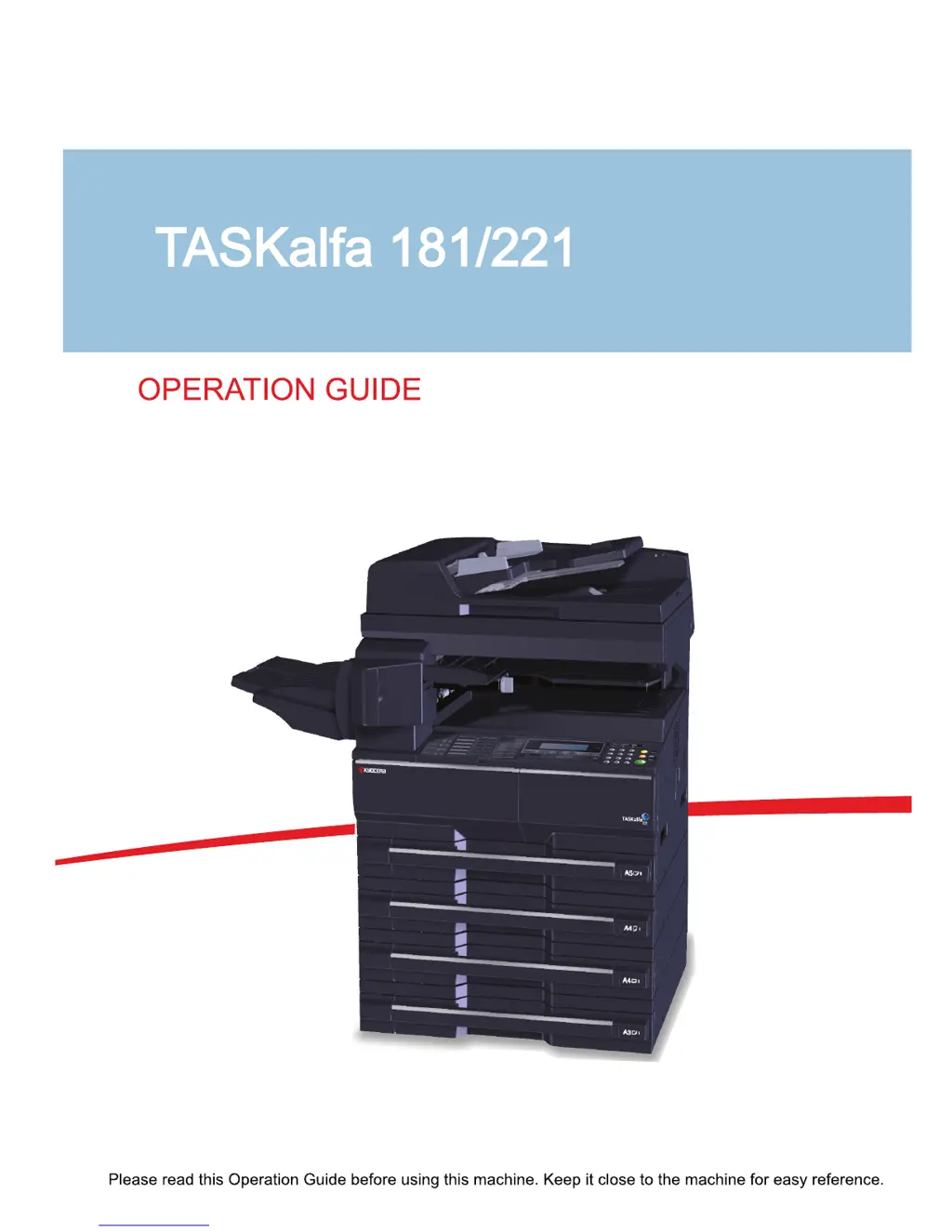
Kyocera TASKalfa 181 - User Manual

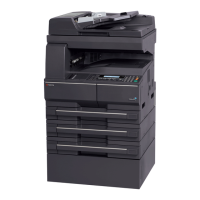
Kyocera TASKalfa 181
276 pages
Print Icon
To Next Page IconTo Next Page
Loading...

Table of Contents

Other manuals for Kyocera TASKalfa 181

Questions and Answers

  • R
    Rebecca OlsonAug 29, 2025
    Why are the printouts from my Kyocera TASKalfa 181 All in One Printer wrinkled?
    • L
      Lisa BurkeAug 29, 2025
      Wrinkled printouts from your Kyocera All in One Printer can be due to: * A dirty paper separator on the paper feed unit, so clean the paper separator. * Damp paper, so replace the paper with new paper. * Improper paper orientation, so change the orientation in which the paper is positioned.
  • M
    Mrs. Wanda AdamsAug 30, 2025
    What causes paper misfeed in Kyocera TASKalfa 181 All in One Printer?
    • D
      Daniel WillisAug 30, 2025
      A paper misfeed, or paper jam, has occurred in your Kyocera All in One Printer. The location of the jam is indicated on the message display. Leave the main power switch on and follow the appropriate procedure to remove the jammed paper.
  • I
    imckeeAug 30, 2025
    What to do if my Kyocera All in One Printer says 'Unable to copy. Please Add Toner'?
    • A
      Andrew ArnoldAug 30, 2025
      If your Kyocera All in One Printer displays 'Unable to copy. Please Add Toner', it means no toner remains. Replace the toner container to add toner.
  • C
    Christine CoxAug 31, 2025
    How to adjust print darkness on Kyocera All in One Printer?
    • M
      Mary GonzalezAug 31, 2025
      If your Kyocera All in One Printer's printouts are too dark: * If the machine is in Auto Density mode, set the correct density level. * If the machine is in Manual Density mode, use the Image Quality key to set the correct density level.
  • M
    Monica HenryAug 25, 2025
    Why does my Kyocera TASKalfa 181 say 'Add Paper'?
    • C
      Clinton MilesAug 25, 2025
      The 'Add Paper' message on your Kyocera All in One Printer indicates that the selected drawer is empty. Make sure to add paper to the drawer indicated in the message display. This message can also appear if one or more of the drawers are not properly set. Ensure all drawers are securely inserted into the machine.
  • R
    rodneyeatonSep 1, 2025
    Why is my Kyocera All in One Printer ejecting blank sheets?
    • W
      Wesley AllenSep 1, 2025
      If your Kyocera All in One Printer is ejecting blank sheets, check if the originals are loaded correctly. When placing originals on the platen, place them face-down and align them with the original size indicator plates. When placing originals in the optional document processor, place them face-up.
  • Q
    qgonzalezSep 1, 2025
    What to do if Kyocera All in One Printer operation panel doesn't respond?
    • J
      Jeffrey EspinozaSep 1, 2025
      If the operation panel of your Kyocera All in One Printer does not respond when the main power switch is turned on, plug the power cord into an AC outlet.
  • K
    Kathryn JohnsonSep 2, 2025
    What does 'Misfeed in DP' mean on my Kyocera TASKalfa 181?
    • J
      Justin JohnsonSep 2, 2025
      The message 'Misfeed in DP' on your Kyocera All in One Printer indicates that originals have jammed in the optional document processor. Leave the main power switch on and follow the appropriate procedure to remove the jammed originals.
  • S
    Sonya JohnsonSep 2, 2025
    Why are there black lines on printouts from Kyocera TASKalfa 181 All in One Printer document processor?
    • V
      vanessasnyderSep 3, 2025
      If printouts from the document processor of your Kyocera All in One Printer have black lines, the slit glass may be dirty. Clean the slit glass.
  • V
    Veronica FrankSep 3, 2025
    What to do if pressing start on Kyocera TASKalfa 181 doesn't make copies?
    • M
      margaretibarraSep 3, 2025
      If pressing the Start key on your Kyocera All in One Printer does not produce copies: * Check the message display for any messages and respond accordingly. * If the machine is in Sleep mode, press the Power key to recover it. The machine will be ready to copy within 30 seconds.

Summary

Preparation before Use

Loading Paper

Instructions for loading various paper types into cassettes and MP tray.

Loading Originals

Procedures for placing originals on the platen or in the document processor.

Basic Operation

Printing from Applications

Guide to printing documents from computer applications.

Copying Functions

Printing Functions

Using This Machine as a Network Printer

Steps for setting up the machine for network printing.

Job Accounting

Maintenance

Toner Container and Waste Toner Box Replacement

Step-by-step guide for replacing toner and waste toner.

Troubleshooting

Solving Malfunctions

A table listing common symptoms, checkpoints, and corrective actions.

Responding to Error Messages

Guidance on interpreting and resolving displayed error messages.

Clearing Paper Jams

Detailed instructions for clearing paper jams in various machine locations.

Kyocera TASKalfa 181 Specifications

General IconGeneral
Print TechnologyLaser
TypeMonochrome
Print Resolution600 x 600 dpi
Copy Resolution600 x 600 dpi
Scan Resolution600 x 600 dpi
Duplex PrintingManual
Memory64 MB
FunctionsPrint, Copy, Scan
Print Speed18 ppm
Copy Speed18 cpm
Paper Capacity250 sheets
ConnectivityUSB 2.0
Supported Operating SystemsLinux

Related product manuals