EasyManua.ls Logo

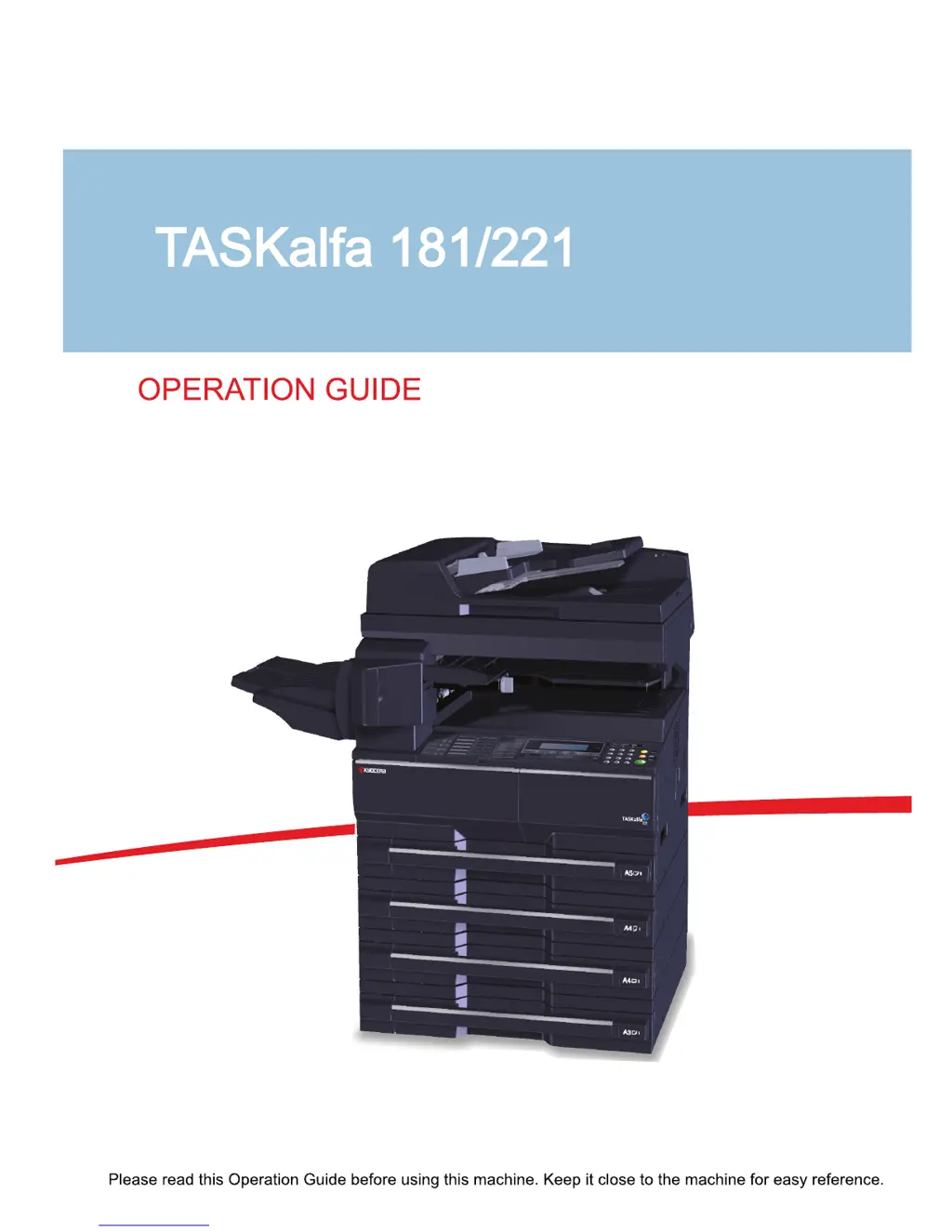
Kyocera TASKalfa 181 - User Manual

Kyocera TASKalfa 181
276 pages
Print Icon
To Next Page IconTo Next Page
Loading...

Table of Contents

Other manuals for Kyocera TASKalfa 181

Questions and Answers

  • M
    Michael McleanSep 3, 2025
    What to do if Kyocera TASKalfa 181 says 'Paper capacity exceeded'?
    • K
      kennethpittmanSep 4, 2025
      If your Kyocera All in One Printer displays 'Paper capacity exceeded. Remove paper from Job sep.', it means there are already 100 sheets of paper stored on the optional job separator. Remove the paper.
  • N
    Nicholas JonesSep 4, 2025
    How to remove moire pattern from copies on Kyocera TASKalfa 181 All in One Printer?
    • E
      estradamicheleSep 4, 2025
      If your Kyocera All in One Printer copies have a moire pattern, and the original is a printed photograph, set the image quality to the Print Photo key.
  • J
    Jesus BushSep 5, 2025
    What to do if Kyocera TASKalfa 181 says 'Paper misfeed in Finisher'?
    • J
      James AnthonySep 5, 2025
      If your Kyocera All in One Printer displays 'Paper misfeed in Finisher, lower Process Tray and remove paper', paper has jammed in the optional finisher. Remove the paper.
  • B
    brendan71Sep 5, 2025
    What to do if Kyocera TASKalfa 181 All in One Printer says 'Remove paper from Finisher'?
    • D
      David BurnsSep 5, 2025
      If your Kyocera All in One Printer displays 'Remove paper from Finisher. Press GO', there are already 250 sheets of paper stored in the optional finisher during printing. Remove the paper. Press the Print key. Press U or V to select GO, and then press the Enter key. Printing will resume.
  • P
    Patrick WalshSep 6, 2025
    What to do if Kyocera TASKalfa 181 says 'Remove paper from Finisher. Press START key.'?
    • T
      Tiffany ClaytonSep 6, 2025
      If your Kyocera All in One Printer displays 'Remove paper from Finisher. Press START key.', there are already 250 sheets of paper stored in the optional finisher during copying. Remove the paper.
  • D
    Denise LeeSep 6, 2025
    What to do if Kyocera All in One Printer says 'Remove paper from Top tray. Press GO.'?
    • S
      Sheila MartinSep 6, 2025
      If your Kyocera All in One Printer displays 'Remove paper from Top tray. Press GO.', the output tray capacity is exceeded during printing. Remove the paper. Press the Print key. Press U or V to select GO, and then press the Enter key. Printing will resume.
  • R
    richardsamandaSep 7, 2025
    What to do if Kyocera All in One Printer says 'Remove paper from Top tray. Press START key.'?
    • S
      stacyholmesSep 7, 2025
      If your Kyocera All in One Printer displays 'Remove paper from Top tray. Press START key.', the output tray capacity is exceeded during copying. Remove the paper.
  • J
    John RichardsonSep 7, 2025
    What does 'Receive Doc. in Mem.' mean on my Kyocera TASKalfa 181 All in One Printer?
    • K
      Karen BrownSep 7, 2025
      The 'Receive Doc. in Mem.' message on your Kyocera All in One Printer means that received documents were stored in memory because there was no paper in the drawer. Once you load paper into the drawer, the documents stored in memory will be printed. If 'Add Paper (XX Cassette)' is also displayed, load paper of the indicated size.

Summary

Preparation before Use

Loading Paper

Instructions for loading various paper types into cassettes and MP tray.

Loading Originals

Procedures for placing originals on the platen or in the document processor.

Basic Operation

Printing from Applications

Guide to printing documents from computer applications.

Copying Functions

Printing Functions

Using This Machine as a Network Printer

Steps for setting up the machine for network printing.

Job Accounting

Maintenance

Toner Container and Waste Toner Box Replacement

Step-by-step guide for replacing toner and waste toner.

Troubleshooting

Solving Malfunctions

A table listing common symptoms, checkpoints, and corrective actions.

Responding to Error Messages

Guidance on interpreting and resolving displayed error messages.

Clearing Paper Jams

Detailed instructions for clearing paper jams in various machine locations.

Kyocera TASKalfa 181 Specifications

General IconGeneral
Print TechnologyLaser
TypeMonochrome
Print Resolution600 x 600 dpi
Copy Resolution600 x 600 dpi
Scan Resolution600 x 600 dpi
Duplex PrintingManual
Memory64 MB
FunctionsPrint, Copy, Scan
Print Speed18 ppm
Copy Speed18 cpm
Paper Capacity250 sheets
ConnectivityUSB 2.0
Supported Operating SystemsLinux

Related product manuals