72
Holiday Classic Owner’s Guide
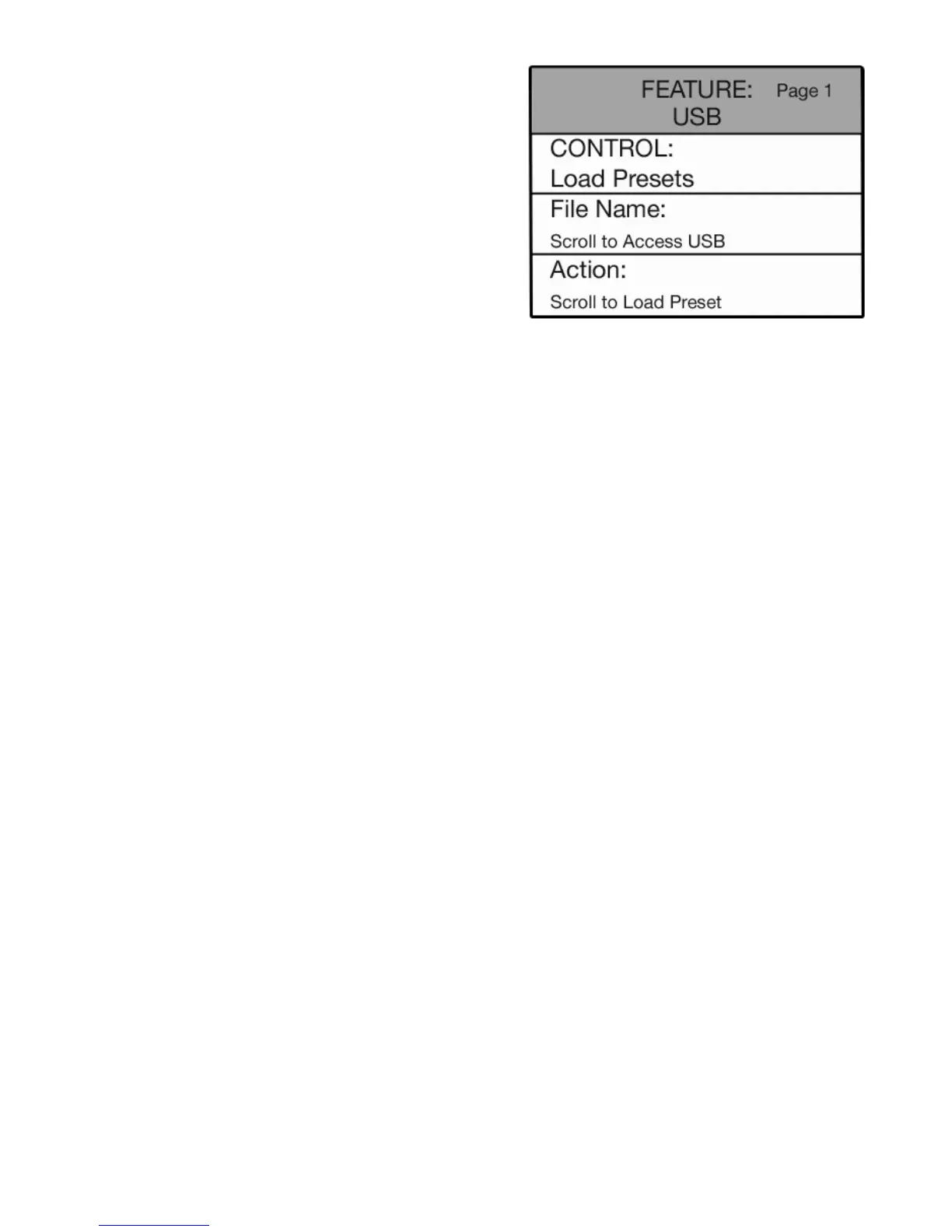
The FEATURE (CLEAR) button and the SCROLL buttons are used to access numerous control features.
All of these features are preset from the factory and need not be adjusted.
SCROLL BUTTONS
What It Does:
The SCROLL buttons allow you to move among different choices or change items displayed on the COLOR
DISPLAY. The scroll function is used frequently with many features on the Holiday Classic.
How It Works:
The top button always increases a number or moves up through a list of choices. The bottom button always
decreases a number or moves down through a list of choices.
How To Use It:
Use the SCROLL buttons to view options and make changes to features displayed on the COLOR DISPLAY.
SELECT BUTTONS
What It Does:
The SELECT button allows you to move from one pane to another. The select function is used frequently
with many features on the Holiday Classic.
How It Works:
Select sets the choices and settings made and then moves to the next step in a process.
How To Use It:
Once you have SCROLLED to a desired page, press the SELECT button to move to the PANE, such a s
CONTROL, SETTING, NAME, ACTION... that you wish to change. Each feature page description that follows
will specify the use of the
SELECT button, as it relates to a particular setting or feature.
Shortcuts
The FEATURE PAGES have SHORTCUTS. Shortcuts eliminate some of the steps needed to access a
particular screen. To implement a shortcut simply press and hold the FEATURE (CLEAR) button, press and
release a specified button, then release the
FEATURE (CLEAR) button. SHORTCUTS are indicated at each fea-
ture page heading that follows in this section ‘SHORTCUT =FEATURE + (BUTTON NAME)’.
For example, if you want to quickly jump to the AOC screen...
1. Press and hold the
FEATURE (CLEAR) button.
2. Press and release the
AOC button.
3. Release the
FEATURE (CLEAR) button. The AOC screen will be displayed.
How To Use It:
Press the FEATURE (CLEAR) button. It will light up and the
first
FEATURE PAGE will be displayed. Press the top
SCROLL button one time to view the second feature page.
Each time you press the top scroll button the next feature
page is displayed.
Pressing the
FEATURE (CLEAR) button when it is lighted
turns the button off and returns (clears) the screen to the
“Power-Up” screen.



 To Next Page