29
USB Memory Stick
e. When you wish NOT to overwrite the previously saved presets press the
FEATURE (CLEAR) button to
cancel the procedure. Begin the process again at step 1 and choose a different (empty) spot in which
to save the presets (step 6).
The OVERWRITE feature is used primarily for updating existing preset groups. For example, Preset Group
1 may be your party pr
esets. As you are playing with these presets, you may have made some minor changes
to them. These changes may be more appealing than what you already saved. Rather than saving these pre-
sets into a new preset group, you can OVERWRITE the existing presets with the changes you have made.
Y
ou don’t even have to change the title.
How To Use It:
The SAVE PRESETS feature is used to permanently store your customized presets for future use in your
Holiday Classic. These can be presets you have created on your instrument or they can be presets that are in
a Holiday Classic at your Lowrey dealer. If you are playing for your class, you could put your registrations
into the
BANK PRESETS at home and then save them onto a memory stick. Bring this memory stick into the
Lowrey store and put your Presets into the Holiday Classic at the store. You’ll have exactly the same sounds
as you do at home!
LOAD PRESETS
How It Works:
7. Press either SCROLL button to select from the banks of presets you saved on the USB MEMORY STICK.
8. Press the SELECT button when the bank of presets you wish to load is displayed on the screen to
highlight the
ACTION section.
1. Insert the memory stick on which you saved presets
into the USB PORT.
2. Press the
FEATURE (CLEAR) button.
3. If not already displayed, press the top
SCROLL button
to display the USB screen.
4. Press the SELECT button to highlight the CONTROL
section of the screen.
5. Press the top SCROLL button until this section reads
CONTROL: LOAD PRESETS.
6. Press the
SELECT button to highlight the FILE NAME:
section of the screen.
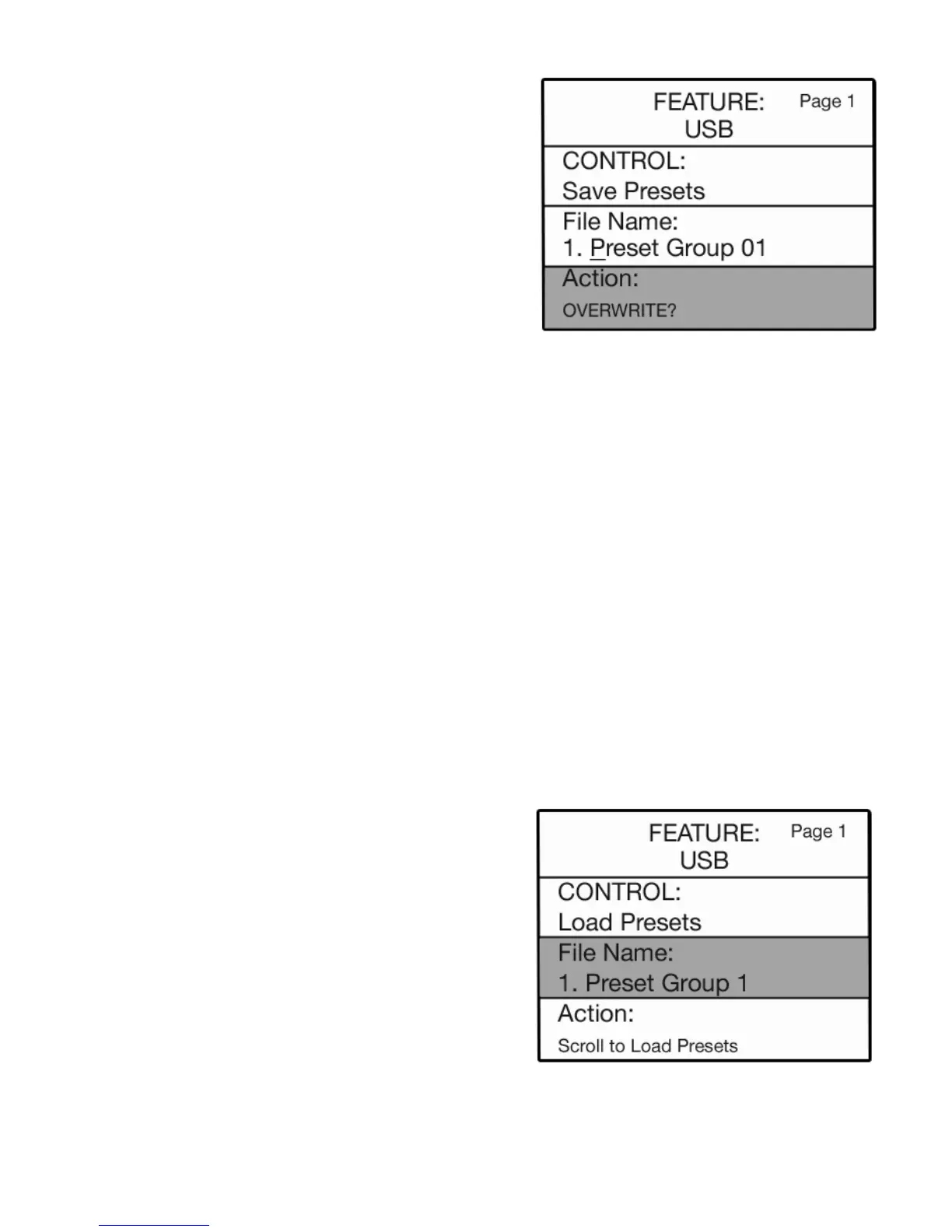
In the event you wish to replace (OVERWRITE) a group of
presets saved earlier, with a group you are now saving...
a. Use the
SCROLL buttons to display the name of the
presets you wish to replace in the FILE NAME section
of the screen (step 6).
b. Press the
SELECT button to highlight the ACTION
section of the screen (step 7).
c. Press either SCROLL button to save the presets.
The screen will display the message
OVERWRITE?.
d. When you wish to overwrite the previously saved
presets press either
SCROLL button. The screen will
confirm the presets were saved, as in step 8.



 To Next Page