DRIVING ENVIRONMENT
DRIVER INFORMATION DISPLAY
Stalk Controls
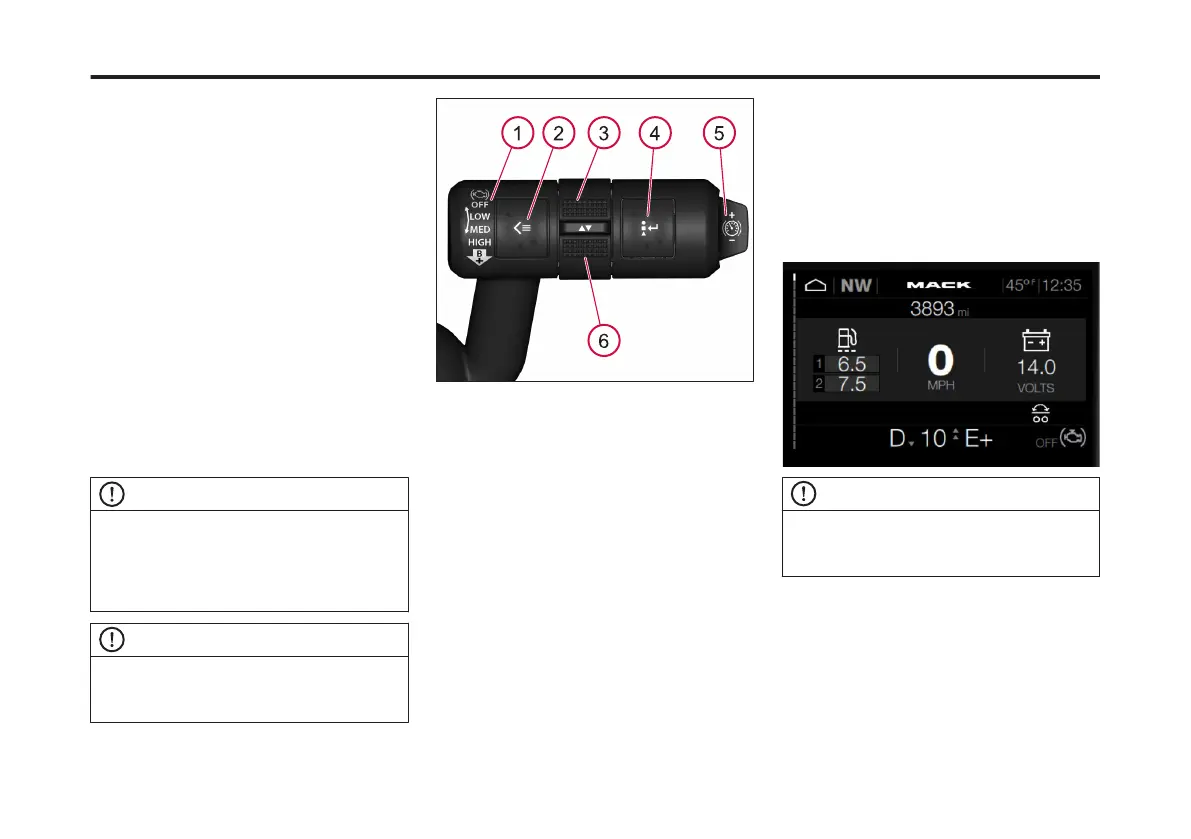
The stalk on the right-hand side of the
steering column is used to navigate
through the Driver Information Display
(DID). Two buttons and the toggle
section assist in browsing the DID
menus.
The buttons allow the user to perform
the following DID functions:
• Toggle
• Enter
• Open the Applications menu (various
sub-menus are included)
• Open the Options menus (various
sub-menus are included)
• Return to the Home screen
NOTE
To return to the Home screen, press and
hold the Home button. Release the button
once the Home screen displays. Or scroll
through the DID screens until the Home
screen displays.
NOTE
Also, included on the stalk are the engine
brake toggle and cruise control brake
button.
1 Engine Brake Toggle
2 Applications/Home Button
3 Toggle Up Position
4 Options/Enter Button
5 Cruise Control Brake Increase (+)/ Decrease
(-) Button
6 Toggle Down Position
DID Menus
There are two menu types available:
Applications and Options. Several sub-
menus are password-protected while
the vehicle is parked.
The following screen is an example of
the DID Home screen.
NOTE
Some menus known as Non-Driving
menus are accessible only when the
vehicle is parked.
Applications Menus
The Applications menu contains the
following sub-menus:
• Vehicle Info: This menu provides
standard vehicle information.
• Tire Monitor: This menu provides the
tire pressure and temperature for
each axle.
91
X Publication_PC28


 To Next Page