DRIVING ENVIRONMENT
DRIVER INFORMATION DISPLAY
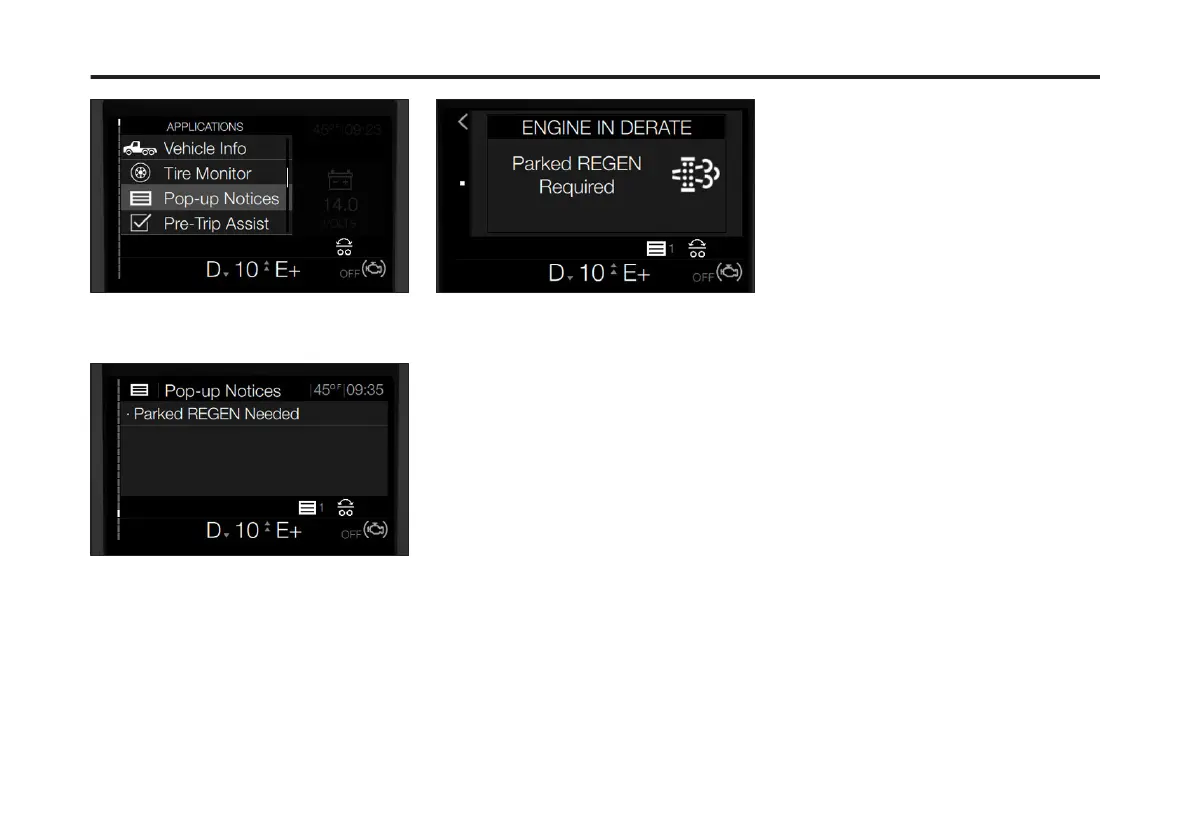
3 Press Enter.
The Pop-up Notices screen displays.
4 To open notications, using the Toggle
button, scroll down to the preferred
message.
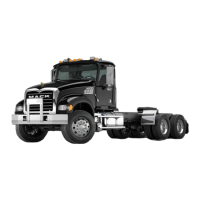
5 Press Enter.
The Notication screen displays.
Pre-Trip Assist
The Pre-Trip Assist sub-menu allows the
operator to perform basic pre-trip tests
via the Driver's Information Display
(DID). The following tests are available:
• Activate Exterior Light Inspection
Test: Allows the driver to perform
system controlled test of the
vehicle's lighting systems.
• Light Switch Test Check List: Allows
the driver to physically activate each
switch. If the switch operates
properly it is noted on the Switch
Test DID screen.
• Air Brake Leak-Down Test: Allows
the driver to check the air system for
leaks. Any leaks are noted on the
Leak-Down Test DID screen.
For the step by step procedure using the
Pre-Trip Assist via the DID refer to the
Pre-Trip Inspection and Daily
Maintenance chapter.
Truck Data
The Truck Data Driver Information
Display (DID) menu provides various
types of general information about a
vehicle. Included in the main sub-menus
are:
• Vehicle Diagnostics: This sub-menu
provides active fault details, a cluster
test option and the status of the
Telematics Gateway system. Within
each of these sub-menus are
additional menus that are specic to
vehicle diagnostics.
• Engine Oil Level: This sub-menu
provides a visual status of the engine
oil level.
• ACC (Adaptive Cruise Control)
Conguration: This sub-menu
provides visual markers for the
system's Following Distance Alerts
(FDA).
• General Info: This sub-menu
provides basic vehicle information
such as current location, Vehicle ID,
Fleet Info, etc.
• Life of Vehicle Totals: This sub-menu
provides the current vehicle totals
such as mileage, time in service, fuel
used, etc.
96
X Publication_PC28


 To Next Page