SECTION 14.2 “DEALER” SERVICE MODE
As mentioned in Section 14.1, the configuration settings can only be adjusted in “Dealer Service Mode”. The mode is
switched on by sending a command to the Printer:
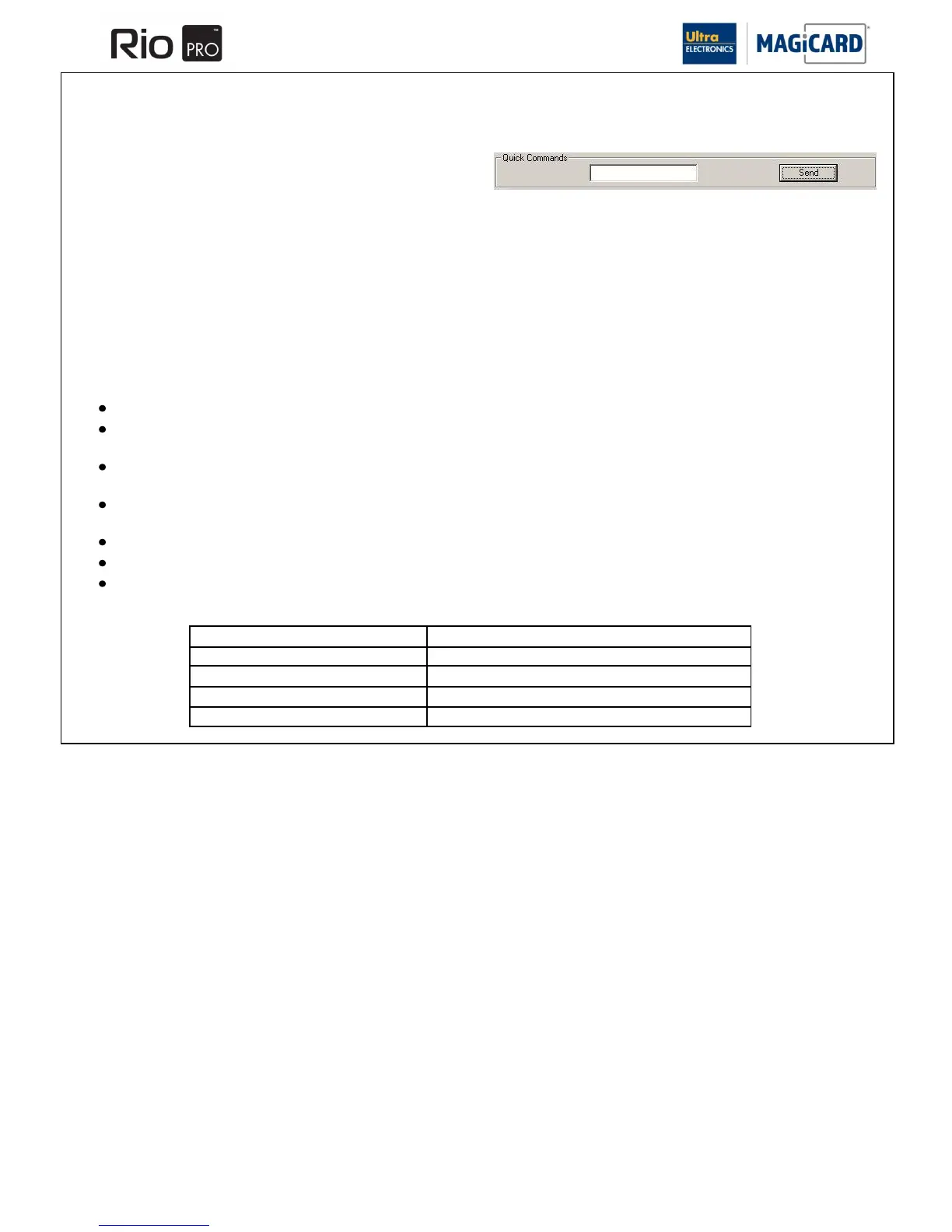
DEALERSERVICEON
The parameters can be adjusted (within defined limits) using the configuration settings in the „Printer Identity‟ Tab of the
Magicard Support Utility.
To activate “Dealer” Mode, enter DEALERSERVICEON as a quick command from the „Statistics/Commands‟ Tab. The LCD
backlight will change to yellow in response.
To deactivate “Dealer” mode, enter DEALERSERVICEOFF as a quick command (or re-boot the Printer). The LCD backlight
will change back to it‟s normal colour.
Description of “Dealer” Mode features:
After boot-up, the Printer is not in “Dealer” Mode and the image parameters cannot be modified.
After entering “Dealer” Mode, the LCD backlight becomes yellow. The image parameters may be modified within the
permitted limits (shown in the table below).
If the entered values are outside of the permitted limits, they will be reduced to the upper or lower limit, as
appropriate.
After leaving “Dealer” Mode, the LCD backlight returns to it‟s normal colour. The image parameters retain their
dealer-modified values and cannot be further modified.
After rebooting the Printer, the image parameters retain their Dealer-modified values.
If the Printer is placed into “Dealer” Mode and then re-booted, it will not boot up in “Dealer” Mode.
If the Printer receives a „Reset‟ command (from the „Reset‟ button on the „Printer Identity‟ tab), it will reload the
original factory settings.



 To Next Page