Scanner Views & Settings
F6 SMART™ – Volumetric Handheld Camera – User Guide
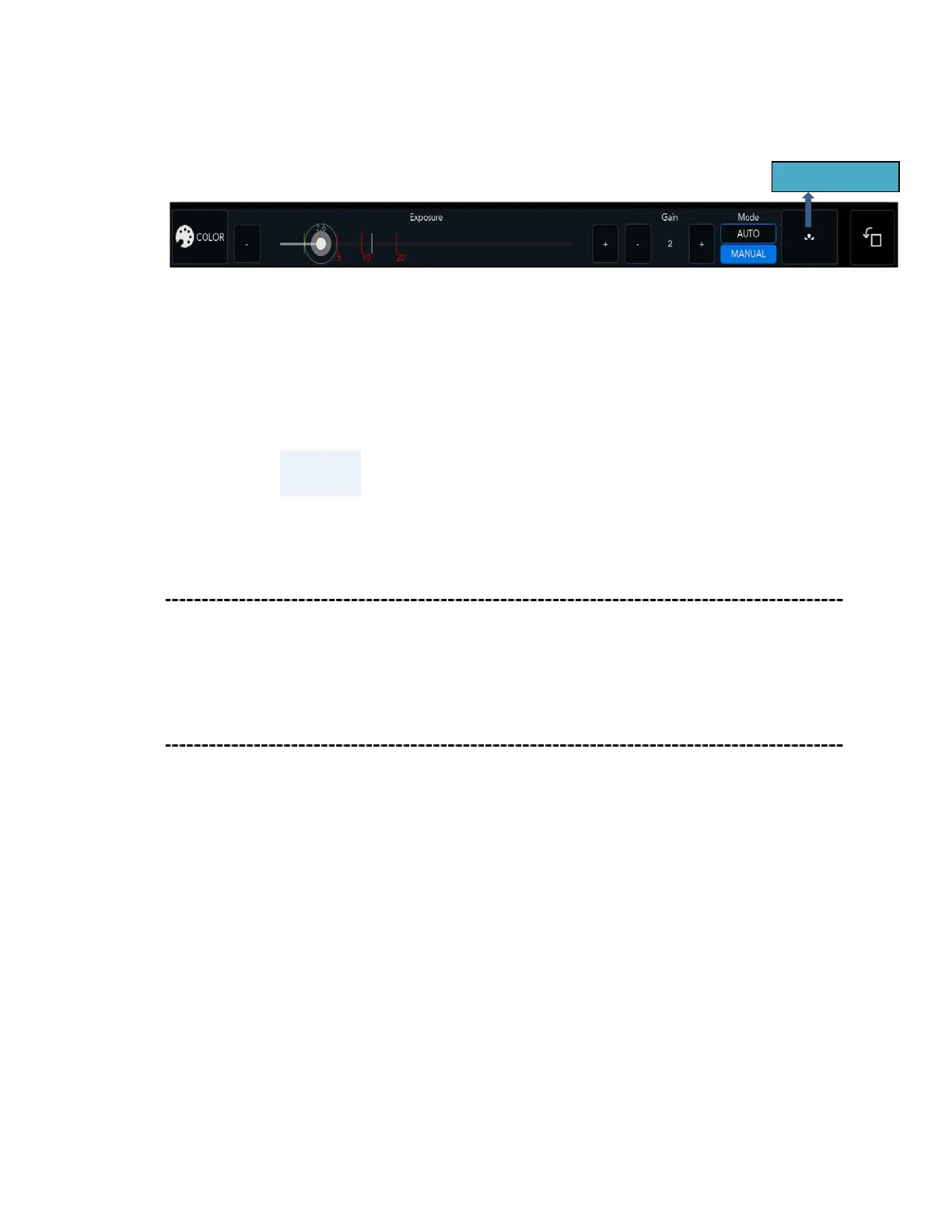
There are Manual and Auto settings for 2D Color. Use the Manual mode to adjust the
Exposure (the amount of light) and Gain (the amount of signal amplification).
To perform White Balance - the process of removing unrealistic color casts, so that
objects which appear white in person are rendered white in your photo - point the
scanner to a white wall or blank sheet of paper and click on the White Balance button.
This is especially important when working outdoors, as the scanner must consider the
"color temperature" of the light source, i.e. the relative warmth or coolness
of white light.
NOTE:
The color camera affects the quality of the mesh texture, not
of the data.
3D Single Frame View Mode
In the 3D camera mode, you will see the point cloud decoding of a single frame. F6 single
frame may contain approximately ~70,000 points with a field of diagonal view 80 °
3D+ Multi Frame View Mode
The 3D+ camera mode is used for online registration (real time model stitching), showing
the correct frame + all other frame which decoded during scanning.
We recommend remaining in this mode when performing and viewing scanning, this
mode will help you understand if your scene is still registered or broken for more
segments.
When losing registration 3D+ view will start new group of segmentation and frame
registration will start again.



 To Next Page