Installation of Echo™ Software
F6 SMART™ – Volumetric Handheld Camera – User Guide
10. If no action is taken (none of the Command-Buttons mentioned above is clicked
upon) during the last installation step (9), the procedure of installing the Echo™
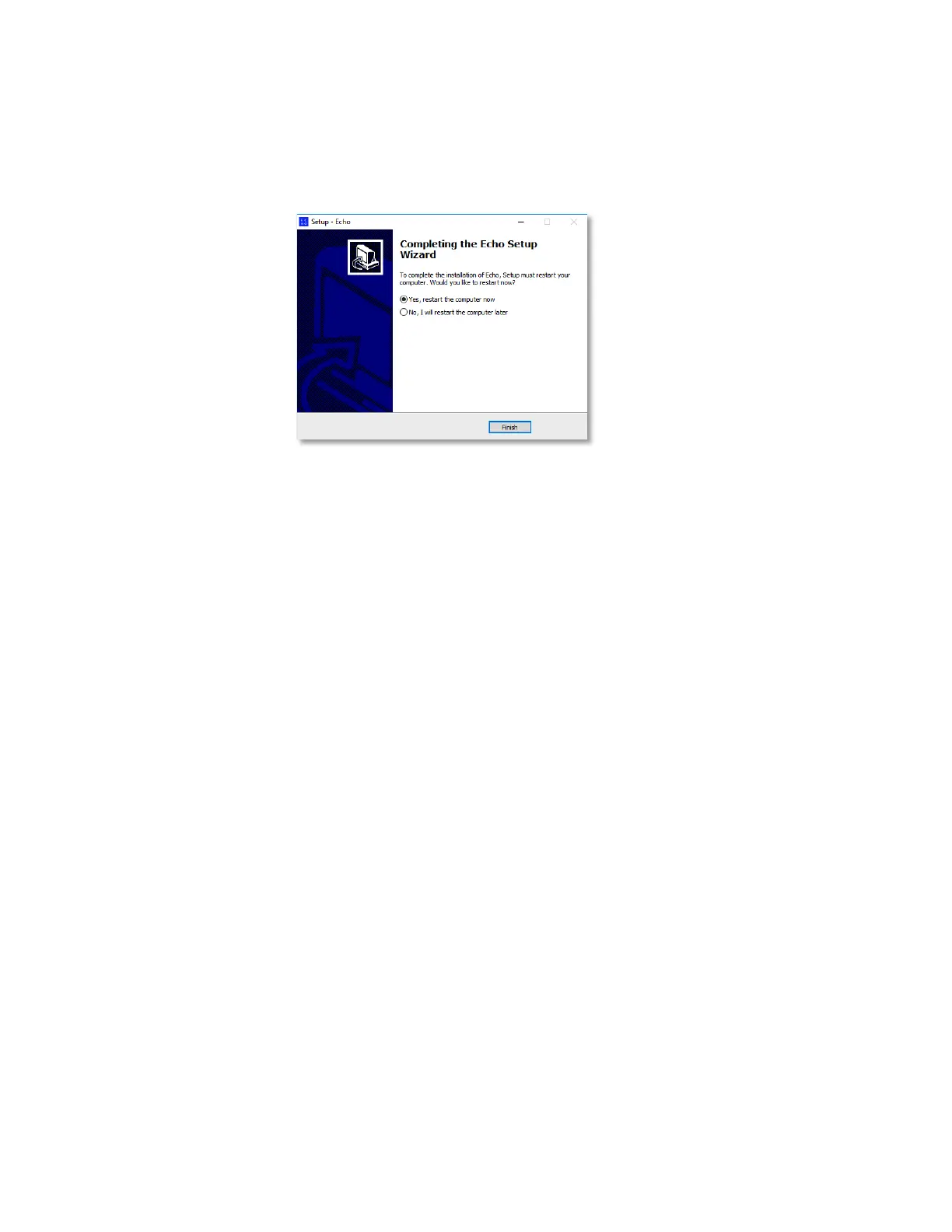
software ends up with the following “Completing the Echo Setup Wizard” Dialog-Box:
Figure 20 – The “Completing the Echo Setup Wizard” Dialog-Box
To conclude the installation of the Echo™ software, the workstation MUST be
restarted.
The decision whether to perform it straightaway or delay it for a later stage is left for
the installer by letting him mark one (1) of the two (2) following radio-buttons:
♦
Yes, restart the computer now
, or
♦
No, I will restart the computer later
.
Followed by a click on the
Finish
Command-Button.
Uninstalling the Echo™ Software
The procedure of uninstalling the Echo™ software is done in a similar way to the
uninstalling of any other Windows™ application program:
1. Click on the Control Panel Menu option from Windows’s Main Menu.
2. From the All Control Panel Items Window that opens, click on the Programs and
Features option.
3. Search for the Echo™ xxx (where xxx is the version number) line-item in the Programs
and Features window that opens and right-click on it with the mouse.
4. A roll-down menu opens. Click on the Uninstall option and follow the uninstall
procedure’s instructions provided therein.



 To Next Page