MicroHAWK Engine Integration Guide 1-33
Quick Start
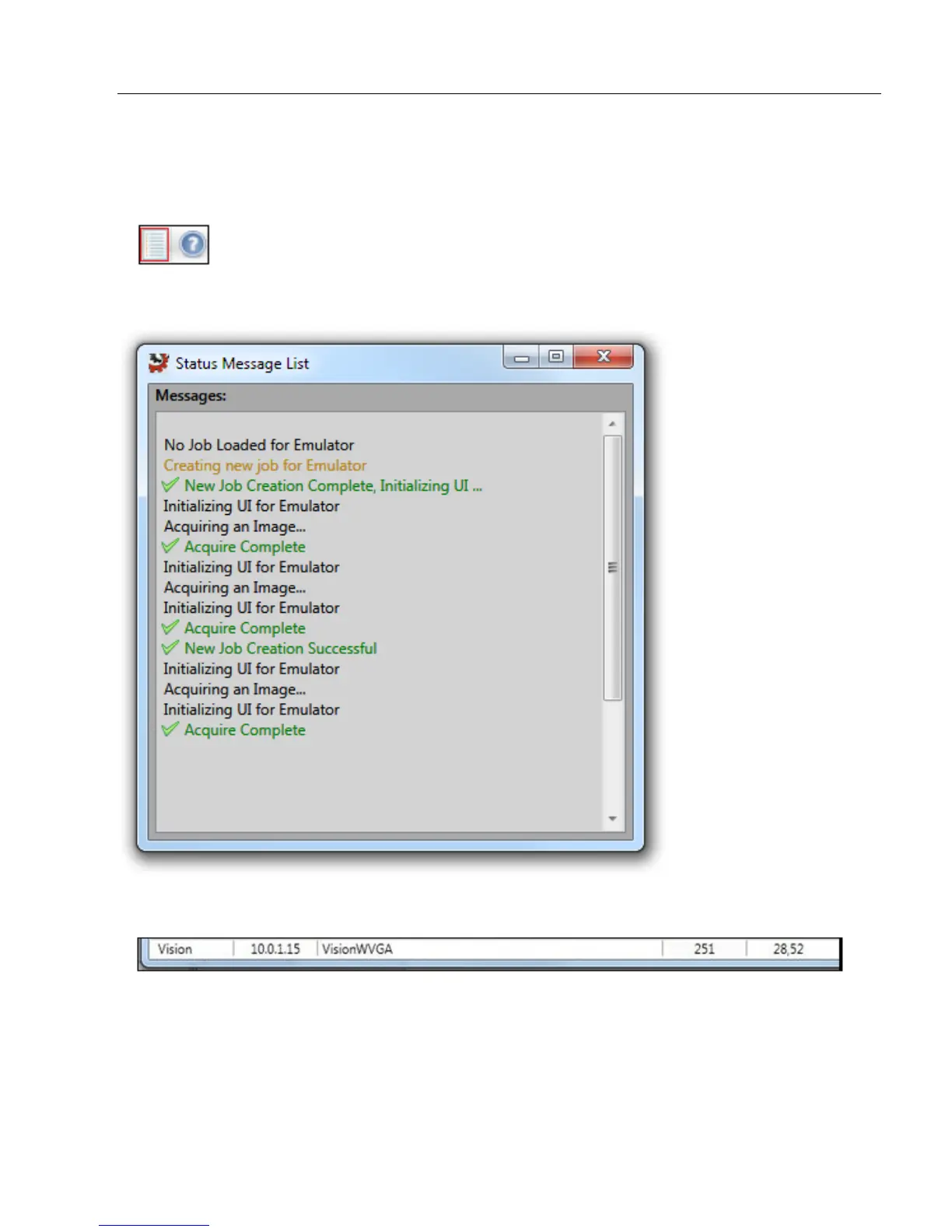
Status Message List
The Status Message List can be opened by clicking the Status Message List icon to the
left of the help icon in the upper right of the screen:
The Status Message List allows you to view a history of all status messages shown by
AutoVISION during the current session.
Status Bar
The status bar appears at the bottom of the main window and contains the following information:
• The currently selected device;
• Device IP address;
• The grayscale value under the cursor (when hovering over the image);
• The X,Y position of the cursor in pixel coordinates.




 To Next Page