1-34 MicroHAWK Engine Integration Guide
Save Configuration in ESP
AutoVISION Options
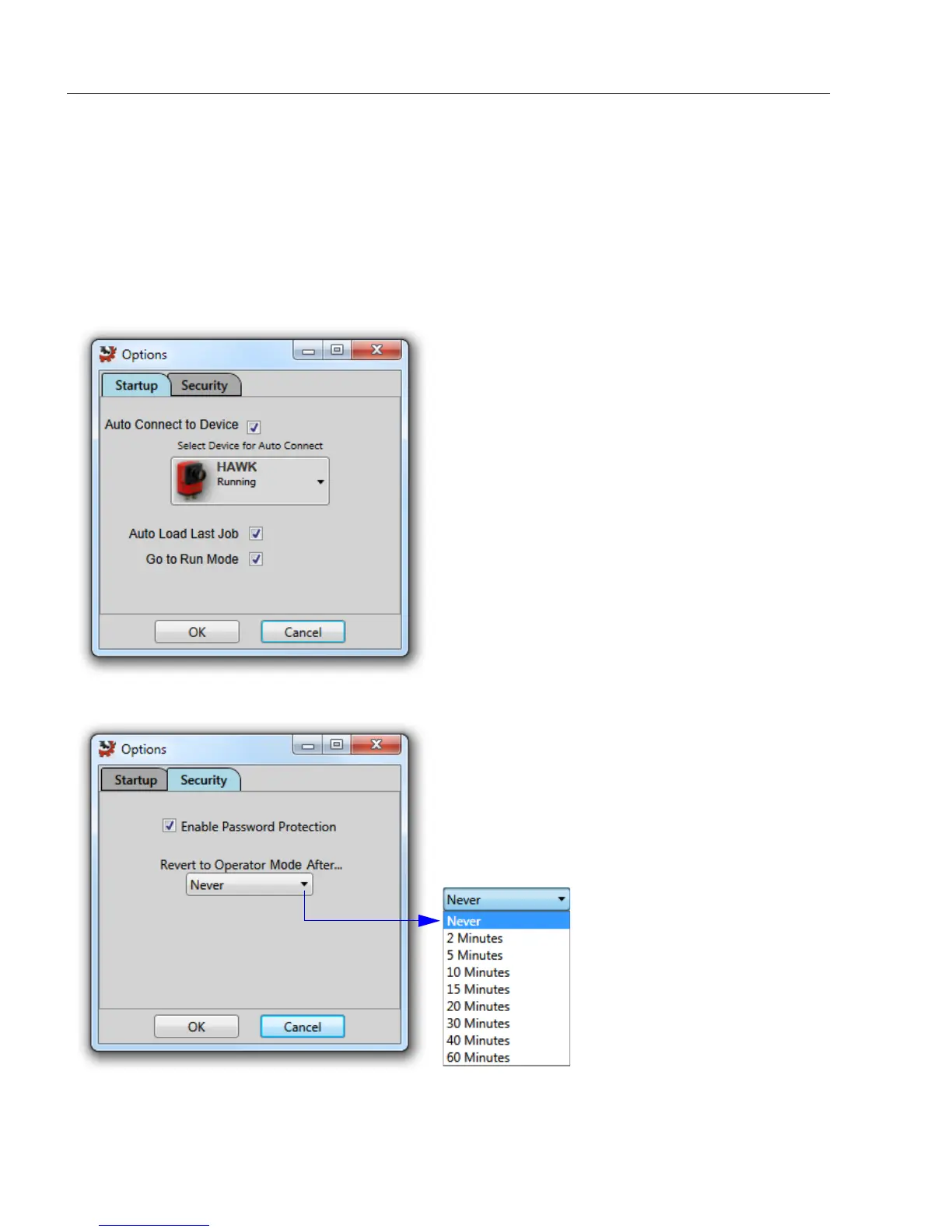
The AutoVISION Options dialog allows you to control AutoVISION's startup behavior and
security settings. On the Startup tab, you can set the software to Auto Connect to a
smart camera that you select from the
dropdown menu, to Auto Load the most recent job,
and to go directly to Run mode at startup. You can also password protect the user interface
from the
Security
tab.
Startup
Security
Auto Connect to Device: When this option
is selected, AutoVISION will connect to the
current device automatically the next time
the software is opened.
Auto Load Last Job: When this option is
selected, AutoVISION will automatically
load the most recent job the next time the
software is opened.
Go to Run Mode: When this option is
selected, AutoVISION will skip the Connect,
Image, and Edit steps and open in Run mode.
Enable Password Protection: Password
protection is disabled by default. Selecting this
option imposes four separate AutoVISION
access levels: Operator, Supervisor, Engineer,
and Administrator. Passwords can only be
changed by an Administrator, and only an
Administrator can return to the Security tab.
Revert to Operator Mode
After...: When password
protection
is enabled, you
can use this dropdown menu
to specify a period of inactivity
after which AutoVISION will
revert to Operator mode,
which limits access to the
Run view.




 To Next Page