288
Setting Inspection Conditions
3.
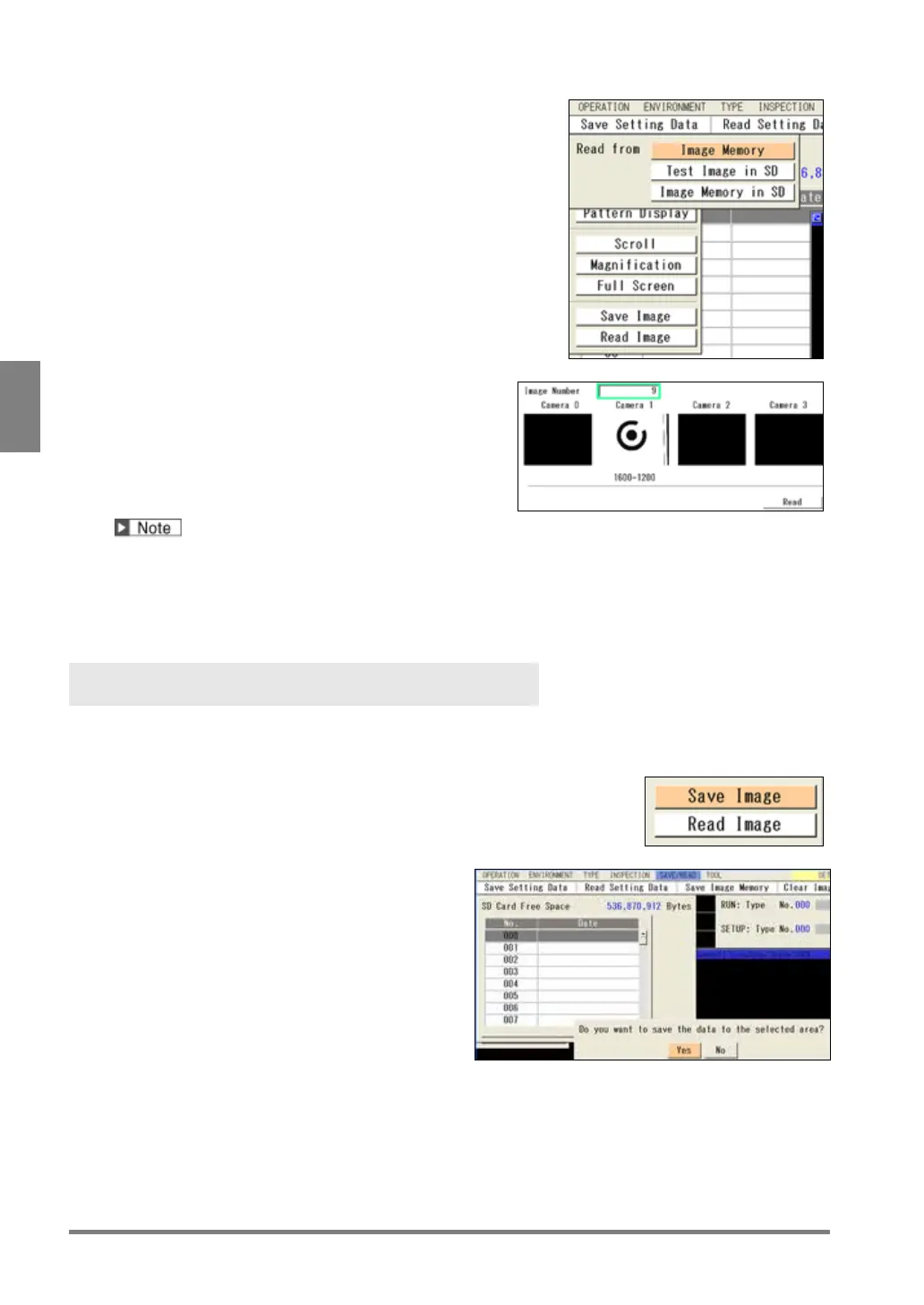
Specify a reading source.
When you specify “Image Memory in SD”, then specify a
folder number.
4.
Select an image number to read.
As the lastly saved image* appears, change image
numbers observing the display and specify the desired
image number.
(*) The larger image number is the more newly saved
image. The smaller image number indicates the older
image.
5.
Select “Read”.
The specified image is called up.
In the following case, a message "Reading image failed." appears, and images cannot be read.
- In the test images saved in the selected image number, there is an image of the camera number that
has been set to "Unused" for "Camera Type" under "Camera" in PV500.
Example) In the above example, there are the images of camera 0 and camera 2 in Image number 1.
If either camera 0 or camera 2 has been set to "Unused", reading the images cannot be performed.
Saving Images in Test Image Memory to SD Memory
Card
The images in the Test image memory can be saved in a SD memory card.
This operation is useful to pick up necessary images among the images saved in the Save image memory of
PV500 and to save them.
1.
Press the F1 key to display Image menu.
2.
Select “Save Image”.
The window to specify a saved image number in
the SD memory card appears.
3.
Specify the destination number.
The confirmation message appears.
4.
Select “Yes”.
After the saving is complete successfully, a
message appears. Press the ENTER key to close.


 To Next Page