46
3
3.2.3 Zooming In/out Image (Image Menu)
Displayed camera image can be zoomed in/out. In RUN menu, you can change the size and position of the
screen.
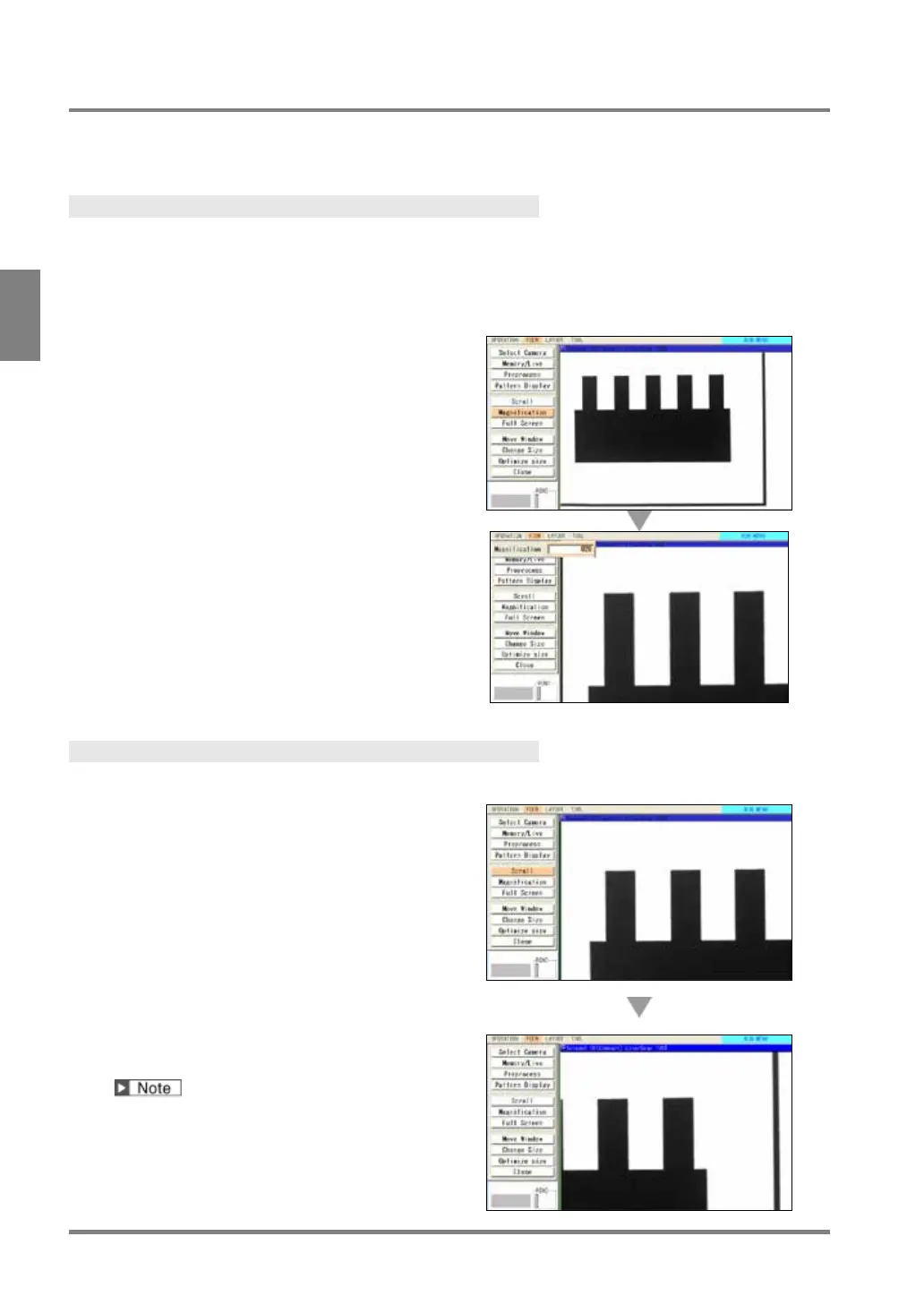
Specifying Magnification (Zoom In/out)
You can change Magnification between 2% and 400% by 1%.
Magnification 100% indicates the status displayed in the following size.
• When using Quad-speed / Ultra Compact Camera: 640 x 480 pixels
• When using 2-Mega-pixel Camera: 1600 x 1200 pixels
1.
Select “Magnification” from Image menu.
The screen of magnification setting is displayed.
2.
Tilt the ENTER key up/down to change the
magnification and then press the ENTER key.
Pressing the ENTER key displays the image in
the specified magnification.
To change the magnification again, press the
ENTER key.
3.
After setting is completed, press the
CANCEL key.
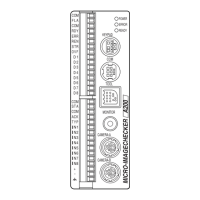
Scrolling
When displaying a zoomed in image, only a part of image can be shown. To show the nondisplayed part, use
the scroll function.
1.
Select "Scroll".
The SHIFT key is activated.
2.
Tilt the ENTER key to scroll the image.
The position of the current image in the whole
image is displayed in the upper screen. Use it to
make the setting.
Pressing the SHIFT key while you operate
makes the scrolling speed faster.
3.
After displaying a desired image, press the
ENTER key.


 To Next Page