96
Setting Inspection Conditions
4.7.3 Moving Checkers in Group
When you want to move the checker areas after creating checkers, you can move the areas of checkers set for
each camera by checker types or setting value of Position Adjustment.
This function is helpful to move several checkers or to move them keeping the positions between them.
1.
Select “INSPECTION” > "Group Move".
2.
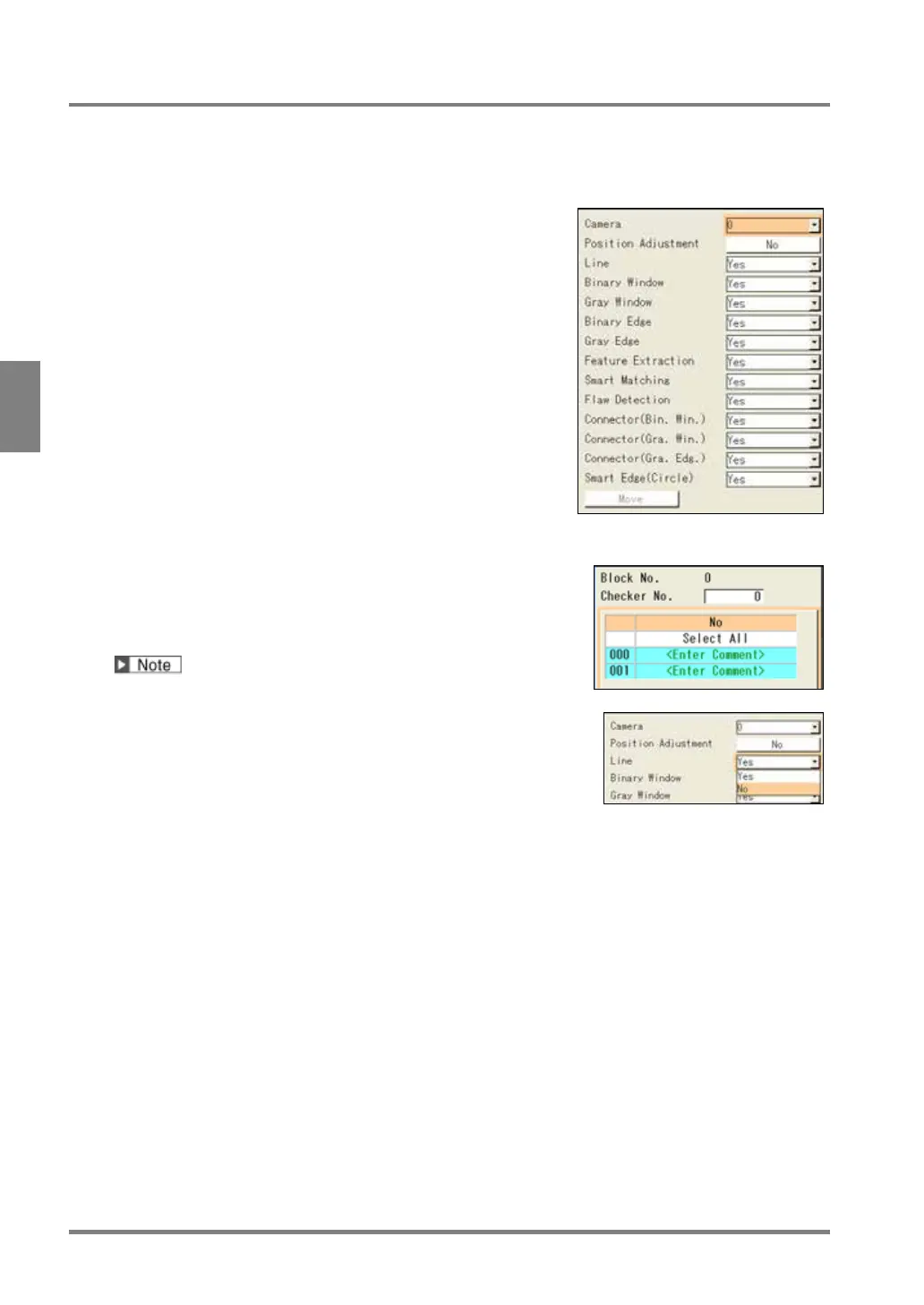
Specify a camera No. used by the checkers you want to
move in [Camera].
3.
Specify conditions of checkers to move in "Position
Adjustment".
No:
To move the checkers that select "No" for Position Adjustment
in the checker setting window.
Select All:
To move all checkers regardless of the settings of Position
Adjustment in the checker setting window.
Select Position Adjustment No.:
Select a Position Adjustment which is already set.
To move the checkers that select the same Position
Adjustment No. in the checker setting window.
4.
Set the checker to exclude from group move to [No].
Unset checkers are not needed to be set to [No].
As a result of the above setting, if there is no checker to be
moved, the "Move" button is shown in gray and cannot be
selected.
5.
Press [Move] button to move the areas.
After moving them, press the ENTER key to fix the position.
Pressing the CANCEL key cancels group move.
Now you have completed group move.



 To Next Page