37
3.1.2 SETUP Menu and RUN Menu
About windows
PV500 has two windows; RUN menu for performing inspections and SETUP menu for making settings such as
inspection conditions.
When power is turned on, RUN menu is displayed. To make a configuration, switch to SETUP menu with
Ope/Set Switch of the keypad. As a default setting, switching to SETUP menu stops operation. You can change
the setting to operate in SETUP menu as well.
RUN menu
In RUN menu, you can change its layout (type, size and position of displayed windows). Also, you can choose
the colors of each area of display (common to SETUP menu).
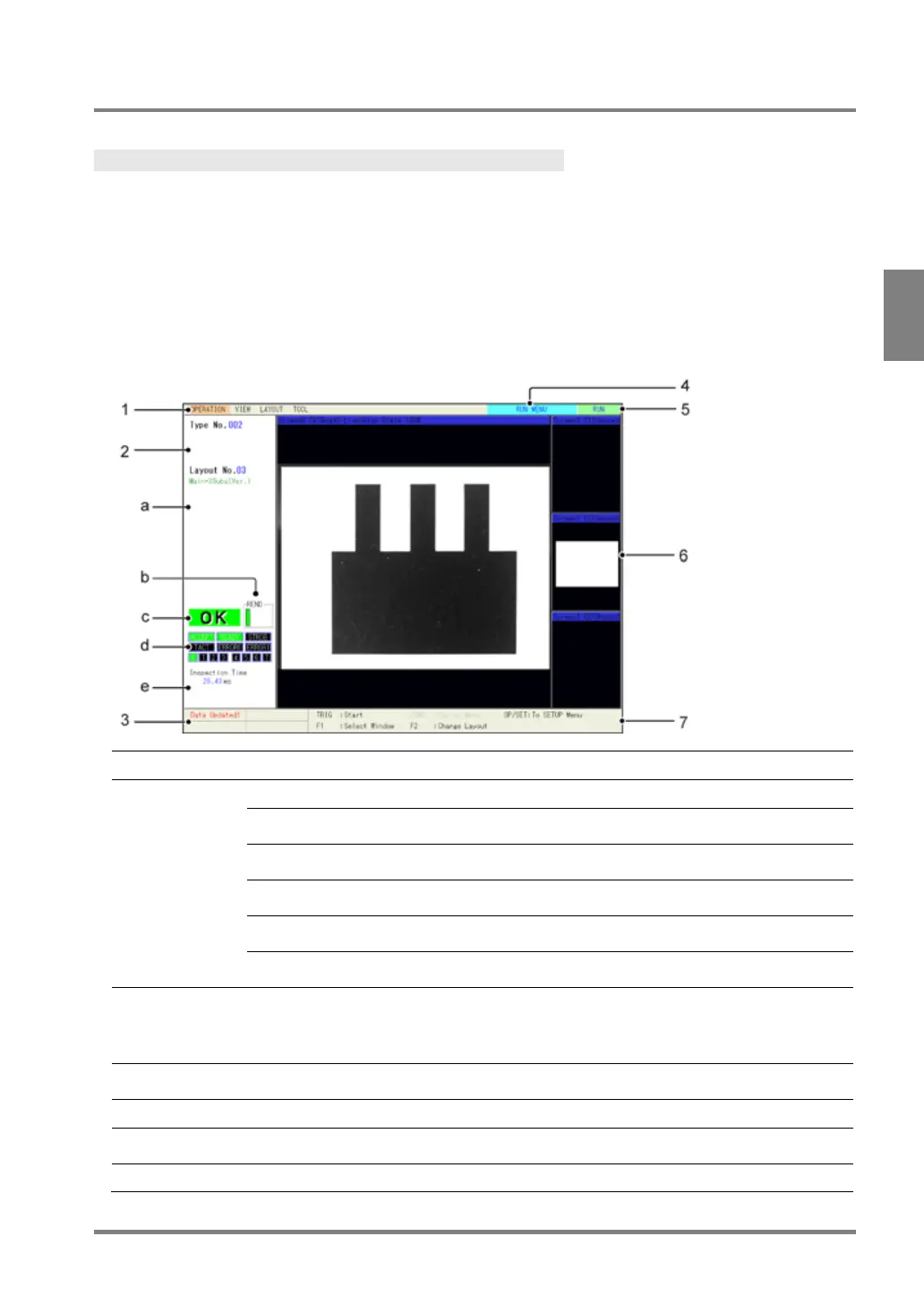
Displays the menu to set in RUN menu.
Displays the current type, display pattern and the status of the
PV500.
Displays the status of READ END (REND) signal.
ON: Green, OFF: Black
Displays the result of judgement formula registered as Total
Judgement.
Displays the status of OUT 0 - 7.
ON: Green, OFF: Black
Displays inspection time and cycle in ms unit.
(For details of each time, see page 313.)
Displays the message to inform.
Example)
• The setting was updated.
• The voltage of the attached battery became lower.
Displays "RUN MENU".
(Indicates the current window is RUN menu.)
Displays the status operating (RUN) or pausing (STOP).
This is a window to display an image. In addition, a data R/W window which shows data
can be displayed in the area.
Displays the operations of each key on the keypad.


 To Next Page