51
Setting a Mask Area
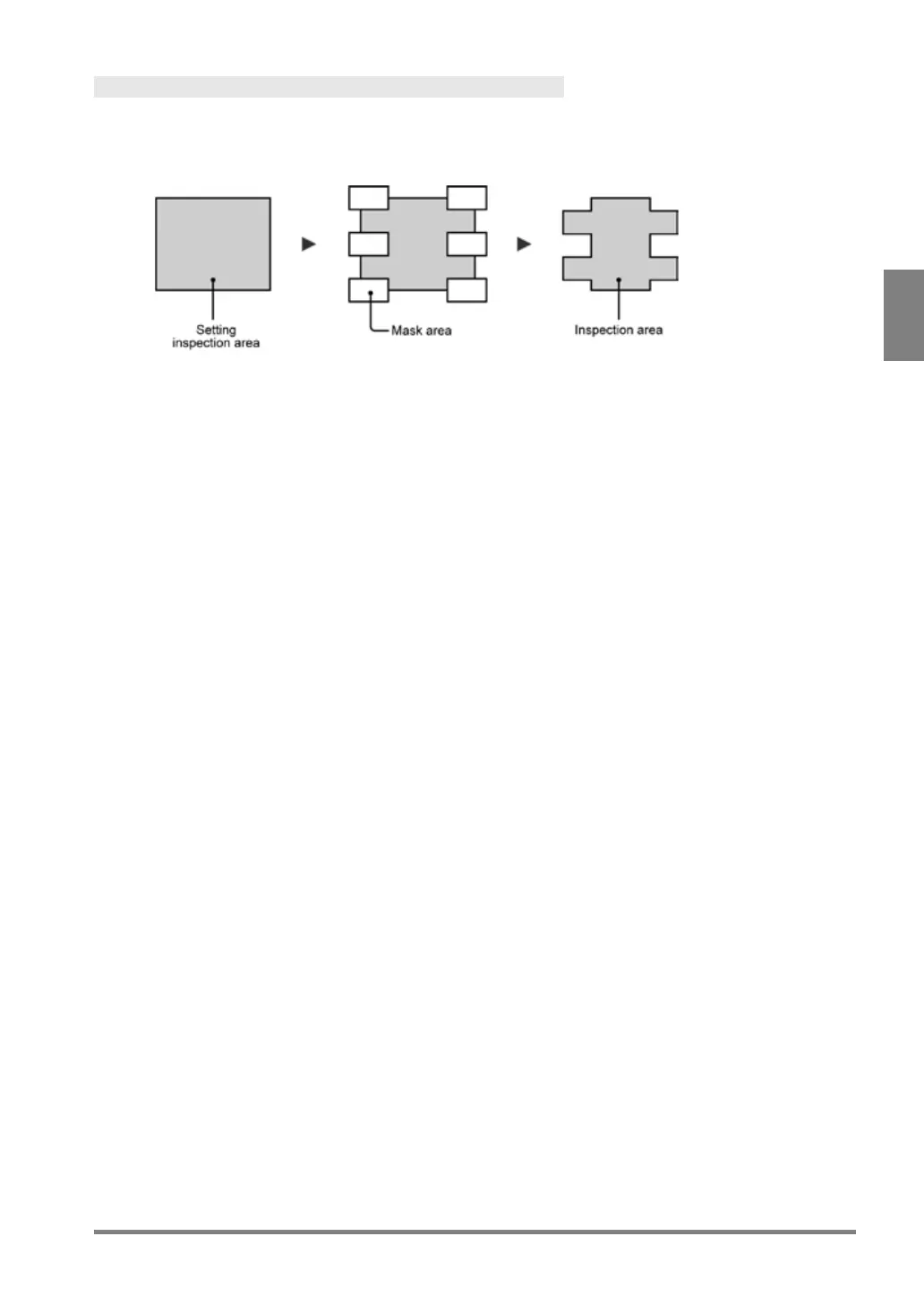
Up to 16 mask areas, where checker does no inspection, can be set in an inspection area. (Some checkers
cannot set a mask area. For details, see the descriptions of each checker.)
Setting a Mask Area
Inside mask area is
excluded from inspection.
Adding a Mask Area
1.
Select "Add Mask" in “Area Setting”.
2.
Select a mask shape to add.
3.
Select "Change".
The inspection area is displayed in orange.
4.
Tilt the ENTER key upward/downward to display the area in orange.
5.
Draw a Mask Area
For details, refer to page 47, “Drawing an Inspection Area”.
6.
After drawing is completed, press the CANCEL key.
Editing a Mask Area
1.
Select “Change” in “Area Setting” window.
The inspection area is displayed in orange.
2.
Tilt the ENTER key upward/downward to display the area in orange and press the ENTER key.
3.
Edit a Mask Area.
For details, refer to page 47 “Drawing an Inspection Area”.
4.
After drawing is completed, press the CANCEL key.
Deleting a Mask Area
1.
Select "Delete Mask" in “Area Setting”.
The mask area is displayed in orange.
2.
Tilt the ENTER key upward/downward to display the area to delete in orange.
3.
Press the ENTER key.
The mask area will be deleted. To delete plural mask areas, repeat this operation.


 To Next Page